Showing posts with label Salesforce1. Show all posts

Monday, 7 November 2016

Lightning Component Actions with Signature Capture

Lightning Component Actions with Signature Capture

Screen Shot 2016 11 07 at 18 36 19

Introduction

As some readers of this blog may be aware, a year or so ago I wrote a Lightning Component for the Component Exchange that was soon to be launched at Dreamforce. The component is called Signature Capture and unsurprisingly allows a user to capture a signature image and attach it to a Salesforce record. Up until the Winter 17 release of Salesforce, the only way to associate this with a record declaratively was to use the Lightning App Builder to include it in a custom record home page. This works fine but is a slightly odd user experience, as the component is always present even after the user has captured the signature. This all changed once Winter 17 was live thanks to Lightning Component Actions.

Lightning Component Actions

As the name suggests, Lightning Component Actions are custom actions that invoke a lightning component. Many lightning components are called, but few are chosen for custom actions. Specifically those that implement one of two interfaces:

  • force:LightningQuickAction
  • force:LightningQuickActionWithoutHeader

The difference being that if you implement force:LightningQuickActionWithoutHeader the entire user interface is down to you.

You can use Lightning Component Actions in Salesforce1 and the Lightning Experience.

SignatureCaptureAction

The latest version of Signature Capture package contains a simple component that implements the force:LightningQuickAction interface and includes the Signature Capture component itself. To create a quick action that uses this is a matter of a few clicks. 

Setting Up

First choose which sObject type you want to associate the quick action with - in the screenshots below I’m using account.

Navigate to the Buttons, Links, and Actions section of the setup for the sObject and choose New Action. Select ‘Lightning Component’ as the action type and ‘BGSIGCAP:SignatureCaptureAction' as the Lightning Component. I find that a height of 500px works best, but your mileage may vary. Then enter a Label and Name and click the Save button:

Screen Shot 2016 11 07 at 18 14 31

Once the quick action is defined, it must be added to the page layout in the Salesforce1 and Lightning Experience Actions section (if you haven’t added any quick actions to this section before you’ll need to override the default via the link provided):

Screen Shot 2016 11 07 at 18 24 09

Take it for a Spin

After setup is complete, navigate to any account record in the Lightning Experience and you will see the quick action in the set of buttons on the top right:

Screen Shot 2016 11 07 at 18 26 04

Clicking the button opens the action in its own dialog, allowing a signature to be drawn via mouse, trackpad etc:

Screen Shot 2016 11 07 at 18 27 45

To my mind this is a much better user experience, as the component only appears on demand, so there is no confusion around a component that is always present. The slight downside is that once the signature has been captured the user still has to close the dialog via the standard Cancel button, but that’s a minor drawback to my mind.

Mobility Included

Adding the quick action to the page layout also makes it available to the Salesforce1 application on mobile devices. A word of warning around this - the locker service currently doesn’t surface touch events to a component, so if you enable the locker service the Signature Capture component won’t work on tablets or phones.

Repo Man

The Signature Capture component has its own github repo with sample apps (or app at the time of writing!). This is also where feature requests are tracked, so if there’s anything you’d like to see added, let me know and I’ll see if it can be accommodated. Just to set expectation, this is something that I work on mainly in my spare time (I’m currently on vacation, hence having time for this post) so I may take a while to respond.

Related Posts


Friday, 14 October 2016

Visualforce Development Cookbook Second Edition

Visualforce Development Cookbook Second Edition

8086cov

Introduction

As regular readers of this blog will know, I wrote a book three years ago - the Visualforce Development Cookbook - and I really haven't stopped banging on about it since. Well things just got worse as I finished the second edition in ?September? and I'm obviously keen to shift as many copies as possible!

What’s a Second Edition?

A second edition isn't a new book. Instead it's an iteration on the previous version, minus content that is no longer relevant and including new features, so the first job is to identify what should be cut and what should be added.

One of the nice things about working on Salesforceis that over time new features are added that remove the need for custom code, so I was able to chop a few recipes out that are now handled natively by the platform. The next job is to update all existing code to the latest API version - something that typically happens several times as Salesforce produces releases faster than I can write a book (even a second edition!). 

Then its back to the writing - for existing recipes making sure that the text is still appropriate and creating new recipes from scratch. This was pretty compressed this time around, as Packt proposed a pretty aggressive timescale to complete before Dreamforce which I was more than happy to sign up to, as I knew that would take up all of my time through to mid-October. I wouldn't recommend this if you don't have some vacation time you can dedicate to writing though, as it would have been pretty tough to complete with only evenings and weekends available.

What’s changed?

The main changes in the second edition are:

  • The chapter on Force.com sites has been reworked to use the Salesforce Lightning Design System
  • The chapter on jQueryMobile has been replaced with Salesforce1 recipes.
  • A new chapter on Troubleshooting has been added, covering debugging, managing the view state and advice on avoiding common problems.
  • All the retained recipes have been revised as appropriate.

You want me to buy it again?

Now I’m not like the music industry that expects you to buy the same  music every time they think up a different format, and I can understand that for someone who already purchased the first edition, this might not represent enough of a change to justify buying the second edition (although it was for Fabrice Cathala, who is clearly going for the full set - thanks Fabrice!).

I raised this with the publishers and they gave me a couple of discount codes to use, both valid until 17th October, which you can use on the Packt website:

  • Use code VISDSE50 for 50% off the Ebook
  • Use code VISDSE15 for 15% off the print book

Note that you don't need to have purchased the first edition to use these codes, you can simply use them to scoop up a bargain.

Show me the code!

For those who just need the code and no explanation, its available free of charge on github at:

 https://github.com/PacktPublishing/Visualforce-Development-Cookbook-2e

A word of advice though - best not come to me asking for help around adapting the recipes or producing unit tests if you've decided not to purchase the book - that would be asking me to cannibalize my own sales!

Related Posts


Saturday, 28 November 2015

Context is Everything

Context is Everything

Context title

You Are in a Maze of Twisty Passages, All Alike

When building applications around Lightning components on the Salesforce platform, there comes a time when you need to know where you are - in Salesforce1 or the Lightning Experience for example. Winter 16 upped the ante by allowing Lightning components to be embedded in Visualforce pages. I was expecting there to be a mechanism to get at this information via the Lightning component framework, but unfortunately that turned out not to be the case, so I had to spend some time investigating.

Desperately Seeking Context

My problem was how to figure out from inside a Lightning component whether I was executing in:

  • Salesforce1
  • Lightning Experience (LightingX)
  • Visualforce inside Salesforce1/LightningX
  • Visualforce in Salesforce Classic

Lightning Detector

Looking through the docs, there are a couple of events that are only available to components executing in Salesforce1/LightingX:

  • force:showToast
    This displays a message in a popup (or really a popdown, as it appears under the header at the top of the view)
  • force:navigateToURL
    This allows navigation to a URL from a lightning component

The docs state that it these methods are only available in Salesforce1, but as far as I’ve been able to tell, LightningX is pretty much Salesforce1 for the desktop. 

In my JavaScript controller or helper, I can attempt to instantiate the event and based on the success or failure, deduce whether I am in the Lightning context: 

isLightning: function() {
    return $A.get("e.force:showToast");
}

Mobilize

The availability of the above events tells my component if it is executing in Lightning, but not which of Salesforce1 / LightningX is the container. The only way I’ve found to reliably detect this is to use the blunt instrument that is the user agent, 

I’ve tested on an iPhone, iPad and Android phone, both for the HTML5 and installed application versions of Salesforce1, and the user agent string always contains the word ‘mobile’. However, when I am running LightningX on the desktop, this is not the case.

Note that this is by no means exhaustive testing, so if you are considering using this technique make sure to verify this behaviour on your target devices.

The controller/helper can detect mobile based on the presence or absence of mobile in the user agent as follows: 

isMobile: function() {
    var userAgent=window.navigator.userAgent.toLowerCase();
    return (-1!=userAgent.indexOf('mobile'));
}

Visualforce

I’ve found that this scenario causes the most confusion, as the assumption is that as code from a lightning component is executing, the context must somehow switch to Lightning while that is happening. A better way to think about this is in terms of the container. In Salesforce1 and LightningX, the containing application is built with Lightning components, whereas when a Lightning component is embedded in a Visualforce page, the page is the container.

The ability to detect if a Visualforce page is embedded in a Salesforce1 application has been around for a while now, and it is equally applicable to LightningX - check if the sforce and sforce.one objects are present. I can detect this in my controller/helper as follows:

hasSforceOne : function() {
    var sf;
    try {
        sf=(sforce && sforce.one);
    }
    catch (exc) {
        sf=false;
    }
     
    return sf;
}

Putting it all Together

Going back to my list of scenarios, from my lightning component I can detect each of these using the functions defined earlier  as follows:

  • Salesforce1

        isLightning() && isMobile()
     
  • Lightning Experience (LightingX)

        isLightning() && (!isMobile())
     
  • Visualforce inside Salesforce1/LightningX

        (!isLightning()) && hasSforceOne()
     
  • Visualforce in Salesforce Classic

        (!isLightning()) && (!hasSforceOne())

The Future

While these mechanisms are the best I’ve been able to do with the available tools, Salesforce will probably add something to the Lightning component framework that makes them redundant. When this happens, if you’ve kept the functionality in the methods I’ve shared above, you can simply update these to delegate to the framework rather than figuring it out for themselves. 

Related Posts


Sunday, 1 November 2015

Reading QR Codes in Salesforce1 Revisited

Reading QR Codes in Salesforce1 Revisited

Overview

Back in 2014 I wrote a blot post around reading QR codes in the Salesforce1 application to automatically navigate to a record. At the time, Salesforce1 did not have a custom URL scheme to allow it to be easily opened from an external application. That all changed at the beginning of 2015 with the launch of the Salesforce1 Mobile URL Schemes.

With a custom URL scheme, there’s no longer any need to process a picture of the QR code in the Salesforce1 application. This improves the user experience for a couple of reasons:

  • The original process of take a picture, see if it looks good enough and then try to process it can be time consuming. 
  • Even with what appears to be a good picture, I’ve always found the processing to be quite slow and rather hit and miss.

A dedicated QR scanner application is much less picky about the picture quality and typically processes the code in under a second, so this seems to be the obvious way to go.

Scanners and Custom URL Schemes - Will They Ever Get Along?

Unfortunately, many scanner applications don’t handle custom URL schemes and when they see a URL that doesn’t start with http/https, throw an error.  One way to work around this is to use a URL shortener - TinyURL, for example will convert a URL with a custom scheme to one with an http scheme. This isn’t a great solution though, as I’d need to integrate with the URL shortener when generating my QR code and it introduces an additional HTTP request to the shortening service. When you are working in mobile world, the last thing that you want is to introduce additional requests!

Luckily, some scanner applications do support custom URL schemes - I used Scan when preparing this post.

Generating a QR Code

There are a few ways to generate a QR code. In the past I’ve used the Google Infographics service, but that has been deprecated for over three and a half years now so is highly likely to stop working. The most popular replacement for this is GoQR.me, which works in much the same way, generating a QR code via an HTML image element. 

The URL that the code represents needs to follow the Salesforce1 custom URL scheme to navigate to a record’s view page:

salesforce1://sObject/<id>/view

I’ve created a simple Visualforce page to generate the QR code for an Account record.

<apex:page standardController="Account">
  <apex:pageBlock title="QR Code">
    <p style="padding-bottom: 10px">
       Scan the code below on your mobile device to open the account record in Salesforce1
    </p>
    <apex:image
          value="https://api.qrserver.com/v1/create-qr-code/?size=150x150&data={!URLENCODE('salesforce1://sObject/' + Account.Id + '/view')}" />
  </apex:pageBlock>
</apex:page>

 Navigating to this page with the ID of an existing account renders the following page:

Screen Shot 2015 11 01 at 08 08 22

Scanning the Code

Scanning this with a QR code scanner application that supports custom URL schemes navigates to the record view, as shown the video below. Note that I need to be logged into the organisation that the record belongs to in order to view it.

This video shows how much better using a dedicated scanner app is versus taking a picture and processing it - as long as I’m pointing the camera in the direction of the QR code, the app barely has time to start up before it has locked onto the code and is processing it.

Related Posts


Friday, 12 September 2014

Slick Salesforce1 Messages with Alertify

[As I was checking my references and links etc for this post, Fabien updated the home page to indicate that he will no longer be maintaining alertify. I'll continue to use it as it does everything I need and (so far) I haven't encountered any problems with it. Thanks for everything you’ve done Fabien - its a great tool]

In a few of my recent posts around Salesforce1, I’ve made use of the alertify JavaScript library by Fabien Doiron to display animated success/failure/info messages to users. This is such a useful library I’ve decided its worthy of a post and example page all of its own.

While regular Visualforce page messages are a great way to communicate information to the user, when you move to Visualforce remoting in order to provide a more reactive user interface in the Salesforce1 mobile application, a different mechanism needs to be found.  Regular JavaScript alerts can be used, but these are somewhat old-fashioned and provide a less than app-like experience.

Alertify provides styling and animation via a small amount of JavaScript and CSS. The minified library weighs in at a svelte 8Kb, plus an additional 7-8Kb for the CSS, depending on which theme is chosen. I won’t go into full details of alertify, in terms of configuration/options etc, as there is plenty of information and live examples on the home page

In order to use alertify, download the zip from the home page and upload this as a static resource - I always include the version in the zip file name so that I can serve multiple versions from the same Salesforce instance:

Screen Shot 2014 09 12 at 08 31 06

In order to demonstrate alertify, I’ve put together a simple ‘Check In’ Visualforce page for use as a custom publisher action - this captures the user’s current location and any details they care to add, creates a custom Check In record and posts this to the user’s chatter feed.  As always when I build Salesforce1 publisher actions, I’m using the Bootstrap frameworkalertfy, which I’ve also uploaded as a static resource:


alertify provides a bootstrap theme, so the alerts will match the bootstrap standard colours for warning/info messages etc. To use alertify in my Visuaforce page, I simply include the JavaScript and CSS: 

 
<apex:stylesheet value="{!URLFOR($Resource.alertify,
      'alertify.js-0.3.11/themes/alertify.core.css')}"/>
<apex:stylesheet value="{!URLFOR($Resource.alertify,
      'alertify.js-0.3.11/themes/alertify.bootstrap.css')}"/>
<apex:includeScript value="{!URLFOR($Resource.alertify_0_3_11,
      'alertify.js-0.3.11/lib/alertify.min.js')}"/>

 I then make one small change to the styling to display the alerts half way down the page:

<style>
  .alertify-logs {
      top: 150px;
      right: 10px;
  }
</style>

Once the user has filled in the form and clicked the ‘Submit’ button, the Visualforce remote action is executed and the if successful, a success message is displayed to the user:

alertify.success('Check In Completed');

if, on the other hand, an the checkin fails, an error message is displayed

alertify.error('Checkin failed : ' + result);

similarly, if there is a remoting error:

alertify.error('Remoting error : ' + event.message);

Screenshots don’t really do alertify justice, so I’ve recorded a short video showing the check in in action:

I’ve added this demo functionality to the SF1Utils Github repository - click on on the following links to view the controller and page 

Sunday, 7 September 2014

Salesforce1 Notifications from Apex

As documented in the Salesforce Summer 14 Release Notes, there are a number of activities that send a Salesforce1 notification to a user (assuming they haven’t disabled any), but all of these require manual actions to be taken via chatter.  While playing around with some code to notify the owner of a Salesforce system that a new user had been created in their system, I wanted to be able to send a notification programmatically.

The least intrusive mechanism looked to be a post to my profile, with a mention to the user in question - “Keir Chatter” in my case.  My first attempt at this was to simply create a FeedPost instance and set the body of the post to ‘@[Keir Chatter] a new user has been created’. Unfortunately, this simply placed the raw text ‘@[Keir Chatter]’ into the feed and didn’t get picked up as a mention at all.  

After a little research, I realised that I needed to use the Chatter Connect API, specifically the version of the postFeedItem method that takes a ConnectApi.FeedItemInput as a parameter, as the documentation makes clear (the bold is mine): 


postFeedItem(String, ConnectApi.FeedType, String, ConnectApi.FeedItemInput, ConnectApi.BinaryInput)

Adds a feed item to the specified feed from the context user Use this method to post rich text, including @mentions and hashtags, and to attach a file to a feed item. You can also use this method to share a feed item and add a comment. 


Generating a FeedItemInput is a little more complex than simply adding a body property to a post - the mention and the message have to be constructed separately as segments and then attached.  As I wanted this to be reusable, I created a utility method that would take a user id and message and take care of all the heavy lifting (the utility method also excludes attempts to notify yourself - i.e. to post an @mention to yourself on your own chatter feed):

ConnectApi.MessageBodyInput messageInput = 
new ConnectApi.MessageBodyInput();
messageInput.messageSegments = 
new List<ConnectApi.MessageSegmentInput>(); // create and add the mention segment ConnectApi.MentionSegmentInput mentionSegment =
new ConnectApi.MentionSegmentInput(); mentionSegment.id = userId; messageInput.messageSegments.add(mentionSegment); // create and add the message body segment ConnectApi.TextSegmentInput textSegment; textSegment = new ConnectApi.TextSegmentInput(); textSegment.text = message; messageInput.messageSegments.add(textSegment); // create the FeedItemInput and add the messageInput to it ConnectApi.FeedItemInput input =
new ConnectApi.FeedItemInput();
input.body = messageInput;

// finally, post to the current user's feed
ConnectApi.ChatterFeeds.postFeedItem(null, 
ConnectApi.FeedType.News, 'me', input, null);

I then created a simple trigger to notify the user whose name begins with ‘keir.chatter’ when a new user is added to the system - note that this is a chatter free user - the user doesn’t need a full Salesforce license as the post isn’t associated with a Salesforce record:

trigger user_ai on User (after insert)
{
  User notifyUser=[select id from User where
                    username like 'keir.chatter%'];
  MentionUtils.NotifyUser(notifyUser.Id,
            ' a new user has been created - ' +
            trigger.new[0].username);
}

Note that the trigger is set up to handle a single record at a time, purely for the purposes of this post.  This does show up one weakness of this technique though, as there is no way to bulk post a number of messages at the time of writing (September 2014).  If I needed to handle multiple records in this case I’d just post a large message containing information about all of the users that had been added.  If I needed to notify a different user per record, I’d have to use some asynchronous processing (either @future or batch Apex) to avoid breaching governor limits.

Adding a new user to the system:


Screen Shot 2014 09 07 at 16 04 51


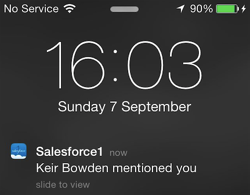
sends a notification to my chatter user:


Screen Shot 2014 09 07 at 16 54 16


accessing Salesforce1 shows the red bell indicating I’ve received a notification:


Screen Shot 2014 09 07 at 16 55 37


tapping the bell shows a summary of the post:


Screen Shot 2014 09 07 at 16 55 53


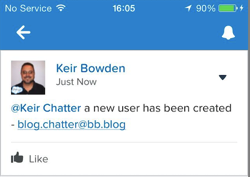
and finally, click on the notification takes me to the full post:


Screen Shot 2014 09 07 at 16 56 08


I’ve added this utility class and unit test to my SF1Utils github repository and unmanaged package that I created for an earlier post

Saturday, 16 August 2014

Replace Visualforce Buttons in Salesforce1

On my Account record view page, I have a custom button :

Screen Shot 2014 08 16 at 16 31 17

which opens a Visualforce page to allow me to edit the Account and its related Contacts on a single page (based on my Edit Parent and Child Records with Visualforce - Part 1 blog post):

Screen Shot 2014 08 16 at 16 31 26

Unfortunately, the Salesforce1 application doesn’t render custom Visualforce buttons, so this is missing from the Account details view in the app:

Sf1 1

Now I can add the Visualforce page as a custom publisher action for the account object, allowing access from the publisher menu:

Screen Shot 2014 08 16 at 16 44 31

but this displays the page inside the publisher popup, meaning there’s less real-estate and the Cancel and Submit buttons that I don’t really want at the top of the page (note that the screenshot is from an iPad, on a phone the page isn’t really usable as it currently doesn’t use responsive design):

Screen Shot 2014 08 16 at 16 47 02

What I’d really like is the publisher action to launch the Visualforce page full screen, but unfortunately there’s no way to configure this.  What I can do, is have the publisher action launch an interim page, which then navigates to the Visualforce page via the Salesforce1 navigation JavaScript.  The interim page is pretty simple:

<apex:page standardController="Account">
  <h1>Please Wait</h1>
    Redirecting ....
  <script>
    if ( (typeof window.sforce != 'undefined') && (window.sforce!=null) ) {
      sforce.one.navigateToURL('/apex/AccountAndContactsEditV1?id={!Account.id}');
    }
    else {
      alert('Not in SF1 :(');
    }
 </script>
</apex:page>

Note that as always I’ve checked to see if I’m in the Salesforce1 application, as the navigateToURL method is only available when that is the case. Clicking on the ‘MultiEdit’ publisher action now briefly displays a Please Wait page:

Screen Shot 2014 08 16 at 16 53 42

followed by the MultiEdit page, without any unwanted borders or buttons:

Screen Shot 2014 08 16 at 16 55 02

As a bonus, the publisher action doesn’t impact the navigation, so clicking the back button on the top right takes me back to the record detail page of the account in question.  The downside to this is that it requires two round trips to the server - the first to retrieve the interim Visualforce page and the second to retrieve the target page. 

Saturday, 12 July 2014

Taking Record Ownership in Salesforce1

At BrightGen, we are big fans of Salesforce1, especially for our Sales and Service Management functions - being able to work on leads, opportunities and cases while on the move is vital to ensure we provide the best possible experience to customers and prospects. New leads and cases are assigned to queues, and then picked up by the appropriate Account Executive or Service Management Consultant.

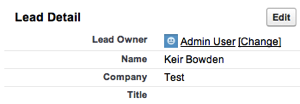
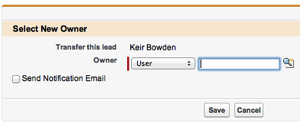
At the time of writing, one of the gaps in the Salesforce1 mobile application is the ability to take ownership of a record.  In the main UI, the lead view page has a Change link:

Screen Shot 2014 07 12 at 11 36 59

which opens the Change Owner page, allowing a new owner to be selected:

Screen Shot 2014 07 12 at 11 37 16

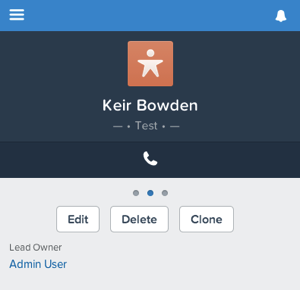
In the Salesforce1 application, the lead owner is a link to the underlying user record:

Screen Shot 2014 07 12 at 11 41 57

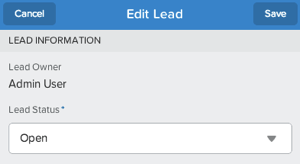
while when editing the record, the owner field is read-only:

Screen Shot 2014 07 12 at 11 42 14

There are a number of ways to solve this problem - my colleague and fellow Salesforce Certified Technical Architect, Chris Eales came up with an admin-friendly solution involving an additional custom field, Update Record publisher action and small trigger.  However, when adding functionality to Salesforce1, especially for our internal use, I like to provide a slicker user experience than the configuration tools allow - it requires developer skills to maintain, but those aren’t skills that are in short supply at BrightGen!

My first cut of this (a tactical solution early one morning) was entirely focused on leads, and used an extension controller in conjunction with the standard lead controller, but replicating this across other objects involved cutting and pasting code and markup which is always an indicator that the solution is less than optimal.

My final version follows the principles of DRY, and makes use of a custom component for the heavy lifting.  A Visualforce page using the standard controller is still required to create a custom publisher action for the sobject type in question, but this is now reduced to a couple of lines.

The component controller instantiates an sobject based on its type name, using the Schema.SobjectType newSobject() method:

private static sObject createsObject(String typeName) {
  Schema.SObjectType targetType = Schema.getGlobalDescribe().get(typeName);
  return (null==targetType?null:targetType.newSObject());
}

 A Visualforce remoting method uses dynamic DML to set the owner id on the newly instantiated record:

Id uid=UserInfo.getUserId();
Sobject sobj=createSobject(typeName);
if (null!=sobj)
{
  sobj.put('id', recId);
  sobj.put('OwnerId', UserInfo.getUserId());
  upsert sobj;
}

On a side note - this wouldn’t have been possible a prior to API version 27, as the ability to set the id field didn’t exist. I could have set it in the createSObject() function call, but I wanted to make my utility method capable of creating an empty sobject.

The Visualforce component that is backed by this controller provides almost all of the markup, outside of the HTML element, to generate the custom publisher action, leaving the containing Visualforce page very little to do:

<apex:page standardController="Lead" applyHtmlTag="false" showheader="false" standardstylesheets="false">
  <html>
    <c:TakeOwnership typeName="{!$ObjectType.Lead.Name}" 
typeLabel="{!$ObjectType.Lead.label}" recordId="{!Lead.id}" /> </html> </apex:page>

 The component itself is a little more complex, as the custom publisher action can appear not only in the Salesforce1 application, but also in the chatter publisher in the standard UI. As the standard UI doesn’t provide the Submit/Cancel buttons, there’s some JavaScript to render buttons when not in Salesforce1 mode and tie them in to the Visualforce remoting method. There is also JavaScript to refresh the containing page in this scenario, as there is no way in the standard UI to refresh the publisher once an action is complete (not that I’m aware of anyway - if you know of a way to achieve this I’d love to hear about it).

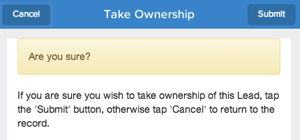
Clicking on the publisher action puts up an Are You Sure page:

Screen Shot 2014 07 12 at 12 37 26


Tapping the submit button executes the remote method to change ownership to the current user, and displays an animated status message courtesy of the alertlfy JavaScript library:

Screen Shot 2014 07 12 at 12 37 48

The component relies on a few JavaScript libraries - Bootstrap for the UI, alertify as mentioned for the notifications and JQueryBlock to great out the page when a button is tapped.

You can view the source (including unit tests!) at the github repository:

http://bobbuzz.me.uk/1nhuUM2

Its also available as an unmanaged package - I’m intending to add more Salesforce1 features into this over time, so check back regularly.  The installation link is in the github readme file.

Sunday, 25 May 2014

Salesforce1 World Tour

The Salesforce1 World Tour reached London on 22nd May 2014.  In a change of format from previous Salesforce events, the Expo and Dev Zone was open from 8:15 until the keynote started at 10:30.  As BrightGen, were a Platinum Sponsor, this meant our stand had to be show ready by 8am.  The stars had aligned for us in terms of workloads, which allowed us to bring a fair few staff with us, including a few new joiners who had never been to a show before.  

We had a high level of interest in our offerings, so I spent most of the day on our stand aside from my Dev Zone talk at 2:30. Every year the Dev Zone gets bigger and better and this year was no different - standing room only for all of the talks and a very attentive audience.  My talk was on Responsive Design with Visualforce Pages and the slide deck is available below:

For my talk I created a simple blog site, containing a home and links page.  You can access the site at : 

http://bobbuzz.me.uk/SF1RD

and if you’d like to see the code behind it, that is available on Github at:

http://bobbuzz.me.uk/SF1GH

The Github repository has a link to an unmanaged package if you’d like to install the code into your own developer edition to play around with it.

Sunday, 4 May 2014

Salesforce1 Developer Week London

In case you weren’t aware, Salesforce1 Developer Week took place at the end of April 2014 - in fact it seems to have been more than a week judging by the events on the official blog page.

The London event took place on 30th April, kindly hosted by TQuila at their headquarters in Lindsay Street.  Registrations took a bit of a hit when strike on the underground was announced to coincide with this, but on the day more than 50 people attended - an excellent effort.

After pizza and beers, the evening was kicked off with a presentation on possibilities of the Salesforce1 mobile application, from a configuration and programmatic perspective from myself and Richard Clark, CTO of Make Positive:

S1dwrc

  S1dwkb


 The attendees then retired to the main "cabin" of the office to crack on with the workbooks, mini-hacks or simply to solve some real-world problems they had been struggling with:

S1dwwork

From time to time the best practice discussions became heated :)

S1dwblows

but we were all friends again after an hour or so of hacking, and it was back to the presentation area to demonstrate what had been built:

S1dwdemo

Something that really stood out for me was the contrast with the Elevate mobile workshop that took place in London in March.  There, a fair amount of time was spent setting up the environment, especially for android development involving the emulator, and most people had to push hard to get through the workbook in a whole day.  This time around, everyone was up and running without incident, and my time as a helper was spent advising how business problems could be solved using the application.

If you were unable to attend a Salesforce1 Developer Week event, you can still try the workbook and hacks yourself using the following links:

Our next event takes place on Wednesday 14th May at the Appirio offices near Bond Street station. Christophe Coenraets, Salesforce Developer Envangelist, will be joining us for a talk on Angular.js and Ionic.  I’ve followed a lot of Christophe’s community activity at both Adobe and Salesforce.com and he’s done some interesting work, so I’m really looking forward to this.  You can signup for this event on the meetup page.

Monday, 21 April 2014

London Calling - Salesforce1 Developer Week

Keep calm it s gonna be totally awesome 54

Salesforce1 Developer Week is series of events taking place around the world between 27th April and 3rd May 2014. The London Salesforce Developer Group are hosting an event on 30th April from 5:30pm:

Screen Shot 2014 04 19 at 17 06 21

Right Side of the Tracks

In a groundbreaking move, we’ll be running two tracks for this event, both with a hands-on focus:

  • Beginner Track
    If you’ve never developed against the Salesforce1 platform before, attend beginner track. This covers the basics of creating an application via drag and drop; adding process automation, all without writing a single line of code.
    Having run a few “Introduction to Force.com” workshops, the most common feedback from attendees is they are amazed how quickly you can build applications when most of the heavy lifting is done by the platform.

  • Intermediate Track
    The intermediate track will introduce use of Visualforce in Salesforce1, among other items. This is the track for the “clicks not code” developer who is interested in taking the next step, as well as experienced developers from outside the Salesforce ecosystem who have covered the basics through attending an introductory workshop or completed the Force.com Workbook. Experienced developers should prepare themselves to write much less code than they are used to when creating custom applications – in Salesforce1 code is written to extend the existing platform functionality rather than building from the ground up.

Salesforce1 Team, Assemble

We’ve put a crack team of presenters and helpers for this event, including MVPs and a couple of Salesforce Certified Technical Architects, so regardless of your level of experience with Force.com (if any) there will be someone on hand who can help if you get stuck. This also gives rise to some excellent networking opportunities during and after the event.

There’s no Such Thing as a Free Lunch

But there is such a thing as a free event - all you need to bring is yourself and your laptop. There are also exclusive event T-shirts (while stocks last) and Salesforce1 books (again while stocks last). 

Its Five O’Clock Somewhere

Its actually 5:30 at Tquila HQ - its an early start to allow as much development time as possible.  Register for this event here. I look forward to seeing you.

Update 25/04/2013: the time has been moved to 6pm.

Saturday, 19 April 2014

London SFDG - UX Meetup

in a departure from our usual 3rd/4th Wednesday of the month, the London Salesforce Developer Group meetup for April took place on 16th April at Make Positive’s offices just south of the Thames.  The reason for the date movement was a special guest speaker - Richard Boardman (@uxrick), Lead UX Researcher from Salesforce was in town and stopped by to give us a talk.

Ux

This was a departure from our usual code-centric talks, focusing more on the tools and processes that Salesforce utilise to conduct research into the user experience, ranging from monitoring users while they work in dedicated labs to ride-alongs with salespeople. Also, in a move that if repeated I’m sure will hit our attendee numbers, we were given some coursework to do - draw our perfect Salesforce1 experience on a blank phone image.  I look forward to seeing Marc Benioff demonstrating my design at the Dreamforce ’14 Keynote.

A Q&A session then took place, with one or two grievances about the Salesforce1 and main UI being aired, before we repaired to a local hostelry to continue the discussions/arguments.

Having to host this meetup earlier than usual has actually turned out rather well, as Salesforce1 Developer Week takes place worldwide from April 27th - May 3rd, and we’ll be running the London event on April 30th at Tquila’s offices in London - watch out for another blog post with some more detail in a day or two.

Friday, 28 March 2014

London SFDG March Meetup

On 26th March the London Salesforce Developer Group once again congregated at Make Positive’s offices just south of the River Thames for our monthly meetup. It was great to see a few new faces who had tried Salesforce at the Elevate London Workshop and had come back for more.

Over the last couple of months we’ve moved to themed events, where all talks relate to a specific topic.  February’s theme was Salesforce1, and March built on the knowledge gained there and covered Mobile Access to APIs.

Laurent Delcambre of Tquila was on first, talking about extending Salesforce1 functionality through the analytics API to bring in reporting functionality.

Ld


Next Alessio Valentini, also of Tquila, gave a talk on developing a mobile application where the functionality lives on-device and all Salesforce data is accessed via APIs.

Av

We had a great turnout again this month - the meetup really seems to have taken off this year.

Ldsize

Beer, pizza and networking filled the time before the talks, while beer and networking continued on later into the night, moving to a local hostelry once we’d emptied the Make Positive fridge.

If you are based in or around London, work with or are interested in Salesforce, and aren’t a member of this group you should join - just signup at http://www.meetup.com/LondonSalesforceDevelopers/

The next meetup takes place towards the end of April - I hope to see you there.

One more thing - we also have a new hashtag - #LonDevSFDC - search us on twitter for news and updates about the group.

Saturday, 15 March 2014

Reading Barcodes in Salesforce1

A little over a month ago I wrote a post on Reading QR Codes in Salesforce1. At the time I added an entry to my todo list to investigate barcode reading through a similar mechanism. A twitter post from @cherfeldman asking if this was possible in Salesforce1 moved it up to the top and so I started looking into it in earnest.

One of my key requirements was to be able to process the code on device, as I didn’t want to be sending high resolution images  from a phone or tablet back to the server, especially if I’m using what passes for mobile broadband outside of a big city in the UK.

Some goggling threw up a few JavaScript packages, but based on the demos provided by most of them, Eddie Larsson’s Barcode Reader looked to be the pick of the bunch. The demo page shows some pretty impressive decoding - multiple codes per image, blurry images, rotated through 90 + 180 degrees etc.  It also handles a number of formats - Code128, Code93, Code39 and EAN-13.
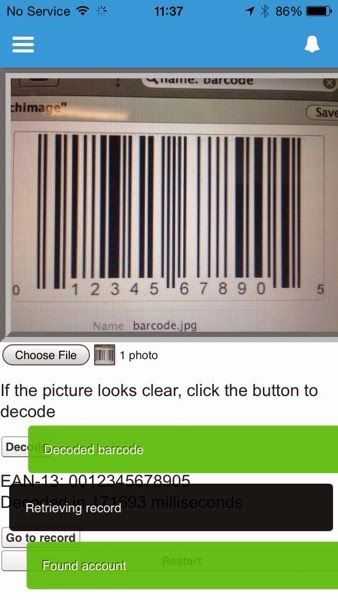

Creating a prototype in Visualforce was exceptionally straightforward - I just had to download the JavaScript that does the heavy lifting (DecoderWorker.js) and upload this as a static resource to my developer edition of Salesforce and then cut and paste the source of the example upload page and surround it with a few Visualforce tags. 

Screen Shot 2014 03 15 at 07 12 34

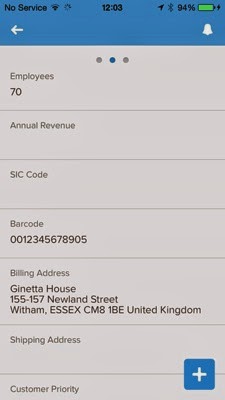
While it was great to get this working so easily, it wasn’t a huge amount of use as it stood, as it simply decodes the image and outputs the associated number. The first thing I did was to add a field to my account sobject of “Barcode”, so that scanning a barcode could take the user to a Salesforce record. I then tweaked the JavaScript to:

  • Output the time taken to decode 
  • Allow the user to choose when to decode the image, in case a picture didn’t turn out that great
  • Add a “Restart” button to reload the page, as hitting the back button and then trying to decode didn’t work 100% of the time
  • Execute a controller method via JavaScript remoting to retrieve the id of the matching record

Trying this out on my laptop decoded the barcode in around 3-4 seconds, however the same thing on my iPhone or iPad took some time and the user had no idea what was happening, so clearly something to hold their interest was required.

Looking at the underlying JavaScript, it makes use of HTML5 Web Workers to fire off multiple decoders to attack the barcode from various angles concurrently.  

var DecodeWorker = new Worker("{!URLFOR($Resource.DecodeWorker)}");
var RightWorker = new Worker("{!URLFOR($Resource.DecodeWorker)}");
var LeftWorker = new Worker("{!URLFOR($Resource.DecodeWorker)}");
var FlipWorker = new Worker("{!URLFOR($Resource.DecodeWorker)}");

where $Resource.DecodeWorker is the static resource reference for the DecodeWorker.js file.

Without web workers, things would be even slower as one decoder would have to finish before the next one could start, but I was still seeing decode times of around a minute.  I therefore decided to notify the user that the workers had been launched, and then post regular messages to indicate they were still running until they had either all completed or the barcode had been successfully processed.  I could do this through alerts or dialogs, but a few weeks ago Jeff Douglas’ Force.com Weekly linked to a rather nice JavaScript library for notifying users - alertify.js. I’ve used this a couple of times and its reliable, fast and looks great so I decided this was the way to go.

Adding alertify to a page is as simple as including three CSS and JavaScript files - I’ve uploaded the alertify zip as a static resource in my developer edition so I can include the files from that:

<apex:stylesheet value="{!URLFOR($Resource.alertify, 
'alertify.js-0.3.11/themes/alertify.core.css')}"/> <apex:stylesheet value="{!URLFOR($Resource.alertify,
'alertify.js-0.3.11/themes/alertify.default.css')}"/> <apex:includeScript value="{!URLFOR($Resource.alertify,
'alertify.js-0.3.11/lib/alertify.min.js')}"/>

I can then post a message to the user from JavaScript via a single function call:

alertify.log('Launching workers');

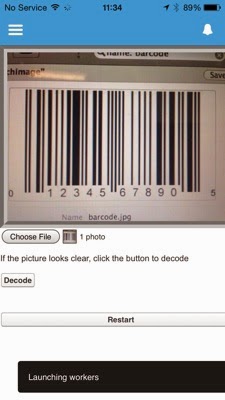
The user experience is now take a picture of a barcode or pick one from the device gallery, and click the “Decode” button if it looks good, as which point the user is told that work has started:

IMG 1153

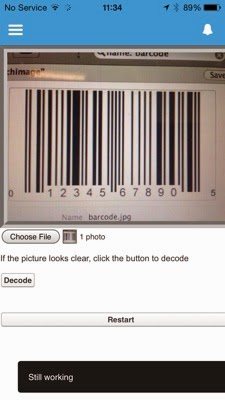
while the workers are running, regular messages are alerted through a JavaScript timer:

interval=setInterval(function(){alertify.log('Still working');},5000);


IMG 1154

Then when the decoding completes, messages are displayed to indicate the success/failure and assuming success, the controller method is executed to find a record where the Barcode field matches the decoded value.

IMG 1157

the decoded value and time taken is then displayed, and a button to navigate to the record is displayed:

IMG 1158

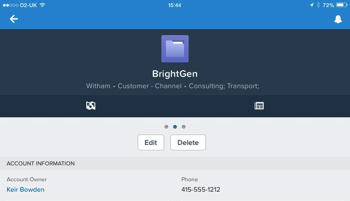
Clicking the "Go to record” button goes to the record matching the barcode, which is my BrightGen account:

IMG 1159

The full page source is available at this gist, and the associated controller at this gist. You’ll also need to set up the static resources for:

  • alertify -  download the zip file, then upload as a static resource named ‘alertify'
  • decoder worker - download the file, then upload as a static resource named ‘DecodeWorker'.
    Note that this isn't coming from the github repository, as the code has changed since I originally wrote this post - instead this is the version that I downloaded back in 2014. 

Note that this won’t work on Android 4.4, as it appears that the ability to access the camera via a file input was removed from the chromium web view in this version - you can read more about this in the Cordova JIRA entry.

Friday, 7 March 2014

Salesforce1 and Visualforce - Things I've Learned

At the February Meetup of the London Salesforce Developers Group, I presented a session where I went through some of the things I’ve learned while building Visualforce solutions to run in Salesforce1. The slide deck for this session is available on SlideShare, but some of the slides might be difficult to understand without the words that went with them, so in a departure from my usual blogging style I’ve decided to pick out some slides from the deck and explain what I was trying to show.

Capturing Input

Screen Shot 2014 03 06 at 12 37 10

Screen Shot 2014 03 06 at 12 37 43

The <apex:inputField /> component is not supported in Salesforce1if it creates a widget - e.g. date picker (although this component seems to work a lot of the time in iOS but not android).  Rather than trying to implement your own version of a Visualforce input, its better to use the HTML5 type attribute and let the browser determine the appropriate input mechanism to display.  The second slide shows how the the iPhone reacts to type attributes - displaying a date  spinner for a date and a custom keyboard including digits for number.  Unfortunately there isn’t a type for a lookup to another record, so you’ll still need to roll your own solution to this.

Screen Shot 2014 03 06 at 12 44 40

Something many people complain about when using HTML5 or Hybrid mobile applications is that clicking buttons can be unresponsive. Often this is down to the default behaviour of the webkit based browser (so Safari or Chrome at the least), which is to wait 300m/s after a click to see if the user is actually carrying out a double-click.  While this makes sense on the desktop, double tapping isn’t that common in mobile applications (although it is sound advice in Zombieland). The way that I typically work around this is to bind to the touchstart/end events rather than the click event.  When working in JQuery Mobile this is easy, as the framework adds support for these events.  Otherwise, built-in browser support is patchy so you may end up having to use another JavaScript solution such as the Event or Zepto packages. 

window.open()

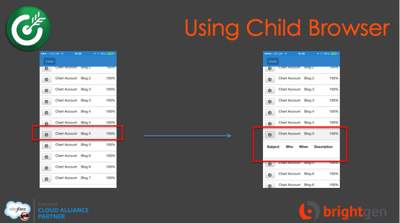
The next block of slides relates to using window.open() to open a child browser window rather than the regular webview - this only works for iOS, but has allowed me to work around a few issues:

Rotating the iPhone application simply results in a sideways view of the page:

Screen Shot 2014 03 06 at 13 00 46

whereas rotating a page opened in the child browser works as expected:

Screen Shot 2014 03 06 at 13 00 59

List jumping has been acknowledged by Salesforce as a known issue. What happens here is that if you have a clickable list of items that is larger than the viewport, when you scroll down and click an entry, the application jumps back to the top of the list after the click.  However, I found this to be worse when using Bootstrap, in that the jump to the top took place before the click had been handled, resulting in the click being applied to the wrong element.

In the slide below, I’ve clicked on the Blog 5 entry to expand, but the app has jumped back to the top and expanded the Blog 11 entry,  I originally found this when placing delete buttons on a list, so it wasn’t just an irritant, it was affecting the data:

Screen Shot 2014 03 06 at 13 02 24

If I open the list in a child browser though, the item that I click on is the one that expands and the view stays at the correct place:

Screen Shot 2014 03 06 at 13 05 45

The next issue that I covered involved Bootstrap responsive tables.  The way that Boostrap handles tables is to leave it sized as it is, but wrap it in a scrolling element.  This means that when a page containing a responsive table is accessed on a small screen device, the elements outside the table will wrap and the table becomes scrollable:

Screen Shot 2014 03 06 at 13 07 06

Accessing this page in the Salesforce1 app, however, and the page is resized to the width of the table, with the text spanning the full width.  Even worse, if you have any dialogs in the page, they will be the full width of the page too, which means that you would need to scroll around the page to find the dialog message:

Screen Shot 2014 03 06 at 13 10 10

Opening the page inside the child browser respects the fact that the table is scrollable and reflows the text appropriately for the device:

Screen Shot 2014 03 06 at 13 11 40

As I’ve blogged before though, the child browser introduces some additional complexity - you can’t tell that you are in the Salesforce one context for a start, and as I mentioned earlier, it isn’t a solution for Android (although the responsive tables do behave correctly on my Nexus 7 so there is slightly less need for it).

 The final points I made were around mobile development best practice:

Screen Shot 2014 03 06 at 13 16 51

If you are designing applications that will genuinely be used while on the road, with all of the connection and bandwidth issues that brings, you really don’t want to be using much Visualforce at all, instead you should rebuild the app to do most of its work on the device. I presented a session on this topic at Dreamforce that applies equally well to Salesforce1 - you can watch the video here.