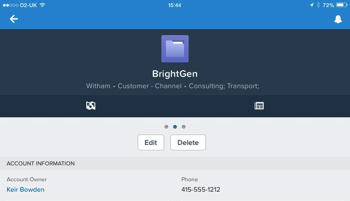
The Summer 13 Salesforce release introduced Publisher Actions - these allow additional chatter actions to be added to the publisher, over and above the standard Post, File, Link and Poll actions. Some setup is required before you can use Publisher Actions - this is detailed in the Salesforce help here.
There are four types of Publisher Actions - Create and Custom for a specific object, and Global Create and Global Custom. The Create actions allow a new record to be created directly from the chatter feed. Create for a specific object allows a new record to be created that is related to the object the feed appears on - for example, to create a new Opportunity from an Account chatter feed where the Opportunity account id is set to the id of the Account the feed appears on. Global Create allows a new record to be created from a feed, but with no relationship to any existing object. One very useful aspect of the Create actions is that you can specify default values for fields, which goes some way to removing the need for URL-hacking.
The Custom actions allow a Visualforce page to be displayed in a chatter feed - the specific object variant of this means that the standard controller must be used, as the id of the record the chatter feed appears on will be passed to the page, while the Global variant uses a custom controller. An example of a Custom action is to display the location of an account on a map - while you can also achieve this via an embedded Visualforce page on the standard record view, making it a Publisher Action means it is displayed on demand, so those users that aren't interested in that information don't have to wait for the map to render.
Custom actions can also create information. In this post I'll demonstrate how to create a Publisher action to post summary information to a feed.
Here at BrightGen, we have a Service Management offering for Salesforce. Rather than waiting until the end of the month to find out how we are doing for a particular customer, its useful to push information out on a regular basis. In this post I'll demonstrate how to create a Custom action that posts a snapshot of case information to an account record.
The snapshot will contain details of cases created this month, cases closed this month and the current number of open cases for the account.
As this is an object specific action, the page uses the account standard controller and the additional functionality is provided by a controller extension. This executes a number of queries to get the case information required. The snippet below determines the number of cases closed this month:
Date startDate=System.today().toStartOfMonth();
Date endDate=System.today().addMonths(1).toStartOfMonth();
List<AggregateResult> ars=[select COUNT(Id) closedCount
		 	   from Case
		 	   where Status='Closed'
		 	   and AccountId=:accId
			   and ClosedDate>=:startDate
		   	   and ClosedDate<:endDate];

Integer result=0;
if (ars.size()>0)
{
	AggregateResult ar=ars[0];
	result=(Integer) ar.get('closedCount');
}
Once all the information is gathered, this is posted to the feed programmatically:
FeedItem item=new FeedItem();
item.ParentId=accId;
item.body='Service snapshot\n' +
          'As of ' + System.now().format('dd/MM/yyyy')  +
          '\nNew Cases : ' + getNewCases() +
          '\nClosed Cases : ' + getClosedCases() +
          '\nOpen Cases : ' + getOpenCases();

insert item;

ApexPages.addMessage(new
ApexPages.Message(ApexPages.Severity.INFO, 'Snapshot Posted'));
posted=true;
Note the final line of this snippet, which sets the boolean property posted to true - this property is used in to automatically refresh the page, otherwise the post does not get displayed to the user.
The page simply displays the details and provides a button for the user to post the details to the feed:
  <apex:pageBlock title="Service Snapshot">
    <apex:pageBlockButtons location="bottom">
      <apex:commandButton value="Post to Feed" action="{!post}" />
    </apex:pageBlockButtons>
    <apex:pageBlockSection columns="1">
      <apex:pageBlockSectionItem >
        <apex:outputLabel value="Closed Cases" />
        <apex:outputText value="{!closedCases}" />
      </apex:pageBlockSectionItem>
      <apex:pageBlockSectionItem >
        <apex:outputLabel value="New Cases" />
        <apex:outputText value="{!newCases}" />
      </apex:pageBlockSectionItem>
      <apex:pageBlockSectionItem >
        <apex:outputLabel value="Open Cases" />
        <apex:outputText value="{!openCases}" />
      </apex:pageBlockSectionItem>
    </apex:pageBlockSection>
  </apex:pageBlock>
The automatic refresh (which is based on the technique described in this blog post) is provided by the following, conditionally rendered, JavaScript:
  <apex:outputPanel rendered="{!posted}">
   <script>
      window.top.location='/{!Account.id}';
   </script>
 </apex:outputPanel>
The code for the controller extension can be found in this gist, and the Visualforce page in this gist. You'll need to save these into your Salesforce edition to complete the next steps.
Next, create a publisher action for this page - navigate to Setup -> Customize -> Accounts -> Buttons, Links, and Actions and click the New Action button.
Scroll down to the Chatter Feed section and fill out the details as shown in the screenshot below and click the Save button.

(note that this assumes you have saved the Visualforce page with the name ChatterAccountSnapshot - if that is not the case, pick the name that you saved the page under from the Visualforce Page pick list).
To add the Publisher Action to the chatter feed, edit the page layout for the Account record. Scroll down to the Chatter Feed section - if you see the following text, click the 'overidde the global layout' to make the actions editable for that layout:

The Chatter Feed section will then contain the following standard actions:

Next, select the Actions entry from the menu at the top left of the page layout editor:
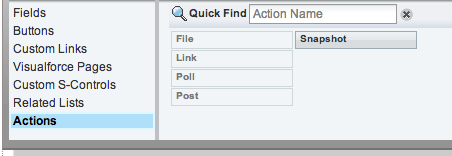
Drag the Snapshot entry from the right hand side to the Chatter Feed section - note that this can be placed anywhere in the list of actions:
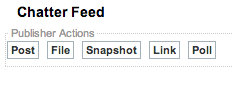
and finally save the page layout.
Now lets take a look at the Publisher Action in action:
Navigating to an account view page shows the new Snapshot action in the Chatter Publisher. Clicking the Snapshot button displays the Visualforce page with the case detais:

Clicking the Post to Feed button posts the information to the chatter feed and then refreshes the page to display the post to the user: