Showing posts with label knowledge. Show all posts

Thursday, 13 February 2014

Cross Category Group Knowledge Article Visibility

When implementing Salesforce knowledge, articles can be associated with data categories, which are contained inside data category groups.  You can define up to three active data category groups, and an article can be associated with up to 8 categories per category group.

What might come as a surprise, is the requirement for an article to be visible if it is associated with categories in more than one group.

Consider the following setup of a knowledge base for Bob Buzzard Inc, providing information on Salesforce1 for my developers:

Screen Shot 2014 01 18 at 11 42 39

I have an article on adding a Visualforce mobile card to a page layout that is associated with the Mobile Cards data category, which my developers have access to through their profile, which includes all categories in the group:

Screen Shot 2014 01 18 at 11 47 18

A developer can then see the article via the Knowledge One tab:

Screen Shot 2014 01 18 at 12 08 31

I then set up another data category group for Administrators:
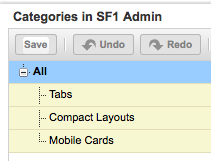
Screen Shot 2014 01 18 at 12 04 47

as my developers and administrators are quite protective of their roles and responsibilities (will they ever get along :), so developers have no access to the admin data category:

Screen Shot 2014 01 18 at 12 06 04

It then strikes me that the article about configuring a Visualforce mobile card would also be of interest to admins, so I add it to the Mobile Cards category in the admins group:

Screen Shot 2014 01 18 at 12 10 16

Once I’ve published this, the developers are straight on the phone complaining that they can no longer see the article:
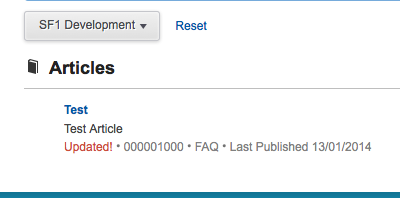
Screen Shot 2014 01 18 at 12 14 13

all they can see is the test article.

Poring over the knowledge implementation guide presents the following explanation:

"A user can see an article if he or she can see at least one category per category group on the article."

In this case, as my developers can’t see a category in the admins category group, they can’t see the article any more.

Unfortunately, there will be an uprising if I give the developers access to the admin Mobile Cards category, so that isn’t an option for me.  The workaround that I came up with was to add a fake “shared” category to the admins category group:

Screen Shot 2014 01 18 at 12 28 18

and associate the article with this category:

Screen Shot 2014 01 18 at 12 29 43

and finally give my developers access to the shared category:
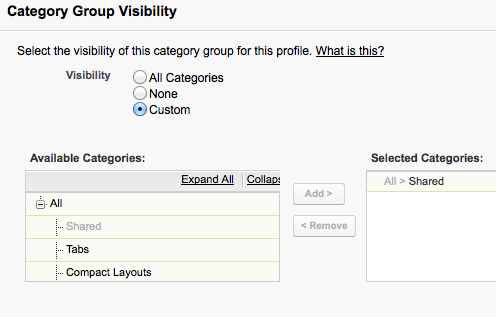
Screen Shot 2014 01 18 at 12 31 20

Now my developers can see the article again:

Screen Shot 2014 01 18 at 12 32 53

The downside to this is that I’ve burnt two data categories out of my allowance of eight in the admin data category group, and I have to replicate the “shared” category in the developers data category group to allow the admins to see the article.  While its not overly onerous, it still strikes me as odd.  If you agree, please vote up my idea to allow users access where they have access to any category, regardless of group, associated with the article:

https://success.salesforce.com/ideaView?id=08730000000kzqPAAQ

Author’s note: all talk of Salesforce Admins and Developers not getting along is artistic license to ensure that I had to use my workaround.  In reality its one big love-in.

Saturday, 4 January 2014

Syntax Highlighting in Knowledge Articles

Here at BrightGen we use Salesforce Knowledge for our knowledge base.  The majority of the time the knowledge articles are paragraphs of text with images images, but every now and then we need to include code snippets.

For the purposes of this post I’m using the FAQ article type that is automatically available when knowledge is enabled, and I’ve added a Body custom field that is a rich text area. I’ve created a simple Visualforce page to display the FAQ:

<apex:page standardController="FAQ__kav" showheader="false">
  <p style=“font-size:16px; font-weight: bold;">
<apex:outputField value="{!FAQ__kav.Title}" />
  </p>
  <apex:outputField value="{!FAQ__kav.Body__c}" />
</apex:page>

and then configured this as the channel display for the article type when accessed through the internal app:

Screen Shot 2014 01 03 at 09 06 47

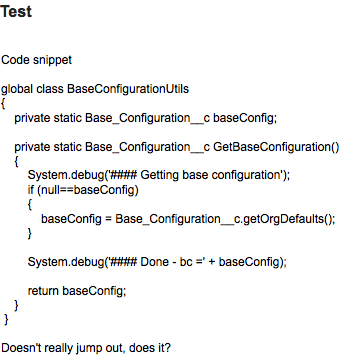
Simply dropping some code into the rich text area doesn’t make it stand out particularly well from the enclosing text:

 Screen Shot 2014 01 03 at 09 24 01

The HTML pre formatted tag <pre> displays the markup in a fixed-width mode, preserving spaces and line breaks to ensure the indentation looks good.  I can add this to my markup by editing the article and clicking the ‘Source’ button:

Screen Shot 2014 01 03 at 09 28 45

this allows me to edit the underlying article HTML and surround my markup with the opening and closing <pre> tags - note that if you simply try to edit the markup dropped in earlier, you’ll see a bunch of &nbsp; and other tags that are preserving the indentation - for that reason I paste the code out of my editor/IDE afresh into the source editor:

Screen Shot 2014 01 03 at 09 35 09

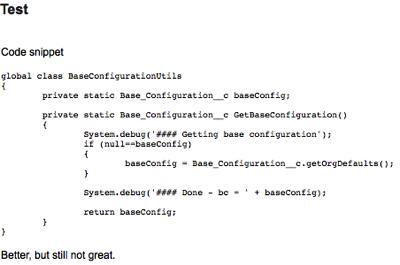
The code now stands out a little more in the article, but still doesn’t look fantastic:

Screen Shot 2014 01 03 at 09 36 46

In order to add syntax highlighting, its clear that I’ll have to look outside of the standard knowledge functionality - I could spend time writing the HTML to highlight each code snippet individually, but that won’t scale and will quickly get boring.

For syntax highlighting on this blog, I use the excellent Syntax Highlighter from Alex Gorbatchev, so this seemed like a good place to start.  Its pretty unobtrusive and relies on adding a style class to the <pre> tag that I’m already using.

First the code needs to be installed - navigate to the Syntax Highlighter home page (http://alexgorbatchev.com/SyntaxHighlighter/) and click the download link near the top right:

Screen Shot 2014 01 03 at 16 23 58

The resulting file can then be uploaded straight into Salesforce as a static resource - I’ve named mine SyntaxHighlighter as I have a great imagination!

My Visualforce page then needs to be updated to pull in the required JavaScript and CSS.  Here I’m including the core highlighter functionality, then the brush that I’m going to use to highlight my code - I like the Java brush so I’m using that, but there are plenty available in the zip file.  This is followed by a couple of CSS files to pull in the core styles and a theme: 

<apex:includeScript value="{!URLFOR($Resource.SyntaxHighlighter,
        'syntaxhighlighter_3.0.83/scripts/shCore.js')}" />
<apex:includeScript value="{!URLFOR($Resource.SyntaxHighlighter,
        'syntaxhighlighter_3.0.83/scripts/shBrushJava.js')}" />
<apex:styleSheet value="{!URLFOR($Resource.SyntaxHighlighter,
       'syntaxhighlighter_3.0.83/styles/shCore.css')}" />
<apex:styleSheet value="{!URLFOR($Resource.SyntaxHighlighter,
       'syntaxhighlighter_3.0.83/styles/shThemeDefault.css')}" />

Next, I have some JavaScript to turn off the toolbar that appears above the code by default and execute the static function to process all elements on the page and highlight as appropriate - it doesn’t matter where this is executed from as it won’t fire until the page has finished rendering:

<script type="text/javascript">
  SyntaxHighlighter.defaults['toolbar'] = false;
  SyntaxHighlighter.all();
</script>

I can then return to my knowledge article and add the java brush class to my <pre> tag by editing the source as described above:

Screen Shot 2014 01 03 at 16 51 39

and now when I access my page my code is highlighted with line numbers:

Screen Shot 2014 01 03 at 16 46 23

One important point to note - if you are using this to format Visualforce or HTML markup, you’ll need to HTML encode the markup first, or it will cause problems when the HTML is processed by the rich text editor.  I use the HTMLEncoder from opinionatedgeek.com - simply paste your markup in, click the encode button, copy the encoded output and drop this into the rich text editor using the source button as described above.