Wednesday, 19 March 2014

I Say You Buy One, You Get One Free

2000th Book Home Page Banner

(For those who aren’t regular viewers of English commercial tv, the title of this post is from the Safestyle Windows advert)

As regular readers of this blog are well aware, I wrote a book last year called the Visualforce Development Cookbook - there’s even a link at the top right of this page to allow you to easily make a purchase.

The good news is that until 26th March, to celebrate Packt’s 2000th title being released, you can buy my book in eBook form and receive another Packt eBook absolutely free - perhaps another copy of my book as a gift for a close friend or relative.  

The offer is automatically applied at the checkout and there are no limits to the number of purchases you can make during the offer period.  You can find out more at: http://bit.ly/1j26nPN

Saturday, 15 March 2014

Reading Barcodes in Salesforce1

A little over a month ago I wrote a post on Reading QR Codes in Salesforce1. At the time I added an entry to my todo list to investigate barcode reading through a similar mechanism. A twitter post from @cherfeldman asking if this was possible in Salesforce1 moved it up to the top and so I started looking into it in earnest.

One of my key requirements was to be able to process the code on device, as I didn’t want to be sending high resolution images  from a phone or tablet back to the server, especially if I’m using what passes for mobile broadband outside of a big city in the UK.

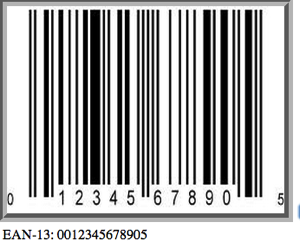
Some goggling threw up a few JavaScript packages, but based on the demos provided by most of them, Eddie Larsson’s Barcode Reader looked to be the pick of the bunch. The demo page shows some pretty impressive decoding - multiple codes per image, blurry images, rotated through 90 + 180 degrees etc.  It also handles a number of formats - Code128, Code93, Code39 and EAN-13.

Creating a prototype in Visualforce was exceptionally straightforward - I just had to download the JavaScript that does the heavy lifting (DecoderWorker.js) and upload this as a static resource to my developer edition of Salesforce and then cut and paste the source of the example upload page and surround it with a few Visualforce tags. 

Screen Shot 2014 03 15 at 07 12 34

While it was great to get this working so easily, it wasn’t a huge amount of use as it stood, as it simply decodes the image and outputs the associated number. The first thing I did was to add a field to my account sobject of “Barcode”, so that scanning a barcode could take the user to a Salesforce record. I then tweaked the JavaScript to:

  • Output the time taken to decode 
  • Allow the user to choose when to decode the image, in case a picture didn’t turn out that great
  • Add a “Restart” button to reload the page, as hitting the back button and then trying to decode didn’t work 100% of the time
  • Execute a controller method via JavaScript remoting to retrieve the id of the matching record

Trying this out on my laptop decoded the barcode in around 3-4 seconds, however the same thing on my iPhone or iPad took some time and the user had no idea what was happening, so clearly something to hold their interest was required.

Looking at the underlying JavaScript, it makes use of HTML5 Web Workers to fire off multiple decoders to attack the barcode from various angles concurrently.  

var DecodeWorker = new Worker("{!URLFOR($Resource.DecodeWorker)}");
var RightWorker = new Worker("{!URLFOR($Resource.DecodeWorker)}");
var LeftWorker = new Worker("{!URLFOR($Resource.DecodeWorker)}");
var FlipWorker = new Worker("{!URLFOR($Resource.DecodeWorker)}");

where $Resource.DecodeWorker is the static resource reference for the DecodeWorker.js file.

Without web workers, things would be even slower as one decoder would have to finish before the next one could start, but I was still seeing decode times of around a minute.  I therefore decided to notify the user that the workers had been launched, and then post regular messages to indicate they were still running until they had either all completed or the barcode had been successfully processed.  I could do this through alerts or dialogs, but a few weeks ago Jeff Douglas’ Force.com Weekly linked to a rather nice JavaScript library for notifying users - alertify.js. I’ve used this a couple of times and its reliable, fast and looks great so I decided this was the way to go.

Adding alertify to a page is as simple as including three CSS and JavaScript files - I’ve uploaded the alertify zip as a static resource in my developer edition so I can include the files from that:

<apex:stylesheet value="{!URLFOR($Resource.alertify, 
'alertify.js-0.3.11/themes/alertify.core.css')}"/> <apex:stylesheet value="{!URLFOR($Resource.alertify,
'alertify.js-0.3.11/themes/alertify.default.css')}"/> <apex:includeScript value="{!URLFOR($Resource.alertify,
'alertify.js-0.3.11/lib/alertify.min.js')}"/>

I can then post a message to the user from JavaScript via a single function call:

alertify.log('Launching workers');

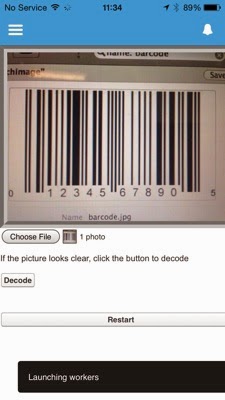
The user experience is now take a picture of a barcode or pick one from the device gallery, and click the “Decode” button if it looks good, as which point the user is told that work has started:

IMG 1153

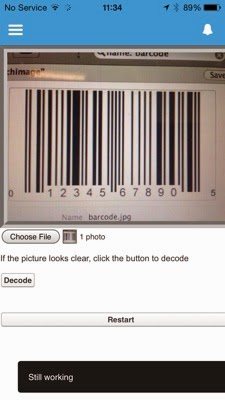
while the workers are running, regular messages are alerted through a JavaScript timer:

interval=setInterval(function(){alertify.log('Still working');},5000);


IMG 1154

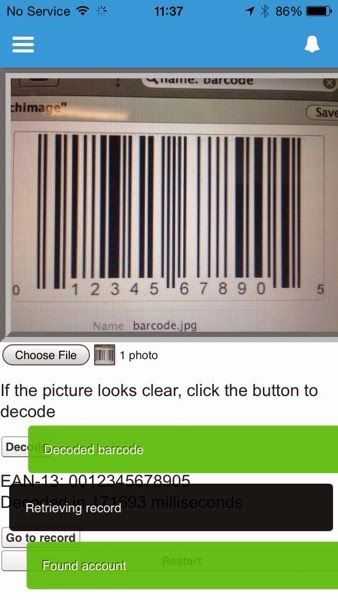
Then when the decoding completes, messages are displayed to indicate the success/failure and assuming success, the controller method is executed to find a record where the Barcode field matches the decoded value.

IMG 1157

the decoded value and time taken is then displayed, and a button to navigate to the record is displayed:

IMG 1158

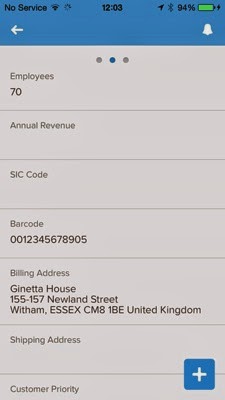
Clicking the "Go to record” button goes to the record matching the barcode, which is my BrightGen account:

IMG 1159

The full page source is available at this gist, and the associated controller at this gist. You’ll also need to set up the static resources for:

  • alertify -  download the zip file, then upload as a static resource named ‘alertify'
  • decoder worker - download the file, then upload as a static resource named ‘DecodeWorker'.
    Note that this isn't coming from the github repository, as the code has changed since I originally wrote this post - instead this is the version that I downloaded back in 2014. 

Note that this won’t work on Android 4.4, as it appears that the ability to access the camera via a file input was removed from the chromium web view in this version - you can read more about this in the Cordova JIRA entry.

Friday, 7 March 2014

Salesforce1 and Visualforce - Things I've Learned

At the February Meetup of the London Salesforce Developers Group, I presented a session where I went through some of the things I’ve learned while building Visualforce solutions to run in Salesforce1. The slide deck for this session is available on SlideShare, but some of the slides might be difficult to understand without the words that went with them, so in a departure from my usual blogging style I’ve decided to pick out some slides from the deck and explain what I was trying to show.

Capturing Input

Screen Shot 2014 03 06 at 12 37 10

Screen Shot 2014 03 06 at 12 37 43

The <apex:inputField /> component is not supported in Salesforce1if it creates a widget - e.g. date picker (although this component seems to work a lot of the time in iOS but not android).  Rather than trying to implement your own version of a Visualforce input, its better to use the HTML5 type attribute and let the browser determine the appropriate input mechanism to display.  The second slide shows how the the iPhone reacts to type attributes - displaying a date  spinner for a date and a custom keyboard including digits for number.  Unfortunately there isn’t a type for a lookup to another record, so you’ll still need to roll your own solution to this.

Screen Shot 2014 03 06 at 12 44 40

Something many people complain about when using HTML5 or Hybrid mobile applications is that clicking buttons can be unresponsive. Often this is down to the default behaviour of the webkit based browser (so Safari or Chrome at the least), which is to wait 300m/s after a click to see if the user is actually carrying out a double-click.  While this makes sense on the desktop, double tapping isn’t that common in mobile applications (although it is sound advice in Zombieland). The way that I typically work around this is to bind to the touchstart/end events rather than the click event.  When working in JQuery Mobile this is easy, as the framework adds support for these events.  Otherwise, built-in browser support is patchy so you may end up having to use another JavaScript solution such as the Event or Zepto packages. 

window.open()

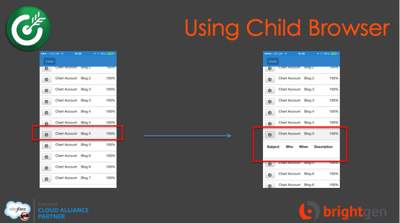
The next block of slides relates to using window.open() to open a child browser window rather than the regular webview - this only works for iOS, but has allowed me to work around a few issues:

Rotating the iPhone application simply results in a sideways view of the page:

Screen Shot 2014 03 06 at 13 00 46

whereas rotating a page opened in the child browser works as expected:

Screen Shot 2014 03 06 at 13 00 59

List jumping has been acknowledged by Salesforce as a known issue. What happens here is that if you have a clickable list of items that is larger than the viewport, when you scroll down and click an entry, the application jumps back to the top of the list after the click.  However, I found this to be worse when using Bootstrap, in that the jump to the top took place before the click had been handled, resulting in the click being applied to the wrong element.

In the slide below, I’ve clicked on the Blog 5 entry to expand, but the app has jumped back to the top and expanded the Blog 11 entry,  I originally found this when placing delete buttons on a list, so it wasn’t just an irritant, it was affecting the data:

Screen Shot 2014 03 06 at 13 02 24

If I open the list in a child browser though, the item that I click on is the one that expands and the view stays at the correct place:

Screen Shot 2014 03 06 at 13 05 45

The next issue that I covered involved Bootstrap responsive tables.  The way that Boostrap handles tables is to leave it sized as it is, but wrap it in a scrolling element.  This means that when a page containing a responsive table is accessed on a small screen device, the elements outside the table will wrap and the table becomes scrollable:

Screen Shot 2014 03 06 at 13 07 06

Accessing this page in the Salesforce1 app, however, and the page is resized to the width of the table, with the text spanning the full width.  Even worse, if you have any dialogs in the page, they will be the full width of the page too, which means that you would need to scroll around the page to find the dialog message:

Screen Shot 2014 03 06 at 13 10 10

Opening the page inside the child browser respects the fact that the table is scrollable and reflows the text appropriately for the device:

Screen Shot 2014 03 06 at 13 11 40

As I’ve blogged before though, the child browser introduces some additional complexity - you can’t tell that you are in the Salesforce one context for a start, and as I mentioned earlier, it isn’t a solution for Android (although the responsive tables do behave correctly on my Nexus 7 so there is slightly less need for it).

 The final points I made were around mobile development best practice:

Screen Shot 2014 03 06 at 13 16 51

If you are designing applications that will genuinely be used while on the road, with all of the connection and bandwidth issues that brings, you really don’t want to be using much Visualforce at all, instead you should rebuild the app to do most of its work on the device. I presented a session on this topic at Dreamforce that applies equally well to Salesforce1 - you can watch the video here.


Saturday, 1 March 2014

London Salesforce Developers February Meetup

Sfdug

Along with a few others (Bay Area, Sydney) this week saw the February meetup of the London Salesforce Developer Group, kindly hosted by Make Positive at their London offices. Like our last meeting in January, this was a themed event and the theme was Salesforce1 - a hot topic at the moment in the Salesforce world, as evidenced by the 92 people that registered to attend.

First up we had Carolina Ruiz from Financial Force:

Cr

Carolina’s talk covered:

  • Using Publisher Actions in SF1 - micro moments - main features, overview, how do they fit in SF1
  • Notifications world in SF1
  • Other features of SF1
  • Mobile cards
  • Flexipages

Financial Force were involved in the beta for Salesforce1, so Carolina was able to share some insights into her experience developing against an early release of Salesforce1 and how it has evolved since then.  You can find the slides for this talk on slideshare here.

Next was me, on the topic of Salesforce1 for Visualforce developers.  

Kbldg

This was mainly about what doesn’t work and what not to do when adding Visualforce apps/pages to Salesforce1, and how to workaround problems that might be encountered.  The slide deck from my talk is on slideshare here. I’m planning a blog post to cover the topics in the slides with a little more explanation, so stay tuned.

The Developer Group next meets at Make Positive on March 26th 2014. If you are interested in joining us, you can join our meetup group at : 

http://www.meetup.com/LondonSalesforceDevelopers/

to find out more and be notified of upcoming events.

Friday, 21 February 2014

Writing a Book

(This post is based on my personal experience writing for Packt - your mileage may vary!)

0808EN MockupCover Cookbook

Since I wrote the Visualforce Development Cookbook I’ve had a number of people,  who are either thinking about writing a book or have been approached by a publisher, ask me what it was like.  Rather than continuing to drip feed this information to individuals, I’ve decided to write a blog post about it. 

There’s lots of information on writing for Packt at the Packt Author Website - I’d recommend spending some time there if you think there’s a book in you.

How It Started

I was asked by Packt to act as a Technical Reviewer for the Salesforce CRM Admin Cookbook. As I was carrying out my tech review duties I started wondering whether I could write one myself, but didn’t take it any further than that.  A month or two after this finished, I was contacted by Packt and asked if I’d be interested in authoring a new book on Visualforce that they were planning to publish later in the year.  After some email exchanges where I found out more about what was involved, I took the plunge and signed up to write the book.

Its a Lot of Work!

Writing a book is rather different to writing occasional blogs and articles.   Once you factor in a full-time day job, it means giving up a large amount of your spare time. I found the best way was to try to write some content every day, so I averaged 1-2 hours every evening and around 10 hours every weekend. I also had a weeks vacation about half-way through the first drafts, and I spent most of the week breaking the back of a chapter. You definitely need an understanding family to take on a project of this nature as you are looking at several hundred hours work. 

There’s a Delivery Schedule

and you have to stick to it.  Most of the time this is fine, but there are times when fitting in the work gets pretty tricky.  Around the time that the first drafts were coming back for corrections, Salesforce hosted the MVP Summit in San Francisco, which was a pretty full couple of days.  The schedule was still there though, so after the summit dinner I found myself writing second drafts until 3am prior to flying back first thing in the morning and producing updated images while boarding was delayed. 

Get Organised!

Each chapter required images, Visualforce pages, Apex classes and sometimes static resources and custom Visualforce components. When I started out I had a single directory that I put everything into and broke up into zip files when I had to submit a chapter.  This became harder and harder to control as the volume of content grew, until it got to the point where I had to spend an afternoon moving everything into dedicated chapter directories, with subdirectories for different drafts, images and the various source items.  This is something I wish I’d thought of at the beginning, as I would have much preferred to spend the time producing new content rather than filing and refiling the existing items.

Be Grateful for Technical Reviewers

Tech Reviewers  provide invaluable feedback - typically they are more experienced than the target audience for the book and they will go through each of the chapters with a fine tooth comb, not only looking for problems but also how to make things better - additions to recipes to make them more reusable for example. Having carried out this task before, I’m well aware of how much effort goes into this.

At times you’ll get annoyed with the comments from your technical reviewers.  Most of the time this comes down to “they don’t understand!”. When you start feeling this way its important to take a step back - if they don’t understand its because you as the author haven’t explained yourself correctly. All the reviewer has to go on are the words that you have written - if an experienced individual can’t grasp the point you are trying to make, what chance does the less experienced reader stand?  

All that said, its important to remember that its your book that goes out with your name on it, so just because a reviewer suggests a change doesn’t mean you have to make it. 

The Book is Published but You’re not Done

Once the book is written and published, you might think that you are done. You aren’t, as now you are into the marketing phase. This is where you’ll need to be publicising the book on Twitter, Facebook, LinkedIn, blogs etc.  The good news is that you don’t have to figure all this out yourself, rather you’ll get a specialist assigned to you by the publisher.

Its Rewarding

Nothing beats the feeling of:

  • seeing your book on sites like Amazon, Safari and Barnes and Noble
  • getting your first print copy with your name on the spine

While its a lot of hard work, I really enjoyed it and I’m hoping to write more in the future.

Any Questions?

If you have any specific questions, please post them in the comments section for this post - if I can answer them I’ll bring them up into a Q&A section.


Thursday, 13 February 2014

Cross Category Group Knowledge Article Visibility

When implementing Salesforce knowledge, articles can be associated with data categories, which are contained inside data category groups.  You can define up to three active data category groups, and an article can be associated with up to 8 categories per category group.

What might come as a surprise, is the requirement for an article to be visible if it is associated with categories in more than one group.

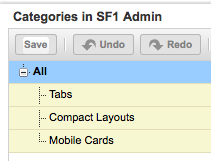
Consider the following setup of a knowledge base for Bob Buzzard Inc, providing information on Salesforce1 for my developers:

Screen Shot 2014 01 18 at 11 42 39

I have an article on adding a Visualforce mobile card to a page layout that is associated with the Mobile Cards data category, which my developers have access to through their profile, which includes all categories in the group:

Screen Shot 2014 01 18 at 11 47 18

A developer can then see the article via the Knowledge One tab:

Screen Shot 2014 01 18 at 12 08 31

I then set up another data category group for Administrators:

Screen Shot 2014 01 18 at 12 04 47

as my developers and administrators are quite protective of their roles and responsibilities (will they ever get along :), so developers have no access to the admin data category:

Screen Shot 2014 01 18 at 12 06 04

It then strikes me that the article about configuring a Visualforce mobile card would also be of interest to admins, so I add it to the Mobile Cards category in the admins group:

Screen Shot 2014 01 18 at 12 10 16

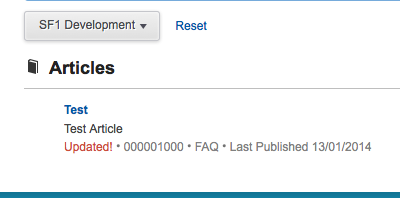
Once I’ve published this, the developers are straight on the phone complaining that they can no longer see the article:

Screen Shot 2014 01 18 at 12 14 13

all they can see is the test article.

Poring over the knowledge implementation guide presents the following explanation:

"A user can see an article if he or she can see at least one category per category group on the article."

In this case, as my developers can’t see a category in the admins category group, they can’t see the article any more.

Unfortunately, there will be an uprising if I give the developers access to the admin Mobile Cards category, so that isn’t an option for me.  The workaround that I came up with was to add a fake “shared” category to the admins category group:

Screen Shot 2014 01 18 at 12 28 18

and associate the article with this category:

Screen Shot 2014 01 18 at 12 29 43

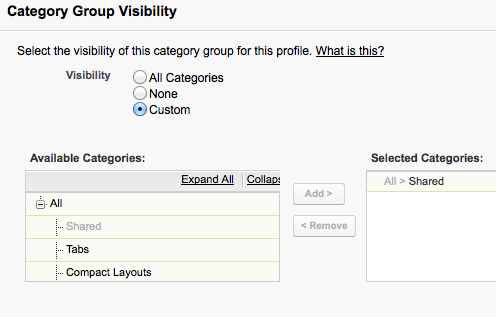
and finally give my developers access to the shared category:

Screen Shot 2014 01 18 at 12 31 20

Now my developers can see the article again:

Screen Shot 2014 01 18 at 12 32 53

The downside to this is that I’ve burnt two data categories out of my allowance of eight in the admin data category group, and I have to replicate the “shared” category in the developers data category group to allow the admins to see the article.  While its not overly onerous, it still strikes me as odd.  If you agree, please vote up my idea to allow users access where they have access to any category, regardless of group, associated with the article:

https://success.salesforce.com/ideaView?id=08730000000kzqPAAQ

Author’s note: all talk of Salesforce Admins and Developers not getting along is artistic license to ensure that I had to use my workaround.  In reality its one big love-in.

Saturday, 1 February 2014

Reading QR Codes in Salesforce1

Updated 22/02/2015 to detail the iPhone 6 experience)

(This post covers something I was pretty sure wouldn’t work, so I’m rather pleased to be writing about the solution)

As part of my Ticket to Ride Dreamforce session, I built a mobile application that scanned a QR code and retrieved some information from Salesforce.  I’ve been trying to figure out since then how I can do the same thing in Salesforce1.

The mobile application used the Google Zebra Crossing (zxing) Cordova plugin, but I don’t have the capability to add plugins to Salesforce1 so that wasn’t an option.  Most solutions I’ve looked into rely on capturing a QR code, uploading to a server and receiving a response containing the decoded value.  I got this working using a combination of Salesforce1 and Node.js, but its a pretty awful user experience, and I really wouldn’t want to use this mechanism when I was connecting over 3G.

Some googling led me to jsqrcode, a port of zxing to JavaScript, which sounded exactly what I was looking for. This processes a captured image client side (or server side, if you use the equivalent node.js package).  Hence the title of this post is “Reading” rather than “Scanning”.  The problem with this approach is it is far slower and more error prone than scanning, as you are into a capture, try to scan, repeat if fail loop rather than re-orienting the device until it can scan the code.  So why do it, I hear you ask?  The big upside is that you remain in the Salesforce1 application.  Thus, while using a third party application (or using the mobile SDK to build my own) improves the scanning user experience and the likelihood of success, the best I can do is send the user to a Salesforce URL in the browser afterwards, as Salesforce1 doesn’t have a URL scheme aside from the chatter functionality.

My experiments with jsqrcode indicate that capturing an image and processing it on a phone just doesn’t work.  I suspect this is a combination of the size of the images captured (3000x2000 pixels) and the lack of processing power on the device.  I’ve tried reducing the size of the image that the library processes, but due to the way that they are prepared for processing (written to a fixed size canvas) the image is downscaled which also causes a problem.  The same images can be processed okay on an iPad  or desktop, which leads me to believe the processing power is the bigger issue.  If you really need to do this then sending the image back to the server is the only way I’ve found that works. Update: 22/02/2015 - trying this on an iPhone 6 with a QR code emailed as an image works fine, so it looks like the processing power was the problem. It still seems pretty flaky when taking a picture though.

I first created a QR code that when decoded gives the id of a Salesforce record. I then downloaded the zip of the jsqrcode plugin and uploaded this to Salesforce as a static resource and added the various JavaScript files in the order mandated on the site:

<script type="text/javascript"
      src="//ajax.aspnetcdn.com/ajax/jQuery/jquery-1.10.2.min.js"></script>
    
<script type="text/javascript" src="{!URLFOR($Resource.QRCode, 'jsqrcode-master/src/grid.js')}"></script>
<script type="text/javascript" src="{!URLFOR($Resource.QRCode, 'jsqrcode-master/src/version.js')}"></script>
<script type="text/javascript" src="{!URLFOR($Resource.QRCode, 'jsqrcode-master/src/detector.js')}"></script>
<script type="text/javascript" src="{!URLFOR($Resource.QRCode, 'jsqrcode-master/src/formatinf.js')}"></script>
<script type="text/javascript" src="{!URLFOR($Resource.QRCode, 'jsqrcode-master/src/errorlevel.js')}"></script>
<script type="text/javascript" src="{!URLFOR($Resource.QRCode, 'jsqrcode-master/src/bitmat.js')}"></script>
<script type="text/javascript" src="{!URLFOR($Resource.QRCode, 'jsqrcode-master/src/datablock.js')}"></script>
<script type="text/javascript" src="{!URLFOR($Resource.QRCode, 'jsqrcode-master/src/bmparser.js')}"></script>
<script type="text/javascript" src="{!URLFOR($Resource.QRCode, 'jsqrcode-master/src/datamask.js')}"></script>
<script type="text/javascript" src="{!URLFOR($Resource.QRCode, 'jsqrcode-master/src/rsdecoder.js')}"></script>
<script type="text/javascript" src="{!URLFOR($Resource.QRCode, 'jsqrcode-master/src/gf256poly.js')}"></script>
<script type="text/javascript" src="{!URLFOR($Resource.QRCode, 'jsqrcode-master/src/gf256.js')}"></script>
<script type="text/javascript" src="{!URLFOR($Resource.QRCode, 'jsqrcode-master/src/decoder.js')}"></script>
<script type="text/javascript" src="{!URLFOR($Resource.QRCode, 'jsqrcode-master/src/qrcode.js')}"></script>
<script type="text/javascript" src="{!URLFOR($Resource.QRCode, 'jsqrcode-master/src/findpat.js')}"></script>
<script type="text/javascript" src="{!URLFOR($Resource.QRCode, 'jsqrcode-master/src/alignpat.js')}"></script>
<script type="text/javascript" src="{!URLFOR($Resource.QRCode, 'jsqrcode-master/src/databr.js')}"></script>

I then have a simple form with JavaScript functions attached to the buttons:

  <form>
    <input type="file" onchange="previewFile()" /><br/>
  <h1>Preview</h1>
   <div style="height:200px">
    <img src="" id="preview" height="200" alt="Image preview..." />
   </div>
  </form>

  <p>If the image above looks clear, click the decode button.  If not, try again!</p>
  <button id="decode" onclick="decode()">Decode</button>

Upon first loading the page, a callback is registered with jsqrcode to alert the result of the code and then redirect to the record matching the id, using the sforce.one JavaScript object if it is available, otherwise using the standard UI URL:

  function read(a)
  {
        alert(a);
		if( (typeof sforce != 'undefined') && (sforce != null) ) {
        	sforce.one.navigateToSObject(a);
        }
        else {
        	window.location="/" + a;
		}
  }
        
  $(document).ready(function() {
        qrcode.callback = read;
  });
  

When the user takes a picture via the file input, the following JavaScript produces a preview:

function previewFile() {
  var preview = document.querySelector('#preview');
  var file    = document.querySelector('input[type=file]').files[0];
  var reader  = new FileReader();

  reader.onloadend = function () {
    preview.src = reader.result;
  }

  if (file) {
    reader.readAsDataURL(file);
  } else {
    preview.src = "";
  }
}

and if the code looks clear enough, clicking the decode button executes the jsqrcode decode function using the source of the image preview:

function decode() {
    try
    {
    var preview=document.querySelector('#preview');
    qrcode.decode(preview.src);
    }
    catch (e)
    {
       alert('Error - ' + e);
    }
}

The full page is available at this gist, and here are some screen shots of it in action:

Screen Shot 2014 01 30 at 16 33 47

Clicking the button to choose a file allows me to capture a new image or pick one already on my iPad:

 Screen Shot 2014 01 30 at 16 36 07

I choose to capture an image that is being displayed on my macbook air which renders into the preview section:

Screen Shot 2014 02 01 at 12 40 31

And if I’m happy with it, I can press the button to decode.  This takes a couple of seconds and then, all things being equal, I’m taken to the record:

 IMG 0067

If there’s a problem, I’ll receive an alert and I can can have another go.  I’ve been pleasantly surprised by how well the codes can be processed - I managed to scan my Dreamforce badge without any issues!  

Finally, take a step back and appreciate what has been done here - an image has been captured from the device, previewed, and the contained QR code decoded, all on the client in HTML5 and JavaScript.  I think that’s pretty amazing and I’m continually impressed by how much more can be done these days without resorting to server side code.