Showing posts with label html5. Show all posts

Saturday, 22 November 2014

Responsive Images in Visualforce

Introduction

When building applications to run on the Salesforce1 platform across multiple devices, utilising responsive web design techniques is a must.  A responsive application adjusts its layout according to the capabilities of the device used to view.

One of the biggest challenges in responsive web design is image handling - how to efficiently display appropriately sized images. 

Download and Shrink

A 2012 survey found that 86% of sites delivered the same content regardless of the device. In my opinion one of the main reasons for this is the download and shrink approach to images. In this case, a single large image is embedded inside a block container (such as a <div> element) and styled to take up 100% of the width.  As the block container changes size based on the capabilities of the device, the browser will automatically scale the image. 

The following page is an example of download and shrink:

<apex:page sidebar="false" showheader="false">
  <style>
    .respImageContainer{
    	width:150px;
    	padding-top:10px;]
    }
    
	@media ( min-width: 768px ) {
    	.respImageContainer
    	{
    		width:320px;
    	}
	}
	
	@media ( min-width: 1024px ) {
    	.respImageContainer
    	{
    		width:677px;
    	}
	}
  </style>
  
  <div class="respImageContainer">
    <img style="width:100%" src="{!$Resource.S1DevWeekLarge}" />
  </div>
</apex:page>

If the device has a minimum width of 1024px, the <div> element containing the image has a width of 677px, which is the actual size of the image:

Screen Shot 2014 11 22 at 17 42 48

If the device has a minimum width of 768px, the <div> element containing the image has a width of 320px:

Screen Shot 2014 11 22 at 17 43 02

If the device has a minimum width of 320px, the <div> element containing the image has a width of 150px :

Screen Shot 2014 11 22 at 17 43 21

The original image is 677 x 259 pixels, 175343 in total. In the final screen shot, the image is resized to 150 x 57 pixels, 8550 in total.  This means that most of the image is discarded when displayed, which is extremely inefficient use of bandwidth. There is also another problem here, known as art direction - the map in the image in the final screenshot is really too small to be of any use, so it would be better to zoom in on the spaceman as the Salesforce1 developer week logo.

HTML5 Picture Element

In the fullness of time image handling will be provided by the HTML5 picture element, an example of which is:

<picture>
  <source media="(min-width: 1024px)" src=“large_image”></source>
  <source media="(min-width: 768px)" src=“med_image”></source>
  <source src=“small_image”></source>
  <img src="fallback_image"></img>
</picture>

as can be seen, the <picture> element contains a number of <source> elements, each of which refers to a different image. The <source> element optionally contains a media query which must be satisfied in order for the image to be chosen. In the example code above:

  • if the device has a minimum width of 1024px, the large_image file will be used. 
  • If the device has a minimum width of 768px, the medium_image file will be used.
  • Otherwise the small_image file will be used.

Note that the <picture> element also contains a regular HTML <img> element - if the browser doesn’t support the <picture> element, the fallback_image file will be used. The use of the fallback <img> element does present a challenge, as browsers typically try to pre-fetch images before the page has been completely loaded and parsed.  This can lead to the situation where the fallback image is downloaded, only to be discarded as the image file identified can be used instead.

Unfortunately browser support is still patchy for the <picture> element; at the time of writing (November 2014) only Chrome and Opera provide support by default. 

Picturefill

Picturefill, by Scott Jehl, is a Polyfill for the HTML5 picture element, that uses JavaScript to load the appropriate picture based on additional HTML5 data- elements on <div> or <span> elements:

<apex:page standardStyleSheets="false" showHeader="false">
  <style>
    .respImageContainer {
    	padding-top:10px;
    }
  </style>
<apex:includeScript value="{!$Resource.PictureFill_1_2}" /> <div class="respImageContainer"> <span data-picture="1" data-alt="S1 Dev Week"> <span data-src="{!$Resource.S1DevWeekSmall}"></span> <span data-src="{!$Resource.S1DevWeekMed}"
data-media="(min-width: 768px)"></span> <span data-src="{!$Resource.S1DevWeekLarge}"
data-media="(min-width: 1024px)"></span> </span> </div> <script> window.picturefill(); </script> </apex:page>

The image source is defined by the data-src attribute, while the media query is present in the data-media attribute.  I’ve included the Picturefill JavaScript as a static resource as I couldn’t find it on any of the major content delivery networks.  This adds a Picturefill function to the window element which is called to process the page and load any images. This results in appropriately sized images being delivered to each page, at 1024px:

Screen Shot 2014 11 22 at 17 49 29

at 768px:

Screen Shot 2014 11 22 at 17 44 12

and at 320px an image containing only the spaceman is rendered:

Screen Shot 2014 11 22 at 17 43 43

Picturefill has two versions - one that works against <div> elements and one that works against <span> elements.  I tend to use the latter as I've found that the <div> elements can interfere with the styling introduced by Bootstrap, which is my responsive framework of choice. The downside to this approach is that it introduces latency when loading images, as the page is rendered before the JavaScript executes, and only then are the images loaded.

Resources

Saturday, 15 November 2014

Visualforce, Required Fields and HTML5

A few weeks ago I encountered some unexpected behaviour around action regions and required fields which after some investigation turned out to be a consequence of using the HTML5 doctype. In this post I’ll present an example of the use of an action region in conjunction with required fields and show how it is impacted by HTML5.

Regular Form

As a very simple example, I have a page that allows the user to enter the name of an account and some additional information in a table.  The user can click the ‘Add Row’ button to add a new row to the additional information:

Screen Shot 2014 09 27 at 08 07 03

The markup for this page is a regular apex:form (the controller isn’t relevant to this post, but is available in the Resources section at the end of this post):

<apex:page controller="RequiredCtrl" tabstyle="Account">
  <apex:pageMessages id="msgs"/>
  <apex:form>
    <apex:pageBlock mode="maindetail">
      <apex:pageBlockButtons location="top">
        <apex:commandButton value="Save" action="{!save}" />
      </apex:pageBlockButtons>
      <apex:pageBlockSection title="Account Information">
        <apex:pageBlockSectionItem>
          <apex:outputlabel value="Name"/>
          <apex:inputfield value="{!Acc.Name}" />
        </apex:pageBlockSectionItem>
      </apex:pageBlockSection>
      <apex:pageBlockSection title="Related Information" columns="1">
        <apex:pageBlockSectionItem>
          <apex:commandButton value="Add Row" action="{!addRow}"/>
        </apex:pageBlockSectionItem>
        <apex:pageBlockTable value="{!rows}" var="row">
          <apex:column headerValue="Value 1">
            <apex:inputText value="{!row.val1}" />
          </apex:column>
          <apex:column headerValue="Value 2">
            <apex:inputText value="{!row.val1}" />
          </apex:column>
          <apex:column headerValue="Value 3">
            <apex:inputText value="{!row.val3}" />
          </apex:column>
        </apex:pageBlockTable>
      </apex:pageBlockSection>
    </apex:pageBlock>
  </apex:form>
</apex:page>

Clicking the 'Add Row’ button causes the post back to fail as there is a required field missing:

Screen Shot 2014 09 27 at 07 51 34

Adding an Action Region

An action region demarcates a limited section of the form to submit back with the post back. Note that this also requires a rerender component to turn the post back into an Ajax request.  By enclosing my table in an output panel containing an action region, the required field no longer has an impact as it is outside the action region (note that I’m also rerendering my page messages component, as without that any errors will be swallowed as detailed in this post):

<apex:outputPanel id="rows">
  <apex:actionRegion>
    <apex:pageBlockSection title="Related Information" columns="1">
      <apex:pageBlockSectionItem>
        <apex:commandButton value="Add Row" action="{!addRow}" rerender="rows,msgs"/>
      </apex:pageBlockSectionItem>
     ...
    </apex:pageBlockSection>
  </apex:actionRegion>
</apex:outputPanel>

I can now click the ‘Add Row’ button and a new row is generated without errors:

Screen Shot 2014 09 27 at 08 00 34

Using the HTML5 Doctype

If I then decide I’d like to take advantage of some HTML5 features and turn on the HTML5 doctype on the page:

<apex:page controller="RequiredCtrl" tabstyle="Account" doctype="html-5.0">
  ...
</apex:page>

Clicking the ‘Add Row’ button suddenly fails again, but with a different style of error decorator:

Screen Shot 2014 09 27 at 08 01 32

Digging into the rendered HTML shows that an HTML5 specific attribute has been generated:

<input id="..." required="required" size="20" type="text" value="">

this attribute is handled directly by the browser, which obviously has no idea that there is a bunch of JavaScript lying in wait to trap the post back and turn it into an Ajax request, so it just checks the input element and blocks the post back if it is blank.

immediate=“true"

 The same behaviour can be seen when the immediate attribute is set to true for a command button, action function etc., for exactly the same reasons described above.

Workarounds

  • The easiest workaround, if you aren’t relying on any HTML5 features, is to turn off the HTML5 doctype.
  • If you need HTML5 features, make the field non-required by specifying the required attribute as false in your Visualforce markup if you can (you can’t do this with standard object names unfortunately)
  • Manage validation and error messages yourself - see the Field Level Error Messages … links in the Resources section.
  • If neither of the above are suitable, use JavaScript to remove the required attribute from the rendered HTML. This is pretty fragile though, as it requires your JavaScript to know which fields are part of an action region and which aren’t.

Resources

Friday, 5 September 2014

Check File Size on Upload in Visualforce

When uploading a file via the Visualforce apex:inputFile standard component, if the file size exceeds the particular Salesforce limit (e.g. uploading an attachment greater than 25Mb in size), the first the user knows about this is after the file has been uploaded to the server and an attempt is made to insert it into the database.  In the event of a large file over a slow connection (exactly the type of connection I am using to write this post from the North Norfolk coast), this isn’t the greatest user experience.

A better way would be to check the size of the file can be handled on the server prior to starting the upload.  Up until a few years ago, this wasn’t possible using regular HTML and JavaScript, instead something like a flash plugin was required. The advent of HTML5 introduced the File API, which provides access to the file and its metadata directly in the browser.

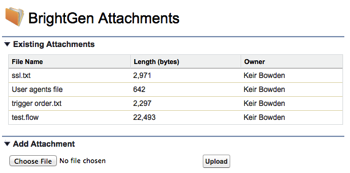
To demonstrate this I have a simple page that uses the account standard controller, with an extension controller to insert the attachment.  The page displays the current set of attachments associated with the record and a button to allow a new attachment to be uploaded:

Screen Shot 2014 09 05 at 17 21 19

Clicking the upload button and selecting a file larger than 25Mb (a 120Mb+ movie in this case), cancels the form submission and pops up an alert explaining the problem to the user:

Screen Shot 2014 09 05 at 17 25 33

As I’m on a slow connection, I’ve also added a warning when the user chooses a file that is over 2Mb in size - in this case they have the option to continue, on the understanding it may take a while:

Screen Shot 2014 09 05 at 17 25 52

The file checking is carried out in JavaScript, from an onclick handler on the ‘Upload’ button:

function checkFileSize()
{
    var goodSize = true;
    $('input[type=file]').each(function()
    {
        if(typeof this.files[0] !== 'undefined')
        {
            var file = this.files[0],
                size = typeof ActiveXObject !== 'undefined' ?
                    getIEFileSize(file)
                    :
                    file.fileSize || file.size;

            goodSize = 25000000 > size;
            if(!goodSize)
            {
                alert(this.files[0].name +' is too large - please choose a file that is 25Mb or less');
            }
            else
            {
            	if (2000000 < size)
            	{
                    goodSize=confirm('The file size is ' + size +
                    	' bytes - this may take some time. Are you sure you wish to continue');
                }
            }

            return goodSize;
        }
    });
    return goodSize;
}

This function uses JQuery to iterate the file elements on the page (one in this case), and for each input, gets the first (and only) file chosen.  the call to getIEFileSize allows this page to work with Internet Explorer prior to version 10, although I haven’t tested this recently, as I only use Macs these days. For non-IE browsers, the size is determined by the filesize or size properties (filesize is deprecated now, but its always a good idea to allow for older browsers!).  

The rest of the function simply checks the size of the file and generates an alert or confirmation dialog box as required.  Finally, a true/false result is returned to the onclick handler - if false, the form submission will be cancelled.

You can access the full page here, and for the sake of completeness, the full controller here.

Friday, 7 March 2014

Salesforce1 and Visualforce - Things I've Learned

At the February Meetup of the London Salesforce Developers Group, I presented a session where I went through some of the things I’ve learned while building Visualforce solutions to run in Salesforce1. The slide deck for this session is available on SlideShare, but some of the slides might be difficult to understand without the words that went with them, so in a departure from my usual blogging style I’ve decided to pick out some slides from the deck and explain what I was trying to show.

Capturing Input

Screen Shot 2014 03 06 at 12 37 10

Screen Shot 2014 03 06 at 12 37 43

The <apex:inputField /> component is not supported in Salesforce1if it creates a widget - e.g. date picker (although this component seems to work a lot of the time in iOS but not android).  Rather than trying to implement your own version of a Visualforce input, its better to use the HTML5 type attribute and let the browser determine the appropriate input mechanism to display.  The second slide shows how the the iPhone reacts to type attributes - displaying a date  spinner for a date and a custom keyboard including digits for number.  Unfortunately there isn’t a type for a lookup to another record, so you’ll still need to roll your own solution to this.

Screen Shot 2014 03 06 at 12 44 40

Something many people complain about when using HTML5 or Hybrid mobile applications is that clicking buttons can be unresponsive. Often this is down to the default behaviour of the webkit based browser (so Safari or Chrome at the least), which is to wait 300m/s after a click to see if the user is actually carrying out a double-click.  While this makes sense on the desktop, double tapping isn’t that common in mobile applications (although it is sound advice in Zombieland). The way that I typically work around this is to bind to the touchstart/end events rather than the click event.  When working in JQuery Mobile this is easy, as the framework adds support for these events.  Otherwise, built-in browser support is patchy so you may end up having to use another JavaScript solution such as the Event or Zepto packages. 

window.open()

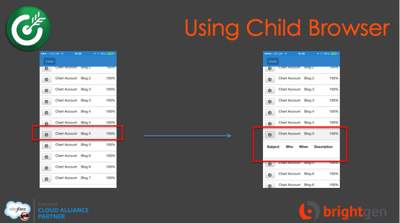
The next block of slides relates to using window.open() to open a child browser window rather than the regular webview - this only works for iOS, but has allowed me to work around a few issues:

Rotating the iPhone application simply results in a sideways view of the page:

Screen Shot 2014 03 06 at 13 00 46

whereas rotating a page opened in the child browser works as expected:

Screen Shot 2014 03 06 at 13 00 59

List jumping has been acknowledged by Salesforce as a known issue. What happens here is that if you have a clickable list of items that is larger than the viewport, when you scroll down and click an entry, the application jumps back to the top of the list after the click.  However, I found this to be worse when using Bootstrap, in that the jump to the top took place before the click had been handled, resulting in the click being applied to the wrong element.

In the slide below, I’ve clicked on the Blog 5 entry to expand, but the app has jumped back to the top and expanded the Blog 11 entry,  I originally found this when placing delete buttons on a list, so it wasn’t just an irritant, it was affecting the data:

Screen Shot 2014 03 06 at 13 02 24

If I open the list in a child browser though, the item that I click on is the one that expands and the view stays at the correct place:

Screen Shot 2014 03 06 at 13 05 45

The next issue that I covered involved Bootstrap responsive tables.  The way that Boostrap handles tables is to leave it sized as it is, but wrap it in a scrolling element.  This means that when a page containing a responsive table is accessed on a small screen device, the elements outside the table will wrap and the table becomes scrollable:

Screen Shot 2014 03 06 at 13 07 06

Accessing this page in the Salesforce1 app, however, and the page is resized to the width of the table, with the text spanning the full width.  Even worse, if you have any dialogs in the page, they will be the full width of the page too, which means that you would need to scroll around the page to find the dialog message:

Screen Shot 2014 03 06 at 13 10 10

Opening the page inside the child browser respects the fact that the table is scrollable and reflows the text appropriately for the device:

Screen Shot 2014 03 06 at 13 11 40

As I’ve blogged before though, the child browser introduces some additional complexity - you can’t tell that you are in the Salesforce one context for a start, and as I mentioned earlier, it isn’t a solution for Android (although the responsive tables do behave correctly on my Nexus 7 so there is slightly less need for it).

 The final points I made were around mobile development best practice:

Screen Shot 2014 03 06 at 13 16 51

If you are designing applications that will genuinely be used while on the road, with all of the connection and bandwidth issues that brings, you really don’t want to be using much Visualforce at all, instead you should rebuild the app to do most of its work on the device. I presented a session on this topic at Dreamforce that applies equally well to Salesforce1 - you can watch the video here.


Saturday, 1 February 2014

Reading QR Codes in Salesforce1

Updated 22/02/2015 to detail the iPhone 6 experience)

(This post covers something I was pretty sure wouldn’t work, so I’m rather pleased to be writing about the solution)

As part of my Ticket to Ride Dreamforce session, I built a mobile application that scanned a QR code and retrieved some information from Salesforce.  I’ve been trying to figure out since then how I can do the same thing in Salesforce1.

The mobile application used the Google Zebra Crossing (zxing) Cordova plugin, but I don’t have the capability to add plugins to Salesforce1 so that wasn’t an option.  Most solutions I’ve looked into rely on capturing a QR code, uploading to a server and receiving a response containing the decoded value.  I got this working using a combination of Salesforce1 and Node.js, but its a pretty awful user experience, and I really wouldn’t want to use this mechanism when I was connecting over 3G.

Some googling led me to jsqrcode, a port of zxing to JavaScript, which sounded exactly what I was looking for. This processes a captured image client side (or server side, if you use the equivalent node.js package).  Hence the title of this post is “Reading” rather than “Scanning”.  The problem with this approach is it is far slower and more error prone than scanning, as you are into a capture, try to scan, repeat if fail loop rather than re-orienting the device until it can scan the code.  So why do it, I hear you ask?  The big upside is that you remain in the Salesforce1 application.  Thus, while using a third party application (or using the mobile SDK to build my own) improves the scanning user experience and the likelihood of success, the best I can do is send the user to a Salesforce URL in the browser afterwards, as Salesforce1 doesn’t have a URL scheme aside from the chatter functionality.

My experiments with jsqrcode indicate that capturing an image and processing it on a phone just doesn’t work.  I suspect this is a combination of the size of the images captured (3000x2000 pixels) and the lack of processing power on the device.  I’ve tried reducing the size of the image that the library processes, but due to the way that they are prepared for processing (written to a fixed size canvas) the image is downscaled which also causes a problem.  The same images can be processed okay on an iPad  or desktop, which leads me to believe the processing power is the bigger issue.  If you really need to do this then sending the image back to the server is the only way I’ve found that works. Update: 22/02/2015 - trying this on an iPhone 6 with a QR code emailed as an image works fine, so it looks like the processing power was the problem. It still seems pretty flaky when taking a picture though.

I first created a QR code that when decoded gives the id of a Salesforce record. I then downloaded the zip of the jsqrcode plugin and uploaded this to Salesforce as a static resource and added the various JavaScript files in the order mandated on the site:

<script type="text/javascript"
      src="//ajax.aspnetcdn.com/ajax/jQuery/jquery-1.10.2.min.js"></script>
    
<script type="text/javascript" src="{!URLFOR($Resource.QRCode, 'jsqrcode-master/src/grid.js')}"></script>
<script type="text/javascript" src="{!URLFOR($Resource.QRCode, 'jsqrcode-master/src/version.js')}"></script>
<script type="text/javascript" src="{!URLFOR($Resource.QRCode, 'jsqrcode-master/src/detector.js')}"></script>
<script type="text/javascript" src="{!URLFOR($Resource.QRCode, 'jsqrcode-master/src/formatinf.js')}"></script>
<script type="text/javascript" src="{!URLFOR($Resource.QRCode, 'jsqrcode-master/src/errorlevel.js')}"></script>
<script type="text/javascript" src="{!URLFOR($Resource.QRCode, 'jsqrcode-master/src/bitmat.js')}"></script>
<script type="text/javascript" src="{!URLFOR($Resource.QRCode, 'jsqrcode-master/src/datablock.js')}"></script>
<script type="text/javascript" src="{!URLFOR($Resource.QRCode, 'jsqrcode-master/src/bmparser.js')}"></script>
<script type="text/javascript" src="{!URLFOR($Resource.QRCode, 'jsqrcode-master/src/datamask.js')}"></script>
<script type="text/javascript" src="{!URLFOR($Resource.QRCode, 'jsqrcode-master/src/rsdecoder.js')}"></script>
<script type="text/javascript" src="{!URLFOR($Resource.QRCode, 'jsqrcode-master/src/gf256poly.js')}"></script>
<script type="text/javascript" src="{!URLFOR($Resource.QRCode, 'jsqrcode-master/src/gf256.js')}"></script>
<script type="text/javascript" src="{!URLFOR($Resource.QRCode, 'jsqrcode-master/src/decoder.js')}"></script>
<script type="text/javascript" src="{!URLFOR($Resource.QRCode, 'jsqrcode-master/src/qrcode.js')}"></script>
<script type="text/javascript" src="{!URLFOR($Resource.QRCode, 'jsqrcode-master/src/findpat.js')}"></script>
<script type="text/javascript" src="{!URLFOR($Resource.QRCode, 'jsqrcode-master/src/alignpat.js')}"></script>
<script type="text/javascript" src="{!URLFOR($Resource.QRCode, 'jsqrcode-master/src/databr.js')}"></script>

I then have a simple form with JavaScript functions attached to the buttons:

  <form>
    <input type="file" onchange="previewFile()" /><br/>
  <h1>Preview</h1>
   <div style="height:200px">
    <img src="" id="preview" height="200" alt="Image preview..." />
   </div>
  </form>

  <p>If the image above looks clear, click the decode button.  If not, try again!</p>
  <button id="decode" onclick="decode()">Decode</button>

Upon first loading the page, a callback is registered with jsqrcode to alert the result of the code and then redirect to the record matching the id, using the sforce.one JavaScript object if it is available, otherwise using the standard UI URL:

  function read(a)
  {
        alert(a);
		if( (typeof sforce != 'undefined') && (sforce != null) ) {
        	sforce.one.navigateToSObject(a);
        }
        else {
        	window.location="/" + a;
		}
  }
        
  $(document).ready(function() {
        qrcode.callback = read;
  });
  

When the user takes a picture via the file input, the following JavaScript produces a preview:

function previewFile() {
  var preview = document.querySelector('#preview');
  var file    = document.querySelector('input[type=file]').files[0];
  var reader  = new FileReader();

  reader.onloadend = function () {
    preview.src = reader.result;
  }

  if (file) {
    reader.readAsDataURL(file);
  } else {
    preview.src = "";
  }
}

and if the code looks clear enough, clicking the decode button executes the jsqrcode decode function using the source of the image preview:

function decode() {
    try
    {
    var preview=document.querySelector('#preview');
    qrcode.decode(preview.src);
    }
    catch (e)
    {
       alert('Error - ' + e);
    }
}

The full page is available at this gist, and here are some screen shots of it in action:

Screen Shot 2014 01 30 at 16 33 47

Clicking the button to choose a file allows me to capture a new image or pick one already on my iPad:

 Screen Shot 2014 01 30 at 16 36 07

I choose to capture an image that is being displayed on my macbook air which renders into the preview section:

Screen Shot 2014 02 01 at 12 40 31

And if I’m happy with it, I can press the button to decode.  This takes a couple of seconds and then, all things being equal, I’m taken to the record:

 IMG 0067

If there’s a problem, I’ll receive an alert and I can can have another go.  I’ve been pleasantly surprised by how well the codes can be processed - I managed to scan my Dreamforce badge without any issues!  

Finally, take a step back and appreciate what has been done here - an image has been captured from the device, previewed, and the contained QR code decoded, all on the client in HTML5 and JavaScript.  I think that’s pretty amazing and I’m continually impressed by how much more can be done these days without resorting to server side code.

Sunday, 22 April 2012

Mobile Apps with Visualforce and JQuery Mobile

I've been spending some of my time building mobile functionality recently.  One thing that has put me off in the past has been the multitude of devices that need to be supported if I want to maximize usage.  Building the same functionality for iOS, Android and others doesn't fill me with joy.

HTML5 has the "write once, run anywhere" capability that first attracted me to Java back in JDK 1.0 days. The downside to this it that it does reduce the functionality available.  For example, offline storage is problematic at the moment with different browsers supporting different standards, and the standards themselves being subject to change, while access to native functionality is still in very early days (Android makes the camera available through javascript but there aren't many other examples out there).   It very much feels like the future though, so I've been heading down that route.

My first foray into developing a mobile front end was for our BGFM product for Dreamforce 2010.  This was simply some Visualforce pages sized and styled appropriately for the iPhone.  The obvious downside to that was that a device with any other form factor needed separate pages (or at least pages that could adjust themselves appropriately).  However, towards the middle of 2011 I came across JQuery Mobile (JQM) and starting using the 1.0 alpha releases.  The great thing about JQM is that it takes care of the cross device side of things, leaving you with one app that works across all popular smartphones, tablets etc.  Even better, it will also work against older devices, dropping back down to basic HTML if necessary.  For details, documentation, tutorials and samples, check out the JQuery Mobile site.

Building Visualforce pages that leverage JQM is pretty straightforward.  Lifting from the getting started page from the JQM site:

<apex:page showHeader="false" sidebar="false" standardStyleSheets="false">
<html> 
    <head> 
    <title>My Page</title> 
    <meta name="viewport" content="width=device-width, initial-scale=1" /> 
    <link rel="stylesheet" href="http://code.jquery.com/mobile/1.1.0/jquery.mobile-1.1.0.min.css" />
    <script src="http://code.jquery.com/jquery-1.7.1.min.js"></script>
    <script src="http://code.jquery.com/mobile/1.1.0/jquery.mobile-1.1.0.min.js"></script>
</head> 
<body> 

<div data-role="page">

    <div data-role="header">
        <h1>My Title</h1>
    </div><!-- /header -->

    <div data-role="content">   
           <ul data-role="listview" data-inset="true" data-filter="true">
          <li><a href="#">Acura</a></li>
          <li><a href="#">Audi</a></li>
          <li><a href="#">BMW</a></li>
          <li><a href="#">Cadillac</a></li>
          <li><a href="#">Ferrari</a></li>
           </ul>
    </div><!-- /content -->

</div><!-- /page -->

</body>
</html>
</apex:page>

Opening this in a mobile device gives:


As you can see from the code, I've had to do nothing to style this appropriately for the device, simply giving the unordered list a data-role of listview means that JQM takes care of all the heavy lifting. Adding buttons for simple navigation is also straightforward, and JQM provides some transitions to mimic native apps. Again, its all taken care of by the markup:

<a href="index.html" data-role="button" data-inline="true">Cancel</a>
<a href="index.html" data-role="button" data-inline="true" data-theme="b">Save</a>

resulting in a couple of appropriately styled buttons at the bottom of the page:


Where things get a little more interesting is if you have a form in the page and the buttons are submitting the form rather than simply moving to a new page, as is the case in most of the Visualforce pages I write.

In that case I'd like to use an <apex:commandLink> component, but I can't provide the additional attributes to lay things out correctly - e.g. data-inline="true". While I could write some Javascript to take care of this, in the first instance I'm trying to keep things simple, so I use an <apex:actionFunction> component and tie this to the JQM specific link via an onlick handler as follows:

   <apex:form id="jsfrm">
    <apex:actionFunction action="{!save}" name="save"/>
          .....
      <a href="#" data-role="button" data-inline="true" 
                onclick="$.mobile.showPageLoadingMsg(); save()">Save</a>
          .....
   </apex:form>

The $.mobile.showPageLoadingMsg(); function call simply displays a spinner to let the user know something is happening.

 Standard <apex:inputField/> components also render well most of the time - sometimes I end up using the input text/textarea/checkbox etc to allow for a greater level of control, but a basic form can be created with the minimum of effort.  For example, a simple form to create an account by specifying its name and industry only requires the following markup:

<apex:page showHeader="false" sidebar="false" standardStyleSheets="false" standardController="Account">
<html> 
    <head> 
    <title>Create Account</title> 
    <meta name="viewport" content="width=device-width, initial-scale=1" /> 
    <link rel="stylesheet" href="http://code.jquery.com/mobile/1.1.0/jquery.mobile-1.1.0.min.css" />
    <script src="http://code.jquery.com/jquery-1.7.1.min.js"></script>
    <script src="http://code.jquery.com/mobile/1.1.0/jquery.mobile-1.1.0.min.js"></script>
</head> 
<body> 

<div data-role="page">

    <div data-role="header">
        <h1>Create Account</h1>
    </div><!-- /header -->

    <div data-role="content">   
      <apex:form id="jsfrm">
        <apex:actionFunction action="{!save}" name="save"/>
        <apex:outputLabel for="name" value="Name"/>
        <apex:inputField id="name" value="{!Account.Name}"/>
        
        <apex:outputLabel for="industry" value="Industry"/>
        <apex:inputField id="industry" value="{!Account.Industry}"/>
        
        <a href="index.html" data-role="button" data-inline="true">Cancel</a>
        <a href="index.html" data-role="button" data-inline="true" data-theme="b" 
                   onclick="$.mobile.showPageLoadingMsg(); save();">Save</a><br />
      </apex:form>
     </div><!-- /content -->

</div><!-- /page -->

</body>
</html>
</apex:page>

Produces the page shown below - not too bad for a few lines of markup:


Obviously once the record is saved, the user is redirected to the standard view page which looks pretty awful on a phone, so standard controllers probably aren't going to be a silver bullet for this, making it the usual challenge for editions below enterprise.

I've put together a demo application that allows a contact to take a survey. Its hosted on an unauthenticated Force.com site so is publicly available.  A couple of sample screen shots are shown below:


If you'd like to try out the demo application, simply click here.

A couple of points to note:

  • I've put this together over a few weekends so I wouldn't be in the least bit surprised if there were some glitches waiting.  
  • I've only tested it with an iPhone and webkit browser, though I can't see why there would be issues with different devices.
  • This is a real functioning application, so the feedback will be stored in my Salesforce instance - so if you feel like leaving real feedback, I may even act on it!