The Streaming API is great for sending information to a user’s browser when a record matches the criteria for a subscribed Topic - there’s an example of this in the Developerforce Wiki. However, we all know that user attention spans are short and it is highly likely that they will have moved on to another window or tab, maybe to get on with some work in another Salesforce org or sandbox.
Browser notifications provide a way to notify a user of changes, even when they have minimised the browser window. The Notification API is still in draft and is currently supported by Chrome, Firefox and Safari - for more details see the caniuse page. In this post I’ll demonstrate how the to generate a notification to the user when a case that they own is updated. I’ll use the Streaming API to subscribe to updates to all cases, and interrogate the update to determine if the case is owned by the currently logged in user. If it is, a browser notification will be displayed. The code relies on the Streaming API JavaScript resources being installed as described in the introductory Developerforce Wiki page.
Notifications are different to browser popups, in that they require user approval before they will be shown. This is a one shot deal, so once permission to display has been granted for a Force.com instance it will be retained across multiple sessions. Unfortunately the permission cannot be requested programmatically - the first notification has to be in response to a user action, clicking a button for example.
The Notification.permission property indicates if permission has been granted or refused for the current site. Unfortunately there is a bug in the Google Chrome implementation of Notifications, which means that the property is always set to ‘undefined’, which in reality indicates that the user has not been asked to grant permissions. The only way to confirm this in Chrome is to create a new Notification and interrogate the permission property - if the user hasn’t already granted permission they will be asked to via a dialog, while if they have already granted permission the notification will be displayed. For that reason, the test notification needs to display something non-threatening!
The following code creates the test notification if required and checks the resulting permission. Note that it also updates the Notification.permission property so that this only has to be done once.
if (Notification && typeof Notification.permission==="undefined")
{
   var testNotification = new window.Notification('This is a test');

   if (testNotification.permission)
   {
      Notification.permission=testNotification.permission;
   }
}
Once this code has executed, the Notification.permission can be relied on - it may still be undefined, in which case it means that the user hasn’t granted permission (remember, the permission cannot be requested programmatically, so if the user has never been asked, the code above will simply update the Notification.permission to undefined). Based on the value of this property, I can conditionally show or hide the following section to encourage the user to click a button to enable notifications.
<button id="notifyon" style="display:none">Enable Chrome Notifications</button>
<button id="sendnotify" onclick="notify();">Send Notification</button>
The streaming API part of the code subscribes to a topic and writes information to the page whenever an update to the subscription is received. It also executes the notify function when an update is received to a record that the currently logged in user owns:
$.cometd.subscribe('/topic/{!topic}', function(message) {
  $('#content').append('<p>Notification: ' +
              'Channel: ' + JSON.stringify(message.channel) + '<br>' +
              'Record name: ' + JSON.stringify(message.data.sobject.Name) +                        '<br>' +
              'Record owner: ' + JSON.stringify(message.data.sobject.OwnerId) +
              '<br>' +
              'Created: ' + JSON.stringify(message.data.event.createdDate) + '<br>' +
              'ID: ' + JSON.stringify(message.data.sobject.Id) + '<br>' +
              'Number: ' + JSON.stringify(message.data.sobject.CaseNumber) + '<br>' +
              'Event type: ' + JSON.stringify(message.data.event.type)+ '<br/>' +
              'Mine : ' + (message.data.sobject.OwnerId=='{!$User.id}'?'Yes':'No') +               '</p>');

    if (message.data.sobject.OwnerId=='{!$User.id}')
    {
        notify(message.data.sobject, message.data.event.type);
    }
});
The notify function instantiates a notification only if the user has granted permission:
function notify(sobject, eventtype)
{
	// If notifications are granted show the notification
	if (Notification && Notification.permission === "granted")
	{
		var millis=new Date().getTime();
	    	var tag = 'CU:' + millis;
	   	var n = new Notification("Case Update",  {
		   		icon : '{!URLFOR($Resource.notifyimg)}',
	  			tag: tag,
	   			body: 'Case ' + sobject.CaseNumber + ' ' + eventtype
	    	});
		n.onclick = function(){
    			window.focus();
    			this.cancel();
		};
	}
}
Each notification needs a unique identifier - if the browser recognises an identifier it won’t display the notification on the assumption the user has already seen this.
An onclick handler for the notification is created to allow the user to close the notification immediately rather than waiting for it to expire.
If I open the Visualforce page in a browser window and click the ‘Enable Chrome Notifications’ button, Chrome will request permission to display notifications:

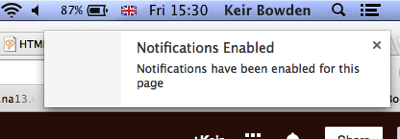
once I allow notifications, a notification confirming this is displayed:
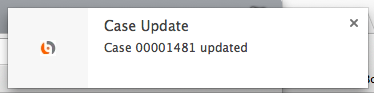
I can then switch to another browser tab or minimise the window completely. If I then update a case that I own in another browser, a notification is displayed to tell me that it has been updated:
The full code is available from the following Gists:


