Showing posts with label analytics. Show all posts

Saturday, 5 July 2014

Automatic Dashboard Refresh Revisited

Just over three (!) years ago I published a blog post showing a mechanism for automatically refreshing a dashboard after a timer expired.  This had a number of caveats around it, most importantly that the method I was calling to execute the refresh was undocumented and thus likely to be unsupported by Salesforce.  

With the advent of the Summer 14 release, there is now a supported way to refresh a dashboard programmatically, through the newly GA Dashboards API.  This REST based API not only allows dashboard metadata and data to be retrieved, but also contains a method to execute a dashboard refresh.

To refresh a dashboard, simply finds its ID and execute the following JavaScript (requires JQuery) from a Visualforce page:

$.ajax(
            {
              url: '/services/data/v31.0/analytics/dashboards/01ZB00000008oyd',
              type: 'PUT',
              beforeSend: function(xhr) {
                // Set the OAuth header from the session ID
                xhr.setRequestHeader('Authorization', 'Bearer {!$Api.Session_ID}');
              },
              success: function(response) {
                // do success stuff 
              error: function(jqXHR, textStatus, errorThrown) {
                // do failure stuff
              }
          }
        );

where ‘01ZB00000008oyd’ is the id of the dashboard. 

As I can now refresh directly from the page, my DashboardRefresher page no longer needs a controller and all the logic is written in JavaScript: 

<apex:page sidebar="false" showheader="false" standardstylesheets="false">
  <apex:includeScript value="https://ajax.aspnetcdn.com/ajax/jQuery/jquery-1.11.1.min.js"/>
  
  <div id="countDown"></div>

  <script>
    $(document).ready(function($) {
       startCountDown(59, 1000, doRefresh);
    });

    function startCountDown(i, p, f)
    {
        var pause = p;
        var fn = f;
                
        var countDownObj = document.getElementById("countDown");
        if (countDownObj == null)
        {
            alert("div not found, check your id");
            return;
        }
                
        countDownObj.count = function(i)
        {
            countDownObj.innerHTML = 'Refreshing in ' + i + ' seconds';
            if (i == 0)
            {
                fn();
                return;
            }
            setTimeout(function() {
                          countDownObj.count(i - 1);
                         },
                       pause
            );
        }
        
        countDownObj.count(i);
    }
                
    function doRefresh()
    {
        $.ajax(
            {
              url: '/services/data/v31.0/analytics/dashboards/01ZB00000008oyd',
              type: 'PUT',
              beforeSend: function(xhr) {
                // Set the OAuth header from the session ID
                xhr.setRequestHeader('Authorization', 'Bearer {!$Api.Session_ID}');
              },
              success: function(response) {
                window.top.location='/01ZB00000008oyd';
              },
              error: function(jqXHR, textStatus, errorThrown) {
                // Oops - what went wrong?
                alert(jqXHR.status + ': ' + errorThrown);
              }
          }
        );
    }
  </script>
  
</apex:page>

Dropping this page into a dashboard counts down the timer - note the ‘As of’ time:
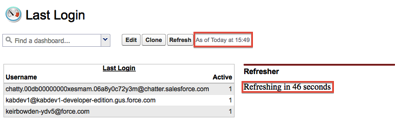
Screen Shot 2014 07 05 at 15 49 58

once the timer expires, the dashboard is refreshed and the page is reloaded, showing the dashboard has been refreshed.  the ‘As of’ time updated and the counter restarted:

Screen Shot 2014 07 05 at 15 50 53

You can request up to 200 dashboard refreshes per hour, but bear in mind this is an organisation-level limit rather than per-user or per-dashboard.

Friday, 6 April 2012

Re-order Formula Report Columns

A non-Visualforce/Apex blog for a change this week. I was working on some reports for our Salesforce project management application, and needed to create a number of summary formula columns. Having created the first three, I wanted to change the order that these formula columns appeared in the report, and was surprised to find that this isn't supported through the UI - if you remove all formula columns from the report and add them back in, they are displayed in the order that they were created.   Searching on the Salesforce Idea Exchange only threw up this open idea.

Below is an example report I've put together to demonstrate this using Accounts.  I've added a single formula column that totals the account employees based on the country:


I then add a column to total the Annual Revenue, which displays to the right of the Country Employees column:


If I then decide that I'd like the Country Revenue column displayed first, the only way to achieve this through the UI is to delete the formula columns and recreate them in the desired order.  Maybe acceptable when there are only a couple of formula columns, but not an option once there's more than a handful.

Next up was to turn to the metadata API via the Force.com IDE.  As I'd just gone with the defaults when setting up the project, the only metadata components I had were Classes, Pages, Components and Triggers.  Right-clicking (or ctrl-click as I am now a Macbook Air user) the project name brings up the context menu for the project - selecting the Force.com menu followed by the Add/Remove Metadata Components brings up the following dialog:


Clicking the Add/Remove button (eventually) brings up a list of the available metadata.  Reports appears so I tick the entry for my report:


and click ok as many times as it takes to close the various dialogs.  When prompted, I select Yes to refresh the project.  Once the revised components have been pulled down from the server, opening the file associated with my report shows :

    <aggregates>
        <calculatedFormula>EMPLOYEES:SUM</calculatedFormula>
        <datatype>number</datatype>
        <developerName>FORMULA1</developerName>
        <isActive>true</isActive>
        <masterLabel>Country Employees</masterLabel>
        <scale>2</scale>
    </aggregates>
    <aggregates>
        <calculatedFormula>SALES:SUM</calculatedFormula>
        <datatype>number</datatype>
        <developerName>FORMULA2</developerName>
        <downGroupingContext>ACCOUNT.ADDRESS1_COUNTRY</downGroupingContext>
        <isActive>true</isActive>
        <masterLabel>Country Revenue</masterLabel>
        <scale>2</scale>
    </aggregates>

Looking promising - not only can I see the formula columns but they also have developer names that imply some sort of ordering. First up I tried changing the order that the columns appear in the XML and saving that. Unfortunately, this change was simply reverted when the file was changed.

Next, I changed the developerName for each column - changing the Country Employees to FORMULA2 and Country Revenue to FORMULA1. Looking better once the save completed - the ordering of the columns in the file had been reversed as shown below:

    <aggregates>
        <calculatedFormula>SALES:SUM</calculatedFormula>
        <datatype>number</datatype>
        <developerName>FORMULA1</developerName>
        <downGroupingContext>ACCOUNT.ADDRESS1_COUNTRY</downGroupingContext>
        <isActive>true</isActive>
        <masterLabel>Country Revenue</masterLabel>
        <scale>2</scale>
    </aggregates>
    <aggregates>
        <calculatedFormula>EMPLOYEES:SUM</calculatedFormula>
        <datatype>number</datatype>
        <developerName>FORMULA2</developerName>
        <isActive>true</isActive>
        <masterLabel>Country Employees</masterLabel>
        <scale>2</scale>
    </aggregates>

Encouraging, but the acid test is to re-run the report:


Success!  Comparing with the report screenshot above, the Country Revenue and Country Employees columns have changed places.  Not quite a simple as it might be through the UI, but certainly a lot quicker than deleting and recreating formula fields!