Tuesday, 26 November 2013

Freezing Users from Visualforce

One of the new features in the Winter 14 release of Salesforce is the ability to freeze a user, which stops them logging into the system.  The Salesforce help points towards using this functionality when you would like to deactivate a user but additional work is required as the user is part of other configuration, as the default lead owner for example.  This is one use for this functionality, but another occurred to me based on work that I carried out about 20 years ago.

In a former life I used to build deal capture and risk management systems for investment banks.  A requirement of many of the banks was that traders had to take a two-week holiday every year and had to be locked out of all systems for the entire two weeks  The thinking behind this was that if the trader had something to hide, it was likely to surface during this two-week period when they couldn’t take any action to cover it up. 

Freezing users is therefore a great fit for temporarily disabling a user’s access to the system, with the intention of re-instating their access after a period of time.  The downside to the feature is that it can only be accessed from the user record, which means that an administrator has to click into individual user accounts to freeze or unfreeze them. This is fine for the odd user, but becomes time-consuming when it has to be done on a regular basis for a number of users.  

After digging through the Apex Developer’s Guide and experimenting with the execute anonymous element of the developer console it quickly became clear that I couldn’t freeze a user in Apex.  Searching the SOAP API Developer’s Guide proved more productive when I came across the UserLogin object and its associated IsFrozen field.  While this still mean that I couldn’t use Apex, the SOAP API is accessible via the Ajax Toolkit which I can use from a Visualforce page.

It was then short work to create The Freezer - a Visualforce page to output all usernames present in the system and allow them to be frozen/defrosted at the click of a button.  The page is shown below:

Screen Shot 2013 11 03 at 17 49 39

clicking on the Freeze button next to the Customer User pops a dialog to detail the action being taken:

Screen Shot 2013 11 03 at 17 50 00

and a further popup displays the results:

Screen Shot 2013 11 03 at 17 50 14

before the page refreshes itself and displays the Defrost button for the Customer User:
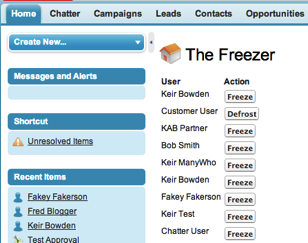
Screen Shot 2013 11 03 at 17 50 26

and just to prove there’s no trickery, here’s the Customer User record with the Unfreeze button present:

Screen Shot 2013 11 03 at 17 51 14

The functionality is provided by a couple of JavaScript functions. The getUserInfo() pulls back all the UserInfo records in the system and stores them in the equivalent of a Map keyed by user id.  It then retrieves all of the active user records in the system, and dynamically builds the table of users including the action buttons:

 
function getUserInfo()
    {
      var userInfoById = {};
    
      var result = sforce.connection.query(
          "Select Id, UserId, IsFrozen, IsPasswordLocked From UserLogin order by UserId");
 
      var it = new sforce.QueryResultIterator(result);
 
      while(it.hasNext())
      {
         var record = it.next();
 
         userInfoById[record.UserId] = record;
      }
      
      
      var output='<table><tr><th>User</th><th>Action</th></tr>';
      
      result = sforce.connection.query(
          "Select Id, FirstName, LastName from User where IsActive=true");
 
      it = new sforce.QueryResultIterator(result);
 
      while(it.hasNext())
      {
        var record = it.next();
        
        if (record.Id in userInfoById)
        {
          var userInfo=userInfoById[record.Id];
          var name=record.FirstName + ' ' + record.LastName;
          output+='<tr><td>' + name + '</td><td>';
          if (userInfo.IsFrozen=='true')
          {
            output+="<button onclick=\"freeze('" + userInfo.Id + "', '" + name + "', false);\">Defrost</button>";
          }
          else
          {
            output+="<button onclick=\"freeze('" + userInfo.Id + "', '" + name + "', true);\">Freeze</button>";
          }
          output+='</td></tr>';
        }
      }
      
      output+='</table>';
      
      document.getElementById('output').innerHTML=output;
    }
  

The freeze function updates the UserLogin for the selected user to freeze or defrost them:

function freeze(id, name, freezerState)
  {
    alert("Freezing " + name);
    var userlogin = new sforce.SObject("UserLogin");
    userlogin.Id = id;
    userlogin.IsFrozen = freezerState;
    var result = sforce.connection.update([userlogin]);
 
    if (result[0].getBoolean("success")) {
        alert(name + " " + (freezerState?'frozen':'defrosted'));
    } else {
        alert("failed to " + name + " " + result[0]);
    }
    
    window.location.reload();
  }

The code is pretty basic - there’s not much error handling and it is unlikely to scale when there are a large number of users, but those elements are left as an exercise for the avid student. You can access the full page at this gist.


Thursday, 7 November 2013

Visualforce in Chatter Mobile

Chatter mobile 4.2 for iOS launched this week and one feature has generated a lot of interest - the ability to include Visualforce in the application. Daniel Hoechst produced a blog post explaining how to achieve this in record time.

At first glance it might seem that this doesn’t add much over and above a regular HTML5 application that is executed from the mobile device browser - in fact an application wouldn't even require the consumption of a tab to expose the Visualforce page.  

The difference is that the chatter application refreshes an oauth token to gain access to the pages and data, so users don’t need to rekey their user id and password each time they access the application.  This is a big deal.

To achieve this without the chatter application, you’d be looking at building a remote start hybrid application using Xcode on a mac and if my experience is anything to go by, spending a fair amount of time playing the provisioning/distribution profile guessing game. You’d also need to either purchase an enterprise distribution license or make your application available through the apple app store. Throw in the being a Salesforce partner building applications on behalf of customers, and things get even more complicated. Did I mention that this is a big deal?

I’ve had a quick play around with the iPhone and iPad variants - the fact that the iPad has more real-estate and supports landscape mode means I focused on that in the first instance.

Burning a tab for each Visualforce page that you wish to surface in the application is a bit of an overhead, especially in Enterprise Edition where you quickly become tab-poor if you build a number of custom applications. The good news is that the tab that you surface doesn’t have to be tied to a particular purpose, so you can build a jumping off page that allows you to access any amount of other pages.  Even better, only the page present in the tab needs to be marked as available for mobile.

To demonstrate this I’ve created a simple jQuery Mobile page that presents a listview with a couple of options. Each of these options opens a new jQuery Mobile page, one that I wrote ages ago to demonstrate navigation, and the other a sample application for swipe navigation that I blogged about a few months ago.  The page source is shown below:

<apex:page showheader="false" sidebar="false" standardstylesheets="false">
<html>
    <head>
    <title>Chatter Mobile Page</title>
    
    <meta name="viewport" content="width=device-width, initial-scale=1" />

    <apex:stylesheet value="https://ajax.aspnetcdn.com/ajax/jquery.mobile/1.3.0/jquery.mobile-1.3.0.min.css" />
    <apex:includeScript value="https://ajax.aspnetcdn.com/ajax/jQuery/jquery-1.9.1.min.js"/>
    <apex:includeScript value="https://ajax.aspnetcdn.com/ajax/jquery.mobile/1.3.0/jquery.mobile-1.3.0.min.js"/>
</head>

<body>
  <ul data-role="listview">
    <li><a href="/apex/JQM">JQM Page</a></li>
    <li><a href="/apex/JQMSwipe">JQM Swipe</a></li>
  </ul>
</body>
</html>
</apex:page>

I then made this page available to mobile by ticking the “Available for Salesforce mobile apps” checkbox on the edit page, creating a Visualforce tab and adding this to the available Chatter mobile tabs via the Setup -> Administration Setup -> Mobile Administration -> Mobile Navigation setup menu option.  When I open the chatter mobile application the new page is available under the apps menu:

Screen Shot 2013 11 07 at 17 55 52


clicking the VF Page app opens my basic jQuery Mobile page:


Screen Shot 2013 11 07 at 17 57 08


clicking one of the links, the JQM Swipe for example, opens that page:


Screen Shot 2013 11 07 at 17 58 55


Once I’m done with this page I can click the left arrow icon at the top right of the page to go back to my jumping off page.


Sunday, 27 October 2013

Contest

Win Free E-Copies of Visualforce Development Cookbook

This week I’ve teamed up with Packt Publishing to organise a giveaway of my new book - Visualforce Development Cookbook.  

Three lucky winners will receive an e-copy of the book - keep reading to find out how you can be one of these lucky winners.

Overview

0808EN MockupCover Cookbook

  • Write effective controller tests
  • Maintain multiple records from a single page
  • Produce re-usable components for utility functions
  • Create custom charts to visualise single or multiple sets of data
  • Redraw part of a page in response to user input
  • Replace standard components with custom, brand able versions
  • Provide access to data via a public website
  • Allow users to create and retrieve data from a mobile device

How to enter?

All you need to do is head on over to the book page, look through the product description of the book and drop a line via the comments for this post, including your email address, to let us know what interests you about this book. Its that simple!  

Deadline

The contest will close on 3rd November 2013. Winners will be contact by email, so be sure to use your real email address when you comment!

Update 04/11/2013 - the contest is now closed.  Winners will be announced shortly.

Update 06/11/2013  - and the winners have been chosen.

Congratulations:  Dennis Onyango, King Koo, Anil Bathula.  You’ll hear from Packt pubishing via email on how to access your e-copy of my book.

Commiserations to those that entered but didn’t win - watch out for more contests in the coming weeks.

Good luck!


Sunday, 13 October 2013

My Dreamforce 2013 Sessions

The waiting is finally over - the agenda builder for 2013 is live.  For those who've been anxiously looking for the times of my sessions (me, at least) - here they are, with the added bonus that I'm a panelist on a third session on the Technical Architect certification. There's also a session that isn't mine, but you won't want to miss - the Developer Keynote.

Ticket to Ride

A 30 minute session in the Mobile Theatre, Moscone West, 1:45-2:15PM on Tuesday 19th November:

"Join Force.com's MVP Keir Bowden as he demonstrates a pair of hybrid applications that allow passengers to download tickets for use even when offline, and drivers to scan the ticket from the traveler's mobile device and register the passenger's presence on the journey. You'll see specific code examples of offline storage, QR code generation, and scanner integration."

Signup link.

Technical Architect Certification: Learn From Our Experts

 A one hour breakout session in room 3024, Moscone West, 4:30 - 5PM on Tuesday 19th November:

"Join us to navigate the pathway to salesforce.com's most difficult, but most prestigious certification: Technical Architect. Discover if you currently have the skills necessary to obtain this certification and if not, how to gain them. Learn from partners who have achieved the certification and the experience, skills and capabilities they leveraged to prepare for the certification process."

Signup link.

Mobilizing Your Visualforce Application with JQuery and KnockoutJS

 A 45 minute breakout session in room 2011, Moscone West, 5:15 - 6:00 PM on Wednesday 20th November:

"Join Force.com MVP Keir Bowden (aka Bob Buzzard) to learn how to mobilize your Visualforce applications. We'll take an existing survey application and make it mobile by creating pages based on the JQuery Mobile framework, replacing stateful controllers with Javascript remoting, and using Knockout.js to manage client-side data."

Signup link.

Developer Keynote: Develop Social and Mobile Apps Faster Than Ever

A 1 hour session in the Gateway Ballroom, Moscone South, 10:30 - 11:30AM on Wednesday 20th November:

With more than one million developers worldwide, Salesforce Platform is the world's leading enterprise cloud platform for building mobile and social apps. Join Adam Seligman, VP of Developer Relations, and the rest of the developer community to hear how any developer can build killer social and mobile apps faster with the latest platform innovations."

Signup link.

Sunday, 29 September 2013

Visualforce Development Cookbook

0808EN MockupCover Cookbook

Regular visitors to this blog may have noticed that my rate of blogging slowed considerably over the summer.  This is because since April I've been writing a book for Packt publishing, the Visualforce Development Cookbook.  This was published on 24th September 2013 and is available for purchase from Packt or a number of stores here.

I'm planning a blog post to cover the whole experience, but as I'm still in the thick of it (we're just entering the marketing phase at the moment) it will be a little while until I'm ready to write that post.

In the meantime, you can follow the book on twitter or like the facebook page - any news or offers will break there first. 

Tuesday, 24 September 2013

Highlight Empty Fields

A question that came up this week was how to highlight to a user that fields in a form don't have a value, but without stopping the form submission or annoying them with popups/confirmation dialogs. Essentially flagging up 'nice to have' fields that are empty, but leaving the required fields with the standard Salesforce decoration and the fields that nobody really cares about alone.

When the form is initially rendered, this is easy enough to achieve through conditional styling, but the problem with this is that it can't change the background when the user populates the field - instead, a form postback is required and even if rerendering is used to minimise the page updates, a full round trip every time a field is changed is a pretty hefty tax on the user.

This seemed like a good fit for jQuery, so I fired up the Force.com IDE and created a simple lead entry page that highlights a selection of empty fields:

Screen Shot 2013 09 24 at 19 26 14

In order to easily identify the nice to have fields, I gave them each an id that started with 'flagEmpty':

<apex:inputField id="flagEmptyFName" value="{!Lead.FirstName}" />
<apex:inputField id="flagEmptyEmail" value="{!Lead.Email}" />

Next, I wrote the function to apply the necessary style class.  This takes all or part of an id, finds any elements containing the id and for each match, checks if the field has value.  If it does, the 'fieldpopulated' class is applied, otherwise the 'fieldempty' class is applied.  When the appropriate class is applied, the other class is removed:

function flagEmpty(theId)
{
  $("[id*='" + theId + "']").each(function(index, ele) {
		if($(ele).val().length > 0)
		{
			$(ele).removeClass('fieldempty');
			$(ele).addClass('fieldpopulated');
		}
		else
		{
			$(ele).removeClass('fieldpopulated');
			$(ele).addClass('fieldempty');
		}
	});
}

 When the page is initially loaded, the id fragment 'flagEmpty' is passed to the function, which finds all of the elements I've marked in this fashion and highlights the background:

flagEmpty('flagEmpty');

Finally, an onchange handler is added to each element with an id containing 'flagEmpty'. This handler extracts the id of the element and executes the 'flagEmpty()' method, passing the id as the parameter:

$("[id*='flagEmpty']").change( function(event) {
	flagEmpty($(event.target).attr('id'));
});

The fields marked as 'flagEmpty' are originally rendered with a yellow background:

Screen Shot 2013 09 24 at 19 29 22

but after filling in a field and moving focus, the onchange handler fires and changes the background to white:

Screen Shot 2013 09 24 at 19 31 26

The Visualforce page is available at this gist


Monday, 2 September 2013

MVP Summit 2013

Mvps

This week I attended the 2013 MVP summit in San Francisco.  As my employers, BrightGen, were kind enough to allow me to take three days out to travel and attend, I've written this up on the company Facebook page at: https://www.facebook.com/BrightGen - while you are there, please take a moment to like the page!