Sunday, 27 October 2013

Contest

Win Free E-Copies of Visualforce Development Cookbook

This week I’ve teamed up with Packt Publishing to organise a giveaway of my new book - Visualforce Development Cookbook.  

Three lucky winners will receive an e-copy of the book - keep reading to find out how you can be one of these lucky winners.

Overview

0808EN MockupCover Cookbook

  • Write effective controller tests
  • Maintain multiple records from a single page
  • Produce re-usable components for utility functions
  • Create custom charts to visualise single or multiple sets of data
  • Redraw part of a page in response to user input
  • Replace standard components with custom, brand able versions
  • Provide access to data via a public website
  • Allow users to create and retrieve data from a mobile device

How to enter?

All you need to do is head on over to the book page, look through the product description of the book and drop a line via the comments for this post, including your email address, to let us know what interests you about this book. Its that simple!  

Deadline

The contest will close on 3rd November 2013. Winners will be contact by email, so be sure to use your real email address when you comment!

Update 04/11/2013 - the contest is now closed.  Winners will be announced shortly.

Update 06/11/2013  - and the winners have been chosen.

Congratulations:  Dennis Onyango, King Koo, Anil Bathula.  You’ll hear from Packt pubishing via email on how to access your e-copy of my book.

Commiserations to those that entered but didn’t win - watch out for more contests in the coming weeks.

Good luck!


Sunday, 13 October 2013

My Dreamforce 2013 Sessions

The waiting is finally over - the agenda builder for 2013 is live.  For those who've been anxiously looking for the times of my sessions (me, at least) - here they are, with the added bonus that I'm a panelist on a third session on the Technical Architect certification. There's also a session that isn't mine, but you won't want to miss - the Developer Keynote.

Ticket to Ride

A 30 minute session in the Mobile Theatre, Moscone West, 1:45-2:15PM on Tuesday 19th November:

"Join Force.com's MVP Keir Bowden as he demonstrates a pair of hybrid applications that allow passengers to download tickets for use even when offline, and drivers to scan the ticket from the traveler's mobile device and register the passenger's presence on the journey. You'll see specific code examples of offline storage, QR code generation, and scanner integration."

Signup link.

Technical Architect Certification: Learn From Our Experts

 A one hour breakout session in room 3024, Moscone West, 4:30 - 5PM on Tuesday 19th November:

"Join us to navigate the pathway to salesforce.com's most difficult, but most prestigious certification: Technical Architect. Discover if you currently have the skills necessary to obtain this certification and if not, how to gain them. Learn from partners who have achieved the certification and the experience, skills and capabilities they leveraged to prepare for the certification process."

Signup link.

Mobilizing Your Visualforce Application with JQuery and KnockoutJS

 A 45 minute breakout session in room 2011, Moscone West, 5:15 - 6:00 PM on Wednesday 20th November:

"Join Force.com MVP Keir Bowden (aka Bob Buzzard) to learn how to mobilize your Visualforce applications. We'll take an existing survey application and make it mobile by creating pages based on the JQuery Mobile framework, replacing stateful controllers with Javascript remoting, and using Knockout.js to manage client-side data."

Signup link.

Developer Keynote: Develop Social and Mobile Apps Faster Than Ever

A 1 hour session in the Gateway Ballroom, Moscone South, 10:30 - 11:30AM on Wednesday 20th November:

With more than one million developers worldwide, Salesforce Platform is the world's leading enterprise cloud platform for building mobile and social apps. Join Adam Seligman, VP of Developer Relations, and the rest of the developer community to hear how any developer can build killer social and mobile apps faster with the latest platform innovations."

Signup link.

Sunday, 29 September 2013

Visualforce Development Cookbook

0808EN MockupCover Cookbook

Regular visitors to this blog may have noticed that my rate of blogging slowed considerably over the summer.  This is because since April I've been writing a book for Packt publishing, the Visualforce Development Cookbook.  This was published on 24th September 2013 and is available for purchase from Packt or a number of stores here.

I'm planning a blog post to cover the whole experience, but as I'm still in the thick of it (we're just entering the marketing phase at the moment) it will be a little while until I'm ready to write that post.

In the meantime, you can follow the book on twitter or like the facebook page - any news or offers will break there first. 

Tuesday, 24 September 2013

Highlight Empty Fields

A question that came up this week was how to highlight to a user that fields in a form don't have a value, but without stopping the form submission or annoying them with popups/confirmation dialogs. Essentially flagging up 'nice to have' fields that are empty, but leaving the required fields with the standard Salesforce decoration and the fields that nobody really cares about alone.

When the form is initially rendered, this is easy enough to achieve through conditional styling, but the problem with this is that it can't change the background when the user populates the field - instead, a form postback is required and even if rerendering is used to minimise the page updates, a full round trip every time a field is changed is a pretty hefty tax on the user.

This seemed like a good fit for jQuery, so I fired up the Force.com IDE and created a simple lead entry page that highlights a selection of empty fields:

Screen Shot 2013 09 24 at 19 26 14

In order to easily identify the nice to have fields, I gave them each an id that started with 'flagEmpty':

<apex:inputField id="flagEmptyFName" value="{!Lead.FirstName}" />
<apex:inputField id="flagEmptyEmail" value="{!Lead.Email}" />

Next, I wrote the function to apply the necessary style class.  This takes all or part of an id, finds any elements containing the id and for each match, checks if the field has value.  If it does, the 'fieldpopulated' class is applied, otherwise the 'fieldempty' class is applied.  When the appropriate class is applied, the other class is removed:

function flagEmpty(theId)
{
  $("[id*='" + theId + "']").each(function(index, ele) {
		if($(ele).val().length > 0)
		{
			$(ele).removeClass('fieldempty');
			$(ele).addClass('fieldpopulated');
		}
		else
		{
			$(ele).removeClass('fieldpopulated');
			$(ele).addClass('fieldempty');
		}
	});
}

 When the page is initially loaded, the id fragment 'flagEmpty' is passed to the function, which finds all of the elements I've marked in this fashion and highlights the background:

flagEmpty('flagEmpty');

Finally, an onchange handler is added to each element with an id containing 'flagEmpty'. This handler extracts the id of the element and executes the 'flagEmpty()' method, passing the id as the parameter:

$("[id*='flagEmpty']").change( function(event) {
	flagEmpty($(event.target).attr('id'));
});

The fields marked as 'flagEmpty' are originally rendered with a yellow background:

Screen Shot 2013 09 24 at 19 29 22

but after filling in a field and moving focus, the onchange handler fires and changes the background to white:

Screen Shot 2013 09 24 at 19 31 26

The Visualforce page is available at this gist


Monday, 2 September 2013

MVP Summit 2013

Mvps

This week I attended the 2013 MVP summit in San Francisco.  As my employers, BrightGen, were kind enough to allow me to take three days out to travel and attend, I've written this up on the company Facebook page at: https://www.facebook.com/BrightGen - while you are there, please take a moment to like the page!


Sunday, 11 August 2013

Swipe Navigation

I've written a few blog posts in the past around using JQuery Mobile to give a native (well, iOS) feel to web applications. In each of these cases, I've used buttons in the header or footer to navigate around the site and open panels.  These days, users expect to be able to swipe to navigate, even when running web applications through the built-in device browser.

Luckily, JQuery Mobile has a solution to this - if the user touches the screen and moves their finger left or right more than a certain number of pixels while maintaing contact, a swipeleft or swipe right event will be generated. These events can then be handled in custom JavaScript functions to navigate the user to another page.

To demonstrate this, I've created a sample application containing three pages that each displays a picture from my Customer Company Tour Developer Theatre session in May 2013. The header contains the buttons to open a panel and navigate between pages, as shown below:

Page1Page2

This is a single page application, where a single physical HTML page contains a number of logical application pages coded as stacked <div> elements with a data-role of page. The markup for the first page is as follows:

<div data-role="page" id="page1">
  <div data-role="panel" id="aboutpanel" data-theme="b">
    <h3>About</h3>
    <p>Welcome to the Bob Buzzard swipe demo web application.</p>
    <a href="#page1" data-role="button" data-rel="close">Close</a>
  </div> <!-- /panel -->
      
  <div data-role="header" class="header-large">
    <h3>Swipe Demo</h3>
	<a href="#aboutpanel" data-role="button" data-icon="info" data-iconpos="notext">About</a>
    <a href="#page2" class="ui-btn-right" data-icon="arrow-r" data-iconpos="notext">Page 2</a>
  </div><!-- /header -->
    	
  <div data-role="content" style="text-align:center">
    <h1>Getting Ready</h1>
    <div style="margin:auto"><apex:image styleclass="image" value="{!URLFOR($Resource.CCT, 'CCT1.jpg')}"/></div>
    <p><caption>A quick chat with Nick Tran before taking the stage</caption></p>
  </div> <!-- /content -->
    	
</div> <!-- /page -->

To allow swipe navigation from the logical page with the id of page1 to the logical page with the id of page2, I need to handle the swipeleft event when it takes place in page1. The JavaScript for this is straightforward, thanks to the event handling capabilities of JQuery:

$j('#page1').on( "swipeleft", function() {
    $j.mobile.changePage('#page2');
});

An added benefit is that the swipe behaviour works on the desktop too, as the following video attempts to show.  the first part shows navigation using the buttons, while in the second part I simply click, hold and drag the mouse/trackpad left or right.

If you'd like to try this application yourself, its available on my dev org site at the following short link:

http://bobbuzz.me.uk/18lXNSx

or you can scan the following QR code on your mobile device:

Swipe qrcode

The Visualforce page containing the application is available at this gist - note that this page relies on a static resource containing the images, so if you clone it you'll need to replace this with images of your own.


Saturday, 20 July 2013

Publisher Actions - Not Just Creating Records

The Summer 13 Salesforce release introduced Publisher Actions - these allow additional chatter actions to be added to the publisher, over and above the standard Post, File, Link and Poll actions.   Some setup is required before you can use Publisher Actions - this is detailed in the Salesforce help here.

There are four types of Publisher Actions - Create and Custom for a specific object, and Global Create and Global Custom.  The Create actions allow a new record to be created directly from the chatter feed.  Create for a specific object allows a new record to be created that is related to the object the feed appears on - for example, to create a new Opportunity from an Account chatter feed where the Opportunity account id is set to the id of the Account the feed appears on. Global Create allows a new record to be created from a feed, but with no relationship to any existing object.  One very useful aspect of the Create actions is that you can specify default values for fields, which goes some way to removing the need for URL-hacking.

The Custom actions allow a Visualforce page to be displayed in a chatter feed - the specific object variant of this means that the standard controller must be used, as the id of the record the chatter feed appears on will be passed to the page, while the Global variant uses a custom controller. An example of a Custom action is to display the location of an account on a map - while you can also achieve this via an embedded Visualforce page on the standard record view, making it a Publisher Action means it is displayed on demand, so those users that aren't interested in that information don't have to wait for the map to render.

Custom actions can also create information. In this post I'll demonstrate how to create a Publisher action to post summary information to a feed.

Here at BrightGen, we have a Service Management offering for Salesforce. Rather than waiting until the end of the month to find out how we are doing for a particular customer, its useful to push information out on a regular basis. In this post I'll demonstrate how to create a Custom action that posts a snapshot of case information to an account record.

The snapshot will contain details of cases created this month, cases closed this month and the current number of open cases for the account.

As this is an object specific action, the page uses the account standard controller and the additional functionality is provided by a controller extension. This executes a number of queries to get the case information required.  The snippet below determines the number of cases closed this month:

Date startDate=System.today().toStartOfMonth();
Date endDate=System.today().addMonths(1).toStartOfMonth();
List<AggregateResult> ars=[select COUNT(Id) closedCount
		 	   from Case
		 	   where Status='Closed'
		 	   and AccountId=:accId
			   and ClosedDate>=:startDate
		   	   and ClosedDate<:endDate];

Integer result=0;
if (ars.size()>0)
{
	AggregateResult ar=ars[0];
	result=(Integer) ar.get('closedCount');
}

Once all the information is gathered, this is posted to the feed programmatically:

FeedItem item=new FeedItem();
item.ParentId=accId;
item.body='Service snapshot\n' +
          'As of ' + System.now().format('dd/MM/yyyy')  +
          '\nNew Cases : ' + getNewCases() +
          '\nClosed Cases : ' + getClosedCases() +
          '\nOpen Cases : ' + getOpenCases();
		
insert item;
		
ApexPages.addMessage(new
ApexPages.Message(ApexPages.Severity.INFO, 'Snapshot Posted'));
posted=true;

Note the final line of this snippet, which sets the boolean property posted to true - this property is used in to automatically refresh the page, otherwise the post does not get displayed to the user.

The page simply displays the details and provides a button for the user to post the details to the feed:

  <apex:pageBlock title="Service Snapshot">
    <apex:pageBlockButtons location="bottom">
      <apex:commandButton value="Post to Feed" action="{!post}" />
    </apex:pageBlockButtons>
    <apex:pageBlockSection columns="1">
      <apex:pageBlockSectionItem >
        <apex:outputLabel value="Closed Cases" />
        <apex:outputText value="{!closedCases}" />
      </apex:pageBlockSectionItem>
      <apex:pageBlockSectionItem >
        <apex:outputLabel value="New Cases" />
        <apex:outputText value="{!newCases}" />
      </apex:pageBlockSectionItem>
      <apex:pageBlockSectionItem >
        <apex:outputLabel value="Open Cases" />
        <apex:outputText value="{!openCases}" />
      </apex:pageBlockSectionItem>
    </apex:pageBlockSection>
  </apex:pageBlock>

The automatic refresh (which is based on the technique described in this blog post) is provided by the following, conditionally rendered, JavaScript:

  <apex:outputPanel rendered="{!posted}">
   <script>
      window.top.location='/{!Account.id}';
   </script>
 </apex:outputPanel>

The code for the controller extension can be found in this gist, and the Visualforce page in this gist. You'll need to save these into your Salesforce edition to complete the next steps.

Next, create a publisher action for this page - navigate to Setup -> Customize -> Accounts -> Buttons, Links, and Actions and click the New Action button.

Scroll down to the Chatter Feed section and fill out the details as shown in the screenshot below and click the Save button.

Screen Shot 2013 07 20 at 13 14 52

(note that this assumes you have saved the Visualforce page with the name ChatterAccountSnapshot - if that is not the case, pick the name that you saved the page under from the Visualforce Page pick list).

To add the Publisher Action to the chatter feed, edit the page layout for the Account record.  Scroll down to the Chatter Feed section - if you see the following text, click the 'overidde the global layout' to make the actions editable for that layout:

Screen Shot 2013 07 20 at 13 21 34

The Chatter Feed section will then contain the following standard actions:

Screen Shot 2013 07 20 at 13 23 19

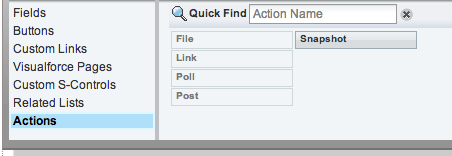
Next, select the Actions entry from the menu at the top left of the page layout editor:
Screen Shot 2013 07 20 at 13 24 50

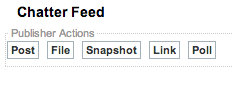
Drag the Snapshot entry from the right hand side to the Chatter Feed section - note that this can be placed anywhere in the list of actions:
Screen Shot 2013 07 20 at 13 25 40

and finally save the page layout.


Now lets take a look at the Publisher Action in action:

Navigating to an account view page shows the new Snapshot action in the Chatter Publisher. Clicking the Snapshot button displays the Visualforce page with the case detais:

Screen Shot 2013 07 20 at 13 27 01

Clicking the Post to Feed button posts the information to the chatter feed and then refreshes the page to display the post to the user:

Screen Shot 2013 07 20 at 13 29 17