Saturday, 11 January 2014

Visualforce in Salesforce1

Recently I’ve been porting a few apps to run in Salesforce1 - typicality these are HTML5 apps that users ran in the device browser and had to log in to each time they wanted to use them, but Salesforce1 avoids that. 

As well as porting, I was trying to improve the user experience and make the apps behave consistently if they were running in the browser or inside Salesforce1, and I got caught out a couple of times with behaviour that was either unexpected or something I just couldn’t do.  I should stress that these aren’t shortcomings of Salesforce1, its more about how Visualforce pages are displayed inside web view containers.

Pages Opened in the Child Browser don’t have the sforce.one JavaScript object

In a project I was working on recently I had a Visualforce page in Salesforce1 that could be used to open other Visualforce pages.  I originally developed this using the sforce.one navigation methods, which opened the relative links in the same page with back buttons etc. Each of these pages relied on the sforce.one JavaScript object being present to provide mobile specific behaviour.

I then refactored this, as I wanted to open in a child browser window so that the user could bounce around a few other pages but retain the close button to jump straight back to the main page. While the sforce.one.navigateToURL() should open absolute URLs in a child browser, even if I specified the target Visualforce page as an absolute URL, the platform appeared to know that it was on the same site and opened it as a relative URL, without using a child browser window.

Relying on my knowledge of the Salesforce mobile SDK, I used the window.open() JavaScript function, which opened the page in the desired fashion, but all of my mobile functionality was broken.  After a short amount of digging around it transpired that the  sforce.one object was undefined, so as far as my page was concerned it was running on a regular browser.

I’ve put together a couple of pages to demo this.  Both pages output some content to describe whether they are running in Salesforce1 or not, and the first page provides a link to the second

Page1:

<apex:page showheader="false" sidebar="false" applyHtmlTag="false" applyBodyTag="false">
  <html>
    <head>
	<meta name="viewport" content="width=320; initial-scale=1.0; maximum-scale=1.0; user-scalable=0;"></meta>
    </head>
    <body>
      <apex:includeScript value="https://ajax.aspnetcdn.com/ajax/jQuery/jquery-1.9.1.min.js"/>
      <p style="font-size:24px; text-align:center">Page 1</p>
      <div style="display:none" id="sf1">
        <p style="font-size:20px; text-align:center">I am running in Salesforce1 :)</p>
      </div>
      <div style="display:none" id="notsf1">
        <p style="font-size:20px; text-align:center">I am not running in Salesforce1 :(</p>
      </div>
   
   
      <p><a href="javascript:sforce.one.navigateToURL('/apex/SforceDotTwo');">Click to open page two.</a></p>
      <script>
	  $(document).ready(function () {
	  	if ( (typeof sforce != 'undefined') && (sforce != null) ) {
			$('#sf1').toggle();
		}
		else {
			$('#notsf1').toggle();
		}
	  });
       </script>
    </body>
  </html>
</apex:page>

Page2 :

<apex:page showheader="false" sidebar="false" applyHtmlTag="false" applyBodyTag="false">
  <html>
    <head>
      <meta name="viewport" content="width=320; initial-scale=1.0; maximum-scale=1.0; user-scalable=0;"></meta>
    </head>
    <body>
      <apex:includeScript value="https://ajax.aspnetcdn.com/ajax/jQuery/jquery-1.9.1.min.js"/>
      <p style="font-size:24px; text-align:center">Page 2</p>
      <div style="display:none" id="sf1">
        <p style="font-size:20px; text-align:center">I am running in Salesforce1 :)</p>
      </div>
      <div style="display:none" id="notsf1">
        <p style="font-size:20px; text-align:center">I am not running in Salesforce1 :(</p>
      </div>
   
   
      <script>
  	$(document).ready(function () {
		if ( (typeof sforce != 'undefined') && (sforce != null) ) {
			$('#sf1').toggle();
		}
		else {
			$('#notsf1').toggle();
		}
 	  });
      </script>
    </body>
  </html>
</apex:page>


Opening the first page in Salesforce1 displays the “Running in Salesforce1” message as expected:

IMG 1086 

while clicking the link to go to Page 2 navigates in the same window, including a back button, and displays the message as expected:

IMG 1087 

Changing the page 2 navigation link to the following: 

<p><a href="javascript:window.open('/apex/SforceDotTwo');">Click to open page two.</a></p>

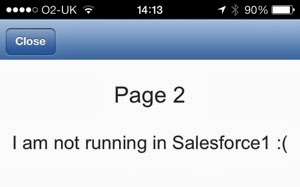
and clicking the link displays the second page in a child browser window (note the close button), but the message has now changed to indicate that the application is not running in Salesforce1:
 IMG 1088

Accessing external URLs via window.open generates an embedded browser window on a mobile device, with a close button.  Don’t use navigation here, as you’ll end up pulling your app into the embedded browser as well as the containing app.  When running from the desktop it will open in the same browser window where you would want navigation.

As I was just relying on knowing that I was running in Salesforce1 to style the page and add a few buttons, I could just pass a parameter on the URL to indicate I was running in the application.

HTML5 or Installed Application?

When a Visualforce page is rendered in Salesforce1, there’s no way that I’ve been able to find to determine whether Salesforce1 is the HTML5 web application running in the device’s browser or the installed application.  Checking the User Agent for the browser doesn’t help, as they will report the same values based on the device itself.  

Update 24/02/2014: The iOS versions of Salesforce1 installed application report a user agent containing the string ‘SalesforceTouchContainer’, so this can be used to determine that the page is running in the installed application. On my Nexus 7, however, the only difference is in the version of Chrome which obviously can’t be relied on to be the same on another Nexus 7, so Android is still problematic.  Of course, relying on the user agent is a somewhat flawed approach as applications like the Dolphin web browser allow you to set your own user agent string, but it is the best that we have.

Most of the time I don’t care about this, but I have hit one situation where I wanted to render a particular toolbar button for the installed application but not the HTML5 web application. There is also no concept of a child browser in the HTML5 application - URLs open in the current window or a new tab/window depending on the browser configuration and how the link is constructed.  

This isn’t specific to Salesforce1 - it appears to be problematic for Cordova hybrid apps in general, and most of the solutions rely on inspecting the JavaScript window object to see if the cordova object is present, or trying to react to deviceReady events.  Unfortunately, as Visualforce is iframed into the Salesforce1 application, all of this information is hidden from my Visualforce page so I ended up reworking my pages to behave in an identical but slightly more clunky fashion in all cases.

If anyone has a solution to this I’d love to hear about it.


Saturday, 4 January 2014

Syntax Highlighting in Knowledge Articles

Here at BrightGen we use Salesforce Knowledge for our knowledge base.  The majority of the time the knowledge articles are paragraphs of text with images images, but every now and then we need to include code snippets.

For the purposes of this post I’m using the FAQ article type that is automatically available when knowledge is enabled, and I’ve added a Body custom field that is a rich text area. I’ve created a simple Visualforce page to display the FAQ:

<apex:page standardController="FAQ__kav" showheader="false">
  <p style=“font-size:16px; font-weight: bold;">
<apex:outputField value="{!FAQ__kav.Title}" />
  </p>
  <apex:outputField value="{!FAQ__kav.Body__c}" />
</apex:page>

and then configured this as the channel display for the article type when accessed through the internal app:

Screen Shot 2014 01 03 at 09 06 47

Simply dropping some code into the rich text area doesn’t make it stand out particularly well from the enclosing text:

 Screen Shot 2014 01 03 at 09 24 01

The HTML pre formatted tag <pre> displays the markup in a fixed-width mode, preserving spaces and line breaks to ensure the indentation looks good.  I can add this to my markup by editing the article and clicking the ‘Source’ button:

Screen Shot 2014 01 03 at 09 28 45

this allows me to edit the underlying article HTML and surround my markup with the opening and closing <pre> tags - note that if you simply try to edit the markup dropped in earlier, you’ll see a bunch of &nbsp; and other tags that are preserving the indentation - for that reason I paste the code out of my editor/IDE afresh into the source editor:

Screen Shot 2014 01 03 at 09 35 09

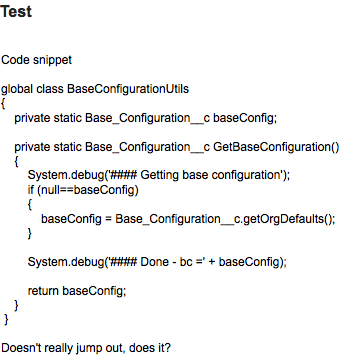
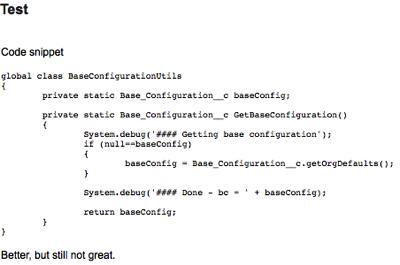
The code now stands out a little more in the article, but still doesn’t look fantastic:

Screen Shot 2014 01 03 at 09 36 46

In order to add syntax highlighting, its clear that I’ll have to look outside of the standard knowledge functionality - I could spend time writing the HTML to highlight each code snippet individually, but that won’t scale and will quickly get boring.

For syntax highlighting on this blog, I use the excellent Syntax Highlighter from Alex Gorbatchev, so this seemed like a good place to start.  Its pretty unobtrusive and relies on adding a style class to the <pre> tag that I’m already using.

First the code needs to be installed - navigate to the Syntax Highlighter home page (http://alexgorbatchev.com/SyntaxHighlighter/) and click the download link near the top right:

Screen Shot 2014 01 03 at 16 23 58

The resulting file can then be uploaded straight into Salesforce as a static resource - I’ve named mine SyntaxHighlighter as I have a great imagination!

My Visualforce page then needs to be updated to pull in the required JavaScript and CSS.  Here I’m including the core highlighter functionality, then the brush that I’m going to use to highlight my code - I like the Java brush so I’m using that, but there are plenty available in the zip file.  This is followed by a couple of CSS files to pull in the core styles and a theme: 

<apex:includeScript value="{!URLFOR($Resource.SyntaxHighlighter,
        'syntaxhighlighter_3.0.83/scripts/shCore.js')}" />
<apex:includeScript value="{!URLFOR($Resource.SyntaxHighlighter,
        'syntaxhighlighter_3.0.83/scripts/shBrushJava.js')}" />
<apex:styleSheet value="{!URLFOR($Resource.SyntaxHighlighter,
       'syntaxhighlighter_3.0.83/styles/shCore.css')}" />
<apex:styleSheet value="{!URLFOR($Resource.SyntaxHighlighter,
       'syntaxhighlighter_3.0.83/styles/shThemeDefault.css')}" />

Next, I have some JavaScript to turn off the toolbar that appears above the code by default and execute the static function to process all elements on the page and highlight as appropriate - it doesn’t matter where this is executed from as it won’t fire until the page has finished rendering:

<script type="text/javascript">
  SyntaxHighlighter.defaults['toolbar'] = false;
  SyntaxHighlighter.all();
</script>

I can then return to my knowledge article and add the java brush class to my <pre> tag by editing the source as described above:

Screen Shot 2014 01 03 at 16 51 39

and now when I access my page my code is highlighted with line numbers:

Screen Shot 2014 01 03 at 16 46 23

One important point to note - if you are using this to format Visualforce or HTML markup, you’ll need to HTML encode the markup first, or it will cause problems when the HTML is processed by the rich text editor.  I use the HTMLEncoder from opinionatedgeek.com - simply paste your markup in, click the encode button, copy the encoded output and drop this into the rich text editor using the source button as described above.


Friday, 27 December 2013

Browser Notifications with the Streaming API

The Streaming API is great for sending information to a user’s browser when a record matches the criteria for a subscribed Topic - there’s an example of this in the Developerforce Wiki. However, we all know that user attention spans are short and it is highly likely that they will have moved on to another window or tab, maybe to get on with some work in another Salesforce org or sandbox.

Browser notifications provide a way to notify a user of changes, even when they have minimised the browser window. The Notification API is still in draft and is currently supported by Chrome, Firefox and Safari - for more details see the caniuse page. In this post I’ll demonstrate how the to generate a notification to the user when a case that they own is updated.  I’ll use the Streaming API to subscribe to updates to all cases, and interrogate the update to determine if the case is owned by the currently logged in user.  If it is, a browser notification will be displayed. The code relies on the Streaming API JavaScript resources being installed as described in the introductory Developerforce Wiki page.

Notifications are different to browser popups, in that they require user approval before they will be shown. This is a one shot deal, so once permission to display has been granted for a Force.com instance it will be retained across multiple sessions. Unfortunately the permission cannot be requested programmatically - the first notification has to be in response to a user action,  clicking a button for example.

The Notification.permission property indicates if permission has been granted or refused for the current site. Unfortunately there is a bug in the Google Chrome implementation of Notifications, which means that the property is always set to ‘undefined’, which in reality indicates that the user has not been asked to grant permissions.  The only way to confirm this in Chrome is to create a new Notification and interrogate the permission property - if the user hasn’t already granted permission they will be asked to via a dialog, while if they have already granted permission the notification will be displayed.  For that reason, the test notification needs to display something non-threatening! 

The following code creates the test notification if required and checks the resulting permission.  Note that it also updates the Notification.permission property so that this only has to be done once.

if (Notification && typeof Notification.permission==="undefined")
{
   var testNotification = new window.Notification('This is a test');

   if (testNotification.permission)
   {
      Notification.permission=testNotification.permission;
   }
}

Once this code has executed, the Notification.permission can be relied on - it may still be undefined, in which case it means that the user hasn’t granted permission (remember, the permission cannot be requested programmatically, so if the user has never been asked, the code above will simply update the Notification.permission to undefined).  Based on the value of this property, I can conditionally show or hide the following section to encourage the user to click a button to enable notifications.

<button id="notifyon" style="display:none">Enable Chrome Notifications</button>
<button id="sendnotify" onclick="notify();">Send Notification</button>

The streaming API part of the code subscribes to a topic and writes information to the page whenever an update to the subscription is received.  It also executes the notify function when an update is received to a record that the currently logged in user owns:

$.cometd.subscribe('/topic/{!topic}', function(message) {
  $('#content').append('<p>Notification: ' +
              'Channel: ' + JSON.stringify(message.channel) + '<br>' +
              'Record name: ' + JSON.stringify(message.data.sobject.Name) +                        '<br>' +
              'Record owner: ' + JSON.stringify(message.data.sobject.OwnerId) +
              '<br>' +
              'Created: ' + JSON.stringify(message.data.event.createdDate) + '<br>' +
              'ID: ' + JSON.stringify(message.data.sobject.Id) + '<br>' +
              'Number: ' + JSON.stringify(message.data.sobject.CaseNumber) + '<br>' +
              'Event type: ' + JSON.stringify(message.data.event.type)+ '<br/>' +
              'Mine : ' + (message.data.sobject.OwnerId=='{!$User.id}'?'Yes':'No') +               '</p>');

    if (message.data.sobject.OwnerId=='{!$User.id}')
    {
        notify(message.data.sobject, message.data.event.type);
    }
});

The notify function instantiates a notification only if the user has granted permission:

function notify(sobject, eventtype)
{
	// If notifications are granted show the notification
	if (Notification && Notification.permission === "granted")
	{
		var millis=new Date().getTime();
	    	var tag = 'CU:' + millis;
	   	var n = new Notification("Case Update",  {
		   		icon : '{!URLFOR($Resource.notifyimg)}',
	  			tag: tag,
	   			body: 'Case ' + sobject.CaseNumber + ' ' + eventtype
	    	});
		n.onclick = function(){
    			window.focus();
    			this.cancel();
		};
	}
}

Each notification needs a unique identifier - if the browser recognises an identifier it won’t display the notification on the assumption the user has already seen this.

An onclick handler for the notification is created to allow the user to close the notification immediately rather than waiting for it to expire.

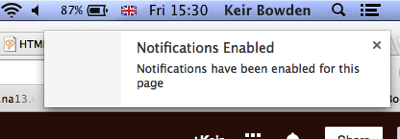
If I open the Visualforce page in a browser window and click the ‘Enable Chrome Notifications’ button, Chrome will request permission to display notifications:

Screen Shot 2013 12 27 at 15 30 21 

once I allow notifications, a notification confirming this is displayed:

 Screen Shot 2013 12 27 at 15 30 33 

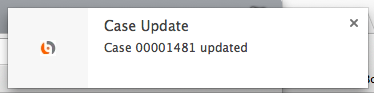
I can then switch to another browser tab or minimise the window completely.  If I then update a case that I own in another browser, a notification is displayed to tell me that it has been updated:

Screen Shot 2013 12 27 at 15 34 41

The full code is available from the following Gists:


Tuesday, 26 November 2013

Freezing Users from Visualforce

One of the new features in the Winter 14 release of Salesforce is the ability to freeze a user, which stops them logging into the system.  The Salesforce help points towards using this functionality when you would like to deactivate a user but additional work is required as the user is part of other configuration, as the default lead owner for example.  This is one use for this functionality, but another occurred to me based on work that I carried out about 20 years ago.

In a former life I used to build deal capture and risk management systems for investment banks.  A requirement of many of the banks was that traders had to take a two-week holiday every year and had to be locked out of all systems for the entire two weeks  The thinking behind this was that if the trader had something to hide, it was likely to surface during this two-week period when they couldn’t take any action to cover it up. 

Freezing users is therefore a great fit for temporarily disabling a user’s access to the system, with the intention of re-instating their access after a period of time.  The downside to the feature is that it can only be accessed from the user record, which means that an administrator has to click into individual user accounts to freeze or unfreeze them. This is fine for the odd user, but becomes time-consuming when it has to be done on a regular basis for a number of users.  

After digging through the Apex Developer’s Guide and experimenting with the execute anonymous element of the developer console it quickly became clear that I couldn’t freeze a user in Apex.  Searching the SOAP API Developer’s Guide proved more productive when I came across the UserLogin object and its associated IsFrozen field.  While this still mean that I couldn’t use Apex, the SOAP API is accessible via the Ajax Toolkit which I can use from a Visualforce page.

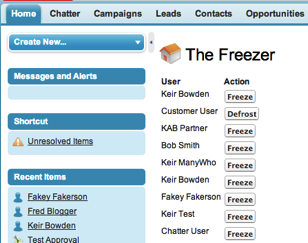
It was then short work to create The Freezer - a Visualforce page to output all usernames present in the system and allow them to be frozen/defrosted at the click of a button.  The page is shown below:

Screen Shot 2013 11 03 at 17 49 39

clicking on the Freeze button next to the Customer User pops a dialog to detail the action being taken:

Screen Shot 2013 11 03 at 17 50 00

and a further popup displays the results:

Screen Shot 2013 11 03 at 17 50 14

before the page refreshes itself and displays the Defrost button for the Customer User:

Screen Shot 2013 11 03 at 17 50 26

and just to prove there’s no trickery, here’s the Customer User record with the Unfreeze button present:

Screen Shot 2013 11 03 at 17 51 14

The functionality is provided by a couple of JavaScript functions. The getUserInfo() pulls back all the UserInfo records in the system and stores them in the equivalent of a Map keyed by user id.  It then retrieves all of the active user records in the system, and dynamically builds the table of users including the action buttons:

 
function getUserInfo()
    {
      var userInfoById = {};
    
      var result = sforce.connection.query(
          "Select Id, UserId, IsFrozen, IsPasswordLocked From UserLogin order by UserId");
 
      var it = new sforce.QueryResultIterator(result);
 
      while(it.hasNext())
      {
         var record = it.next();
 
         userInfoById[record.UserId] = record;
      }
      
      
      var output='<table><tr><th>User</th><th>Action</th></tr>';
      
      result = sforce.connection.query(
          "Select Id, FirstName, LastName from User where IsActive=true");
 
      it = new sforce.QueryResultIterator(result);
 
      while(it.hasNext())
      {
        var record = it.next();
        
        if (record.Id in userInfoById)
        {
          var userInfo=userInfoById[record.Id];
          var name=record.FirstName + ' ' + record.LastName;
          output+='<tr><td>' + name + '</td><td>';
          if (userInfo.IsFrozen=='true')
          {
            output+="<button onclick=\"freeze('" + userInfo.Id + "', '" + name + "', false);\">Defrost</button>";
          }
          else
          {
            output+="<button onclick=\"freeze('" + userInfo.Id + "', '" + name + "', true);\">Freeze</button>";
          }
          output+='</td></tr>';
        }
      }
      
      output+='</table>';
      
      document.getElementById('output').innerHTML=output;
    }
  

The freeze function updates the UserLogin for the selected user to freeze or defrost them:

function freeze(id, name, freezerState)
  {
    alert("Freezing " + name);
    var userlogin = new sforce.SObject("UserLogin");
    userlogin.Id = id;
    userlogin.IsFrozen = freezerState;
    var result = sforce.connection.update([userlogin]);
 
    if (result[0].getBoolean("success")) {
        alert(name + " " + (freezerState?'frozen':'defrosted'));
    } else {
        alert("failed to " + name + " " + result[0]);
    }
    
    window.location.reload();
  }

The code is pretty basic - there’s not much error handling and it is unlikely to scale when there are a large number of users, but those elements are left as an exercise for the avid student. You can access the full page at this gist.


Thursday, 7 November 2013

Visualforce in Chatter Mobile

Chatter mobile 4.2 for iOS launched this week and one feature has generated a lot of interest - the ability to include Visualforce in the application. Daniel Hoechst produced a blog post explaining how to achieve this in record time.

At first glance it might seem that this doesn’t add much over and above a regular HTML5 application that is executed from the mobile device browser - in fact an application wouldn't even require the consumption of a tab to expose the Visualforce page.  

The difference is that the chatter application refreshes an oauth token to gain access to the pages and data, so users don’t need to rekey their user id and password each time they access the application.  This is a big deal.

To achieve this without the chatter application, you’d be looking at building a remote start hybrid application using Xcode on a mac and if my experience is anything to go by, spending a fair amount of time playing the provisioning/distribution profile guessing game. You’d also need to either purchase an enterprise distribution license or make your application available through the apple app store. Throw in the being a Salesforce partner building applications on behalf of customers, and things get even more complicated. Did I mention that this is a big deal?

I’ve had a quick play around with the iPhone and iPad variants - the fact that the iPad has more real-estate and supports landscape mode means I focused on that in the first instance.

Burning a tab for each Visualforce page that you wish to surface in the application is a bit of an overhead, especially in Enterprise Edition where you quickly become tab-poor if you build a number of custom applications. The good news is that the tab that you surface doesn’t have to be tied to a particular purpose, so you can build a jumping off page that allows you to access any amount of other pages.  Even better, only the page present in the tab needs to be marked as available for mobile.

To demonstrate this I’ve created a simple jQuery Mobile page that presents a listview with a couple of options. Each of these options opens a new jQuery Mobile page, one that I wrote ages ago to demonstrate navigation, and the other a sample application for swipe navigation that I blogged about a few months ago.  The page source is shown below:

<apex:page showheader="false" sidebar="false" standardstylesheets="false">
<html>
    <head>
    <title>Chatter Mobile Page</title>
    
    <meta name="viewport" content="width=device-width, initial-scale=1" />

    <apex:stylesheet value="https://ajax.aspnetcdn.com/ajax/jquery.mobile/1.3.0/jquery.mobile-1.3.0.min.css" />
    <apex:includeScript value="https://ajax.aspnetcdn.com/ajax/jQuery/jquery-1.9.1.min.js"/>
    <apex:includeScript value="https://ajax.aspnetcdn.com/ajax/jquery.mobile/1.3.0/jquery.mobile-1.3.0.min.js"/>
</head>

<body>
  <ul data-role="listview">
    <li><a href="/apex/JQM">JQM Page</a></li>
    <li><a href="/apex/JQMSwipe">JQM Swipe</a></li>
  </ul>
</body>
</html>
</apex:page>

I then made this page available to mobile by ticking the “Available for Salesforce mobile apps” checkbox on the edit page, creating a Visualforce tab and adding this to the available Chatter mobile tabs via the Setup -> Administration Setup -> Mobile Administration -> Mobile Navigation setup menu option.  When I open the chatter mobile application the new page is available under the apps menu:

Screen Shot 2013 11 07 at 17 55 52


clicking the VF Page app opens my basic jQuery Mobile page:


Screen Shot 2013 11 07 at 17 57 08


clicking one of the links, the JQM Swipe for example, opens that page:


Screen Shot 2013 11 07 at 17 58 55


Once I’m done with this page I can click the left arrow icon at the top right of the page to go back to my jumping off page.


Sunday, 27 October 2013

Contest

Win Free E-Copies of Visualforce Development Cookbook

This week I’ve teamed up with Packt Publishing to organise a giveaway of my new book - Visualforce Development Cookbook.  

Three lucky winners will receive an e-copy of the book - keep reading to find out how you can be one of these lucky winners.

Overview

0808EN MockupCover Cookbook

  • Write effective controller tests
  • Maintain multiple records from a single page
  • Produce re-usable components for utility functions
  • Create custom charts to visualise single or multiple sets of data
  • Redraw part of a page in response to user input
  • Replace standard components with custom, brand able versions
  • Provide access to data via a public website
  • Allow users to create and retrieve data from a mobile device

How to enter?

All you need to do is head on over to the book page, look through the product description of the book and drop a line via the comments for this post, including your email address, to let us know what interests you about this book. Its that simple!  

Deadline

The contest will close on 3rd November 2013. Winners will be contact by email, so be sure to use your real email address when you comment!

Update 04/11/2013 - the contest is now closed.  Winners will be announced shortly.

Update 06/11/2013  - and the winners have been chosen.

Congratulations:  Dennis Onyango, King Koo, Anil Bathula.  You’ll hear from Packt pubishing via email on how to access your e-copy of my book.

Commiserations to those that entered but didn’t win - watch out for more contests in the coming weeks.

Good luck!


Sunday, 13 October 2013

My Dreamforce 2013 Sessions

The waiting is finally over - the agenda builder for 2013 is live.  For those who've been anxiously looking for the times of my sessions (me, at least) - here they are, with the added bonus that I'm a panelist on a third session on the Technical Architect certification. There's also a session that isn't mine, but you won't want to miss - the Developer Keynote.

Ticket to Ride

A 30 minute session in the Mobile Theatre, Moscone West, 1:45-2:15PM on Tuesday 19th November:

"Join Force.com's MVP Keir Bowden as he demonstrates a pair of hybrid applications that allow passengers to download tickets for use even when offline, and drivers to scan the ticket from the traveler's mobile device and register the passenger's presence on the journey. You'll see specific code examples of offline storage, QR code generation, and scanner integration."

Signup link.

Technical Architect Certification: Learn From Our Experts

 A one hour breakout session in room 3024, Moscone West, 4:30 - 5PM on Tuesday 19th November:

"Join us to navigate the pathway to salesforce.com's most difficult, but most prestigious certification: Technical Architect. Discover if you currently have the skills necessary to obtain this certification and if not, how to gain them. Learn from partners who have achieved the certification and the experience, skills and capabilities they leveraged to prepare for the certification process."

Signup link.

Mobilizing Your Visualforce Application with JQuery and KnockoutJS

 A 45 minute breakout session in room 2011, Moscone West, 5:15 - 6:00 PM on Wednesday 20th November:

"Join Force.com MVP Keir Bowden (aka Bob Buzzard) to learn how to mobilize your Visualforce applications. We'll take an existing survey application and make it mobile by creating pages based on the JQuery Mobile framework, replacing stateful controllers with Javascript remoting, and using Knockout.js to manage client-side data."

Signup link.

Developer Keynote: Develop Social and Mobile Apps Faster Than Ever

A 1 hour session in the Gateway Ballroom, Moscone South, 10:30 - 11:30AM on Wednesday 20th November:

With more than one million developers worldwide, Salesforce Platform is the world's leading enterprise cloud platform for building mobile and social apps. Join Adam Seligman, VP of Developer Relations, and the rest of the developer community to hear how any developer can build killer social and mobile apps faster with the latest platform innovations."

Signup link.