Showing posts with label Responsive Design. Show all posts

Saturday, 10 October 2015

Responsive Design with the Lightning Design System

Responsive Design with the Lightning Design System

Screen Shot 2015 10 10 at 17 44 36

Introduction

The Lightning Design System was launched by Salesforce in August 2015 and, as I previously blogged, is the first time that Salesforce have made styles available to the developer community that allow us to build pages that match the standard look and feel perfectly (the standard look and feel for the Lightning Experience that is, Salesforce classic would still require style scraping).

The Lightning Design System offers more than just styling - it also provides a Responsive Grid to allow building of user interfaces that react to the device being used, to provide an appropriate experience tailored to the amount of screen real estate available.

Responsive Design

Overview

Wikipedia has a great definition of Responsive Design:

"Provide an optimal viewing experience – easy reading and navigation with a minimum of resizing, panning and scrolling – across a wide range of devices”.

From a technical perspective its a mechanism for building web pages so that they respond to the device that is displaying them. The page changes its content and layout based on the viewport size and orientation of the device. Ethan Marcotte first coined the phrase in his article on A List Apart, which is well worth a read.

An important point about responsive design is that its not about removing content for smaller devices - more and more of the web is accessed via mobile devices these days and you don’t want to punish people for accessing your content via a phone by only serving them part of what you have to offer.

Responsive Grid

A responsive grid breaks your page up into a collection of rows, each of which decomposes into a common number of columns. On a large device the row will contain all columns, while on an extra-small device such as a phone, the grid can reflow to display one column per row, stacking the columns vertically instead of laying them out horizontally.

This is achieved via CSS media queries - a media query is essentially CSS that limits its scope based on attributes of the device. For example, consider the following media query:

.sidebar {
    display: none;
}

@media (min-width: 1024px)  {
    .sidebar {
         display: block;
    }
}

 the initial CSS rule mandates that anything with a class of sidebar will be hidden by setting the display attribute to none. The next rule is constrained by a media query and only applies if the minimum width of the device is 1024 pixels. This rule overrides the sidebar style to make it visible by setting the display attribute to block. Thus any user accessing the page on a small device will not see content with the sidebar class, while those accessing from a large device will.

Note that in keeping with the principle that responsive design is not about removing content, if i were using this media query on a real page I would still allow users accessing from a mobile device to see the content, just not as part of a sidebar.

Responsive Images

Displaying the right images for a device form factor is an important part of responsive design, and I’ve written about this before in the following blog post

Lightning Design System

The Lightning Design System responsive grid is created by specifying a component with the style class slds-grid - I pretty much always use a div as that way I don’t get any additional behaviour outside of the container. Note that you also want to specify the style class slds-wrap, otherwise your grid will continue to layout columns horizontally and, if you are anything like me, you’ll waste a couple of hours digging through the HTML and CSS trying to figure out what is going on.

Inside the grid, elements with the style class slds-col define the column data. Additional style classes can be applied to dictate how the columns will flow based on the device size. For example, given the following layout for extra small and large devices:

Screen Shot 2015 09 28 at 09 16 59

In this scenario, on a small device I want each component to span the full width of the device, while on a large device I want the search/about component to appear in a smaller sidebar on the right hand side.

Using the responsive grid, I can keep the same content, but define different column spans based on the device itself. 

<div class="slds-grid slds-wrap">
    <div class="slds-col slds-size--1-of-1 slds-medium-size--3-of-4">
        ...
    </div>
    <div class="slds-col slds-size--1-of-1 slds-medium-size--1-of-4">
        ...
    </div>
</div>

As the grid styles are mobile first, whatever I specify as the default (slds-size—1-of-1) will apply from extra small upwards. My override for medium (slds-slds-medium-size—3-of-4) will apply to that device size and upwards, so covering medium and large devices.

Blog Posts App

Overview

The sample blog post application conforms to the layout shown above - the main content of the page is a list of blog posts and for medium and large devices, their associated comments. There are additional elements to allow searching for posts containing matching text and about me content. On medium and large devices the additional elements are displayed to the right of the posts, while for extra small and small devices they are stacked under the main content. The Picturefill plugin displays different images for large, medium and small or less devices.

Here’s a screen shot for a large device:

Screen Shot 2015 10 04 at 13 36 54


a medium device (the only difference is the image):

Screen Shot 2015 10 04 at 13 37 19


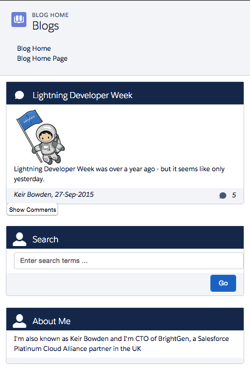
and finally a small device - the difference here is the image, hidden comments and the right hand content stacked under the blog post body:
Screen Shot 2015 10 04 at 13 37 41

In order to view the sample you’ll need to deploy the code or install the managed package, as I haven’t yet found a way to make lightning components available via a Force.com site. I have hopes that the new lightning components in Visualforce functionality in the Winter 16 release will be the solution to this, but I haven’t had time to play with this in a site context.

This sample was originally written for a Dreamforce talk using Visualforce and Twitter Bootstrap - you can find out more about this in my developerforce blog post.

Gotchas

One thing that I’ve been struggling with and been unable to find a solution to, is conditionally hiding some content for multiple device sizes. When my blog posts are displayed on extra small or small devices, I want to hide the comments and provide a button to allow the user to display them. In something like Bootstrap I’d specify the button container with the classes hidden-md and hidden-lg. LDS doesn’t have an equivalent of this, so I’ve ended up using a span with a single LDS class - slds-x-small-show (which due to mobile-first means hidden for everything) and then adding another container inside this to hide the content for medium devices:

<span class="slds-x-small-show">
    <div class="medium-hide">
        ... button markup here ...
    </div>
</span>

The medium-hide style is as follows: 

/* hide medium and above */
@media all and (min-width: 768px) {
	.THIS .medium-hide {
        display:none;
	}
}


Responsive images also proved a challenge. I use the Picturefill polypill as the HTML5 picture element support is still lacking on some browsers. The latest version of this makes use of the Picture element but the developer console won’t let me save the a component with that markup. For now I’m sticking with version 1 of Picturefill which uses spans. I might take another look at this in the future, as I should be able to add the picture element via JavaScript as part of the initialisation.

When I started writing the code for this blog post, the version of the Lightning Design System was 0.9.1. As I already had a sample using 0.8 I left that alone so there are two static resources in the repository/unmanaged package. LDS is now on 0.9.2 and may well be higher by the time I finish writing the post!

My Domain Required in Winter 16

Don’t forget that the Winter 16 release requires my domain to be set up in order to use Lightning Components.

Code Repository

The code for this sample is available in my Lighting Design System Samples github repository at : 

https://github.com/keirbowden/BBLDS.

There’s also an unmanaged package that you can install to get all of the samples, through be aware that if you do this then the next time I produce a sample you’ll have to uninstall the managed package which will lose any blog data you’ve created.

Related Posts


Sunday, 3 May 2015

Lightning Components and CSS Media Queries


NewImage

Overview

When building Lightning Components, its highly likely that you will be aiming to support multiple form factors - tablets, phones and maybe even desktops.  In order to achieve this, Responsive Web Design techniques need to be employed (for an overview of Responsive Design and an example of achieving this using Visualforce and the Bootstrap framework, see my post in the Salesforce Developers Technical Library). 

When using a framework such as Foundation or Bootstrap, its simply a matter of using the appropriate Lightning component, as described my earlier post on Lightning Components and JavaScript Libraries. Keeping the styling with the component presents a little more of a challenge.

Styling Lightning Components

Styling Lightning components is well documented, and involves adding styles to the component bundle. Here’s an component that renders a case, generating two fields per line through use of CSS floats.

Component:

<aura:component >
    <aura:attribute name="case" type="Case" description="Case to display" />
	<h1>
        <ui:outputText aura:id="caseNum" value="{!v.case.CaseNumber}"/>
    </h1>
	<div class="caseFieldLeft">
        <label>Subject: </label>
        <ui:outputText aura:id="subject" value="{!v.case.Subject}"/>
    </div>
	<div class="caseFieldRight">
        <label>Created: </label>
        <ui:outputDateTime aura:id="created" value="{!v.case.CreatedDate}"/>
    </div>
	<div class="caseFieldLeft">
        <label>Priority: </label>
        <ui:outputText aura:id="priority" value="{!v.case.Priority}"/>
    </div>
	<div class="caseFieldRight">
        <label>Status: </label>
        <ui:outputText aura:id="subject" value="{!v.case.Status}"/>
    </div>
</aura:component>

Style:

.THIS.caseFieldLeft {
    padding: 2px 4px 2px 2px;
    width: 45%;
    float: left;
    clear: both;
}
.THIS.caseFieldRight {
    padding: 2px 4px 2px 2px;
    width: 45%;
    float: right;
}
h1.THIS {
    padding: 4px 2px 4px 2px;
    font-size: 1.5em;
    clear: both;
}

For the sake of completeness, here are gists for the containing Lightning App, JavaScript Controller, JavaScript Helper and Apex Controller.

Using this component to render a list of cases results in the following:

NewImage

which is readable, if not exactly easy on the eye. However, when rendered on a phone sized viewport the experience is not so good:

NewImage

The Subject in particular isn’t really readable, and ideally I’d drop down to a field per line.

Adding Media Queries

Generating a field per line is simply a matter of adding a media query that takes effect for smaller devices - below is an example which does this for devices with a width of 980px or less:

@media all and (max-width: 980px) {
    .caseFieldLeft {
	    padding: 2px 4px 2px 2px;
	    width: 100%;
	    float: none;
	}
	.caseFieldRight {
	    padding: 2px 4px 2px 2px;
	    width: 100%;
	    float: none;
	}
}

As of May 2015 there’s one problem using this - the Style element of the component bundle won’t accept media queries. I’ve tried quite a number of combinations which always end up with the same result - a parse error.

Update 20/08/2015

The media query syntax is now supported in Lightning Component style elements (and may have been since the Summer 15 release I guess - this is the first chance I've had to revisit). Simply use the same style names that aren’t subject to the media query (remembering to include the .THIS to namespace to the component) :

 
@media all and (max-width: 980px) {
.THIS.caseFieldLeft {
padding: 2px 4px 2px 2px;
width: 100%;
float: none;
}
	.THIS.caseFieldRight {
padding: 2px 4px 2px 2px;
width: 100%;
float: none;
	}
}

and now viewing on a small device is an improved, if not enjoyable, experience!

NewImage

Related Posts

Saturday, 22 November 2014

Responsive Images in Visualforce

Introduction

When building applications to run on the Salesforce1 platform across multiple devices, utilising responsive web design techniques is a must.  A responsive application adjusts its layout according to the capabilities of the device used to view.

One of the biggest challenges in responsive web design is image handling - how to efficiently display appropriately sized images. 

Download and Shrink

A 2012 survey found that 86% of sites delivered the same content regardless of the device. In my opinion one of the main reasons for this is the download and shrink approach to images. In this case, a single large image is embedded inside a block container (such as a <div> element) and styled to take up 100% of the width.  As the block container changes size based on the capabilities of the device, the browser will automatically scale the image. 

The following page is an example of download and shrink:

<apex:page sidebar="false" showheader="false">
  <style>
    .respImageContainer{
    	width:150px;
    	padding-top:10px;]
    }
    
	@media ( min-width: 768px ) {
    	.respImageContainer
    	{
    		width:320px;
    	}
	}
	
	@media ( min-width: 1024px ) {
    	.respImageContainer
    	{
    		width:677px;
    	}
	}
  </style>
  
  <div class="respImageContainer">
    <img style="width:100%" src="{!$Resource.S1DevWeekLarge}" />
  </div>
</apex:page>

If the device has a minimum width of 1024px, the <div> element containing the image has a width of 677px, which is the actual size of the image:

Screen Shot 2014 11 22 at 17 42 48

If the device has a minimum width of 768px, the <div> element containing the image has a width of 320px:

Screen Shot 2014 11 22 at 17 43 02

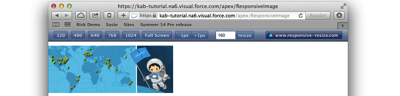
If the device has a minimum width of 320px, the <div> element containing the image has a width of 150px :

Screen Shot 2014 11 22 at 17 43 21

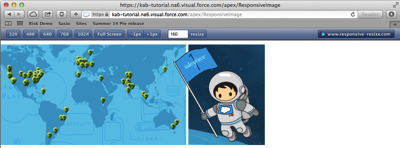
The original image is 677 x 259 pixels, 175343 in total. In the final screen shot, the image is resized to 150 x 57 pixels, 8550 in total.  This means that most of the image is discarded when displayed, which is extremely inefficient use of bandwidth. There is also another problem here, known as art direction - the map in the image in the final screenshot is really too small to be of any use, so it would be better to zoom in on the spaceman as the Salesforce1 developer week logo.

HTML5 Picture Element

In the fullness of time image handling will be provided by the HTML5 picture element, an example of which is:

<picture>
  <source media="(min-width: 1024px)" src=“large_image”></source>
  <source media="(min-width: 768px)" src=“med_image”></source>
  <source src=“small_image”></source>
  <img src="fallback_image"></img>
</picture>

as can be seen, the <picture> element contains a number of <source> elements, each of which refers to a different image. The <source> element optionally contains a media query which must be satisfied in order for the image to be chosen. In the example code above:

  • if the device has a minimum width of 1024px, the large_image file will be used. 
  • If the device has a minimum width of 768px, the medium_image file will be used.
  • Otherwise the small_image file will be used.

Note that the <picture> element also contains a regular HTML <img> element - if the browser doesn’t support the <picture> element, the fallback_image file will be used. The use of the fallback <img> element does present a challenge, as browsers typically try to pre-fetch images before the page has been completely loaded and parsed.  This can lead to the situation where the fallback image is downloaded, only to be discarded as the image file identified can be used instead.

Unfortunately browser support is still patchy for the <picture> element; at the time of writing (November 2014) only Chrome and Opera provide support by default. 

Picturefill

Picturefill, by Scott Jehl, is a Polyfill for the HTML5 picture element, that uses JavaScript to load the appropriate picture based on additional HTML5 data- elements on <div> or <span> elements:

<apex:page standardStyleSheets="false" showHeader="false">
  <style>
    .respImageContainer {
    	padding-top:10px;
    }
  </style>
<apex:includeScript value="{!$Resource.PictureFill_1_2}" /> <div class="respImageContainer"> <span data-picture="1" data-alt="S1 Dev Week"> <span data-src="{!$Resource.S1DevWeekSmall}"></span> <span data-src="{!$Resource.S1DevWeekMed}"
data-media="(min-width: 768px)"></span> <span data-src="{!$Resource.S1DevWeekLarge}"
data-media="(min-width: 1024px)"></span> </span> </div> <script> window.picturefill(); </script> </apex:page>

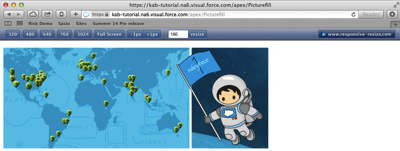
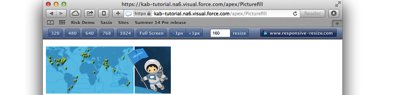
The image source is defined by the data-src attribute, while the media query is present in the data-media attribute.  I’ve included the Picturefill JavaScript as a static resource as I couldn’t find it on any of the major content delivery networks.  This adds a Picturefill function to the window element which is called to process the page and load any images. This results in appropriately sized images being delivered to each page, at 1024px:

Screen Shot 2014 11 22 at 17 49 29

at 768px:

Screen Shot 2014 11 22 at 17 44 12

and at 320px an image containing only the spaceman is rendered:

Screen Shot 2014 11 22 at 17 43 43

Picturefill has two versions - one that works against <div> elements and one that works against <span> elements.  I tend to use the latter as I've found that the <div> elements can interfere with the styling introduced by Bootstrap, which is my responsive framework of choice. The downside to this approach is that it introduces latency when loading images, as the page is rendered before the JavaScript executes, and only then are the images loaded.

Resources

Monday, 29 September 2014

My Dreamforce 14 Sessions

Screen Shot 2014 09 28 at 08 30 40

Dreamforce is only a couple of weeks away now, and once again I’m (co-)presenting a few session in the dev zone:

Monday 13th October 12:45 - 13:15 - Tech Talks 301: Stage Presence

This is part of a series of talks aimed at encouraging new speakers - from the overview "You'll learn how to overcome your anxiety and present with confidence”.  Very few people are born to present and, believe it or not, I wasn’t one of them. I’m co-presenting this session with Mark Passavoy of Appirio and I’ll share my top tips for great sessions.

https://success.salesforce.com/Ev_Sessions#/session/a2q30000000iWJJAA2

Tuesday 14th October 10:00 - 10:40 - Responsive Design with Visualforce and Twitter Bootstrap

Responsive design is a key requirement when building Visualforce pages nowadays, especially with the advent of Salesforce1 and the need for apps to display appropriately on any device. Come along to this session to learn what responsive design is all about, the key techniques and tools, along with a demo built using Twitter Bootstrap and Visualforce, and a look at the code.

https://success.salesforce.com/Ev_MyAgenda#/session/a2q30000000gunfAAA

Wednesday 15th October 12:15 - 2:45 - Hands-on Workshop: Intermediate Development with Heroku and Force.com

A hands-on Elevate-style workshop in the devzone.  Don’t forget your laptop!

https://success.salesforce.com/Ev_MyAgenda#/session/a2q30000000iHsMAAU

Wednesday 15th October 10:30 - 11:30 - The Salesforce Developer Keynote

Okay, this isn’t one of my sessions - I’m still not important enough to make the stage for this one, although if Dave Carroll twists a knee on the steps up I’m ready to step in! The Developer Keynote is always the highlight of Dreamforce for me and this year will be no different, so make sure you don’t miss out and reserve your seat today.

https://success.salesforce.com/Ev_Sessions#/session/a2q30000000iVwcAAE

I’m also waiting to hear on a couple of other things (*cough* hackathon *cough*), so keep an eye out for updates to this post.

Sunday, 25 May 2014

Salesforce1 World Tour

The Salesforce1 World Tour reached London on 22nd May 2014.  In a change of format from previous Salesforce events, the Expo and Dev Zone was open from 8:15 until the keynote started at 10:30.  As BrightGen, were a Platinum Sponsor, this meant our stand had to be show ready by 8am.  The stars had aligned for us in terms of workloads, which allowed us to bring a fair few staff with us, including a few new joiners who had never been to a show before.  

We had a high level of interest in our offerings, so I spent most of the day on our stand aside from my Dev Zone talk at 2:30. Every year the Dev Zone gets bigger and better and this year was no different - standing room only for all of the talks and a very attentive audience.  My talk was on Responsive Design with Visualforce Pages and the slide deck is available below:

For my talk I created a simple blog site, containing a home and links page.  You can access the site at : 

http://bobbuzz.me.uk/SF1RD

and if you’d like to see the code behind it, that is available on Github at:

http://bobbuzz.me.uk/SF1GH

The Github repository has a link to an unmanaged package if you’d like to install the code into your own developer edition to play around with it.

Friday, 7 March 2014

Salesforce1 and Visualforce - Things I've Learned

At the February Meetup of the London Salesforce Developers Group, I presented a session where I went through some of the things I’ve learned while building Visualforce solutions to run in Salesforce1. The slide deck for this session is available on SlideShare, but some of the slides might be difficult to understand without the words that went with them, so in a departure from my usual blogging style I’ve decided to pick out some slides from the deck and explain what I was trying to show.

Capturing Input

Screen Shot 2014 03 06 at 12 37 10

Screen Shot 2014 03 06 at 12 37 43

The <apex:inputField /> component is not supported in Salesforce1if it creates a widget - e.g. date picker (although this component seems to work a lot of the time in iOS but not android).  Rather than trying to implement your own version of a Visualforce input, its better to use the HTML5 type attribute and let the browser determine the appropriate input mechanism to display.  The second slide shows how the the iPhone reacts to type attributes - displaying a date  spinner for a date and a custom keyboard including digits for number.  Unfortunately there isn’t a type for a lookup to another record, so you’ll still need to roll your own solution to this.

Screen Shot 2014 03 06 at 12 44 40

Something many people complain about when using HTML5 or Hybrid mobile applications is that clicking buttons can be unresponsive. Often this is down to the default behaviour of the webkit based browser (so Safari or Chrome at the least), which is to wait 300m/s after a click to see if the user is actually carrying out a double-click.  While this makes sense on the desktop, double tapping isn’t that common in mobile applications (although it is sound advice in Zombieland). The way that I typically work around this is to bind to the touchstart/end events rather than the click event.  When working in JQuery Mobile this is easy, as the framework adds support for these events.  Otherwise, built-in browser support is patchy so you may end up having to use another JavaScript solution such as the Event or Zepto packages. 

window.open()

The next block of slides relates to using window.open() to open a child browser window rather than the regular webview - this only works for iOS, but has allowed me to work around a few issues:

Rotating the iPhone application simply results in a sideways view of the page:

Screen Shot 2014 03 06 at 13 00 46

whereas rotating a page opened in the child browser works as expected:

Screen Shot 2014 03 06 at 13 00 59

List jumping has been acknowledged by Salesforce as a known issue. What happens here is that if you have a clickable list of items that is larger than the viewport, when you scroll down and click an entry, the application jumps back to the top of the list after the click.  However, I found this to be worse when using Bootstrap, in that the jump to the top took place before the click had been handled, resulting in the click being applied to the wrong element.

In the slide below, I’ve clicked on the Blog 5 entry to expand, but the app has jumped back to the top and expanded the Blog 11 entry,  I originally found this when placing delete buttons on a list, so it wasn’t just an irritant, it was affecting the data:

Screen Shot 2014 03 06 at 13 02 24

If I open the list in a child browser though, the item that I click on is the one that expands and the view stays at the correct place:

Screen Shot 2014 03 06 at 13 05 45

The next issue that I covered involved Bootstrap responsive tables.  The way that Boostrap handles tables is to leave it sized as it is, but wrap it in a scrolling element.  This means that when a page containing a responsive table is accessed on a small screen device, the elements outside the table will wrap and the table becomes scrollable:

Screen Shot 2014 03 06 at 13 07 06

Accessing this page in the Salesforce1 app, however, and the page is resized to the width of the table, with the text spanning the full width.  Even worse, if you have any dialogs in the page, they will be the full width of the page too, which means that you would need to scroll around the page to find the dialog message:

Screen Shot 2014 03 06 at 13 10 10

Opening the page inside the child browser respects the fact that the table is scrollable and reflows the text appropriately for the device:

Screen Shot 2014 03 06 at 13 11 40

As I’ve blogged before though, the child browser introduces some additional complexity - you can’t tell that you are in the Salesforce one context for a start, and as I mentioned earlier, it isn’t a solution for Android (although the responsive tables do behave correctly on my Nexus 7 so there is slightly less need for it).

 The final points I made were around mobile development best practice:

Screen Shot 2014 03 06 at 13 16 51

If you are designing applications that will genuinely be used while on the road, with all of the connection and bandwidth issues that brings, you really don’t want to be using much Visualforce at all, instead you should rebuild the app to do most of its work on the device. I presented a session on this topic at Dreamforce that applies equally well to Salesforce1 - you can watch the video here.